Create a product video from a photo already on your listing: a skincare bottle on a shelf, a pair of shoes on a plain background, or a coffee pouch beside a window. The first decision is what should move. A gentle reflection across glass creates a different shot from a camera moving toward stitching on a shoe.
With a product photo to video workflow, you upload one image and describe that movement. The ezVideo image-to-video generator can generate a short clip for you to preview. Your job is to check that the result still represents the item you sell, especially its shape, colors, packaging, and lettering.
This guide explains how to choose a manageable shot, create a first version in ezVideo, and adapt 20 product video prompts for ecommerce product videos. If this is your first image-to-video project, the step-by-step photo animation tutorial covers the general workflow in more detail.
Product Photo to Video: Choose a Shot That Fits the Product
Before starting a product photo to video task, decide what the viewer should notice. For a perfume bottle, it might be the glass finish. For a backpack, it might be the stitching. For a boxed product, it may be the front panel and its printed design.
Choose a movement that gives that detail enough time on screen:
| What matters in the photo | Useful first shot | Check in the generated clip |
|---|---|---|
| Front label or package artwork | Fixed camera with a soft moving highlight | Letters, logo placement, panel edges |
| Leather, fabric, or ceramic texture | A very short push-in at the original viewing angle | Grain, weave, seams, surface finish |
| Overall product silhouette | Gentle camera movement with the whole item visible | Proportions, handles, corners, feet |
| Product in a lifestyle setting | Small movement in an existing curtain, plant, or shadow | Product stability and background geometry |
| Hot food or a drink | Subtle movement of visible steam | Ingredients, portion size, cup shape, liquid level |
A request for a full rotation asks the model to generate surfaces your source photo may never show. Start with movement around the visible details. Use photographs or real footage of other angles when those views are important to the buying decision.
Prepare a Clear Image for Your Product Photo-to-Video Project
To turn a product photo into a video, choose an image in which the product is sharp, fully visible, and separated from the background. Read the label at the size you expect to use in the finished video. If it is already illegible, a motion prompt is unlikely to make its lettering dependable.
Before uploading to the image-to-video generator, check these details:
- The photo shows the correct product variant, color, and package version.
- Important features, such as a cap, handle, clasp, or sole, are visible.
- There is enough room around the item for the camera movement you want.
- Reflections leave the product's outline and printed details easy to inspect.
- Any prop you want to animate, such as a curtain or plant, is already present.
If the source needs a cleaner background or a small correction, prepare it in the ezVideo AI image editor. Compare the edited image with the original before using it for video, since an image edit can also alter a seam, label, or product edge.
For vertical ecommerce product videos, start with a composition that leaves room above and below the product. Leave space for captions or an offer if you plan to add them later in a video editor. Check the selected model's available aspect ratios before generating.
How to Turn a Product Photo into a Video with ezVideo
1. Upload a Product Photo to the Image-to-Video Generator
Open the ezVideo product photo to video workspace, sign in when prompted, and upload your source photo. Wait until its preview is ready. The current workflow accepts one starting image per video task.
In your image-to-video workspace, choose the model and review its available duration, aspect ratio, resolution, and credit estimate. Use a short first version that will be easy to inspect.
2. Write Product Video Prompts for One Clear Movement
For your first AI product video, use a prompt such as:
The bottle remains still while a soft highlight moves slowly across the glass. Fixed camera, consistent bottle shape, cap, label layout, and colors, one continuous shot.
A focused product video prompt gives the model a visible change to create while keeping the shot simple. For a camera-led version, replace the lighting movement with a very slow push-in. Test that change separately so you can compare the results.
For camera vocabulary to refine your product video prompts, see the image-to-video prompt guide.
3. Generate Your AI Product Video and Check the Details
Review your product photo-to-video result from beginning to end. Pause near the beginning, middle, and end, and compare the product with the uploaded image. Watch the smaller details too: a zipper can drift while the bag looks convincing, and a bottle can keep its outline while the label changes.
When an AI product video changes a product detail, adjust the instruction most closely related to it. Reduce the camera travel for a shifting silhouette; use steady lighting when changing highlights make the product color difficult to judge.
4. Download and Edit Your Product Video from a Photo
Once your product video from a photo passes review, download the selected take. Add exact prices, specifications, promotional copy, music, and a call to action in your preferred video editor. Keeping those elements editable makes later updates easier.
For longer ecommerce product videos, make separate clips for the overall product, a visible detail, and the final offer frame. Assemble them during editing, checking that the product's appearance stays consistent between shots.
20 Product Photo to Video Prompts for E-commerce
These product video prompts cover packaging, fashion, home products, and food. Choose a prompt whose source-photo description matches your image. Adapt the product details and movement to what is visible. Start with the quoted prompt, then refine it in response to the generated result.
The four product photo to video examples pair an AI-generated source image with a clip made from that image, one for each category. Compare the movement with the prompt and inspect the product details before adapting the shot for your own listing.
Product Video Prompts for Bottles, Jars, and Packaging
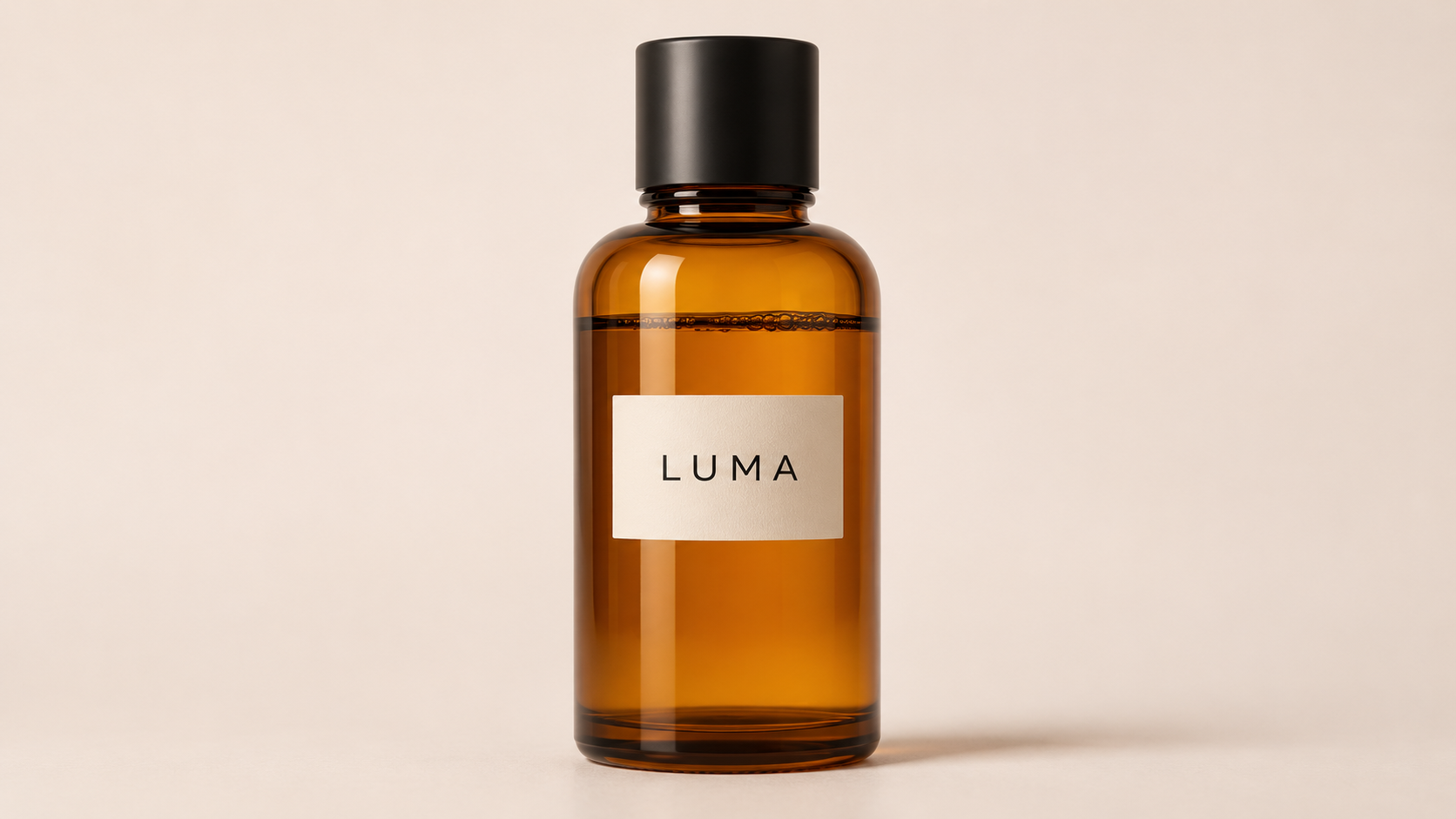
1. Glass bottle with a moving reflection
For product photo-to-video work with glass bottles, use a front-facing image with a clear label and simple backdrop.
The bottle stays still while one soft reflection moves slowly across the glass. Keep the label layout, cap, liquid level, and bottle outline consistent. Fixed camera, gentle studio lighting, one continuous shot.
Source image
Generated video
2. Skincare jar close-up
For a skincare product video from a photo, choose a closed jar with its lid and front label clearly visible.
The camera moves very slowly toward the jar, bringing the visible lid and front label closer. The jar stays closed and stationary. Preserve its proportions, label layout, surface finish, and original lighting throughout one continuous shot.
3. Product box with a small camera slide
For packaging product video ads, use a box showing its front and a narrow section of one side.
The camera slides a very short distance to the right while the box remains stationary. Keep the front panel fully visible and the package proportions consistent. Use steady lighting and a single restrained movement around the visible surfaces.
4. Coffee pouch with background movement
To animate product photos with a lifestyle backdrop, use a sealed pouch with plant leaves already visible behind it.
The pouch remains still while the background leaves sway gently in a light breeze. Keep the pouch silhouette, seal, printed design, and tabletop consistent. Locked camera, restrained background movement, soft daylight, one continuous shot.
5. Beverage can with a gentle upward tilt
To turn a product photo into a video with an upward tilt, use a full view of the can with space above and below it.
The camera tilts upward slightly while the can stays fully within the frame. Preserve the printed design, top rim, and can shape. Keep the can stationary under even lighting, with one slow, continuous camera movement.
AI Product Video Ideas for Fashion and Accessories
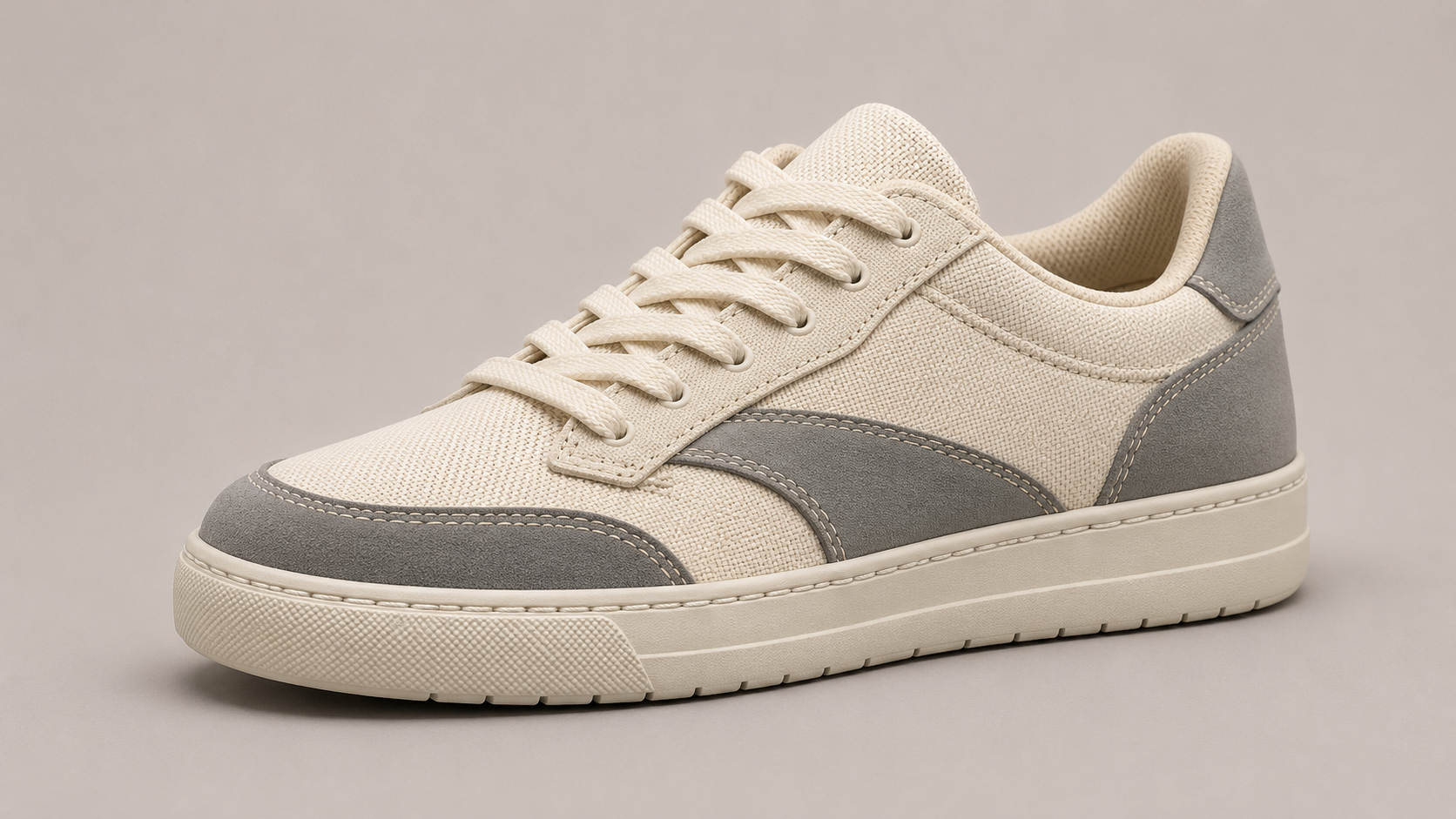
6. Sneaker stitching close-up
For an AI product video of a sneaker, use a three-quarter view with the shoe's panels and stitching in focus.
The camera slowly pushes toward the visible stitching and upper texture. The shoe stays in its original position. Preserve the sole shape, laces, panels, and colors. End with the entire shoe still comfortably inside the frame.
Source image
Generated video
7. Leather bag with a soft highlight
Use a bag with visible grain, handles, seams, and front hardware.
A broad, soft highlight travels slowly across the bag's visible leather surface. The bag, handles, and hardware remain still. Keep the grain, seams, proportions, and original color consistent, using a fixed camera and one continuous shot.
8. Watch dial close-up
For a watch product video from a photo, choose a sharp overhead view of the dial and strap.
The camera moves slowly closer to the watch dial while maintaining the original viewing angle. Keep the watch, hands, markers, strap, and case in their pictured positions. Use soft, steady light and a single uninterrupted shot.
9. Necklace with a pendant reflection
For a jewelry product video from a photo, use a flat arrangement with the pendant and chain clearly separated.
The necklace stays in place as a narrow, soft reflection moves across the pendant. Keep the chain arrangement, stone shape, setting, and metal color consistent. Fixed overhead camera, subtle lighting movement, stable composition throughout one continuous shot.
10. Sunglasses with a small lateral move
For fashion product videos from photos, use open sunglasses resting on a plain surface at a slight angle.
The camera slides a very short distance alongside the sunglasses while they remain stationary. Keep the frame outline, hinge positions, and lens tint consistent. Preserve their original position on the surface and use one slow, continuous shot.
Product Photo to Video Examples for Home and Lifestyle Products
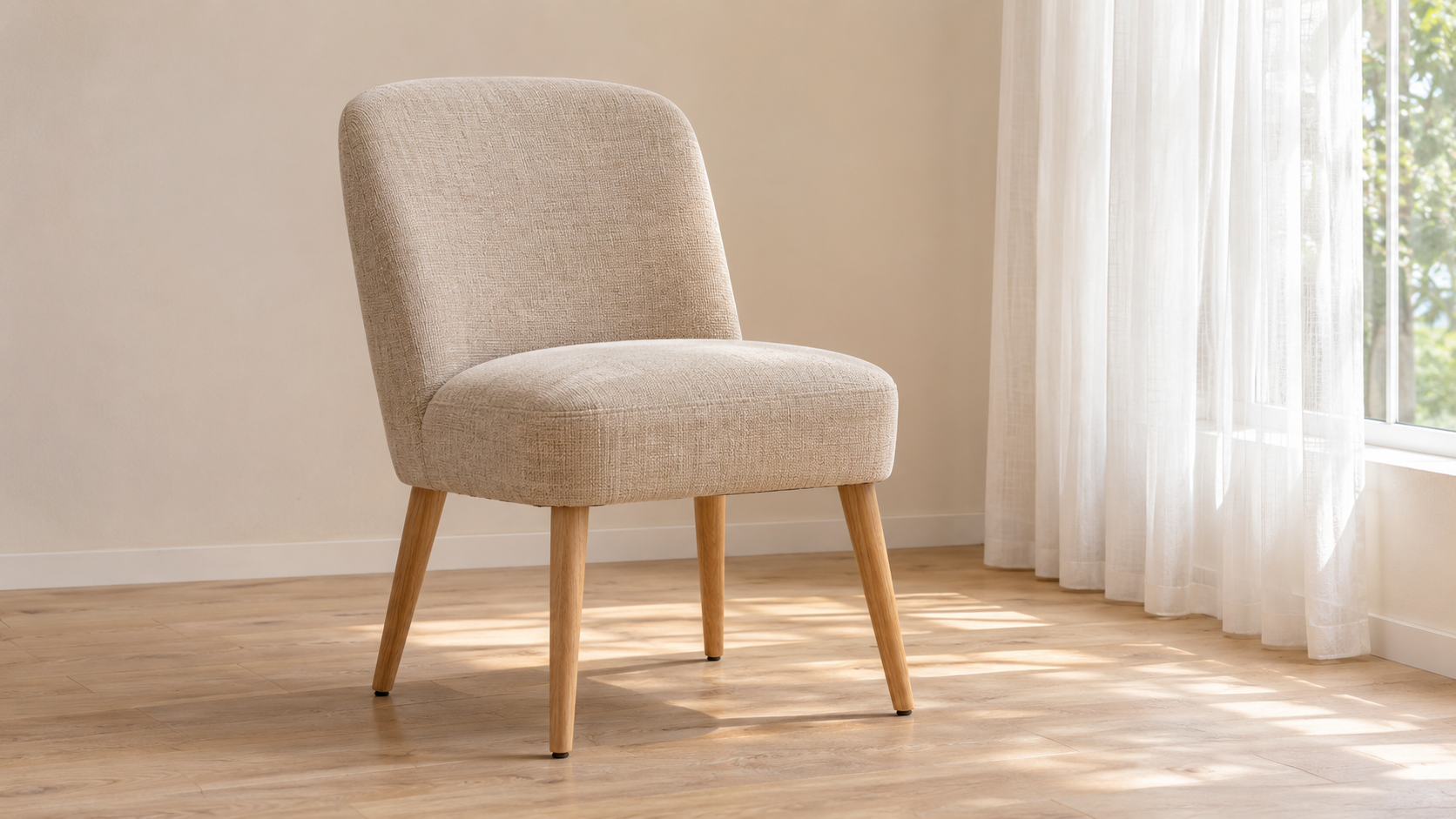
11. Chair beside a moving curtain
To animate product photos in a home setting, use a fully visible chair beside an existing lightweight curtain.
The curtain moves gently in a light breeze while the chair stays still. Preserve the chair's legs, upholstery, proportions, and position. Locked camera, soft daylight, restrained curtain movement, one continuous shot with the full chair visible.
Source image
Generated video
12. Table lamp with passing leaf shadows
Use an unlit lamp with existing plant shadows in the background.
The existing leaf shadows drift slowly across the background while the lamp remains stationary. Keep the shade, base, cord, and lamp finish consistent. The bulb stays unlit. Use a fixed camera and subtle environmental movement.
13. Cushion fabric close-up
For a fabric-focused product video, use a cushion with visible weave, seams, and its surrounding sofa.
The camera slowly approaches the cushion's visible fabric texture, keeping the original viewing angle. The cushion and sofa remain still. Preserve the weave, seam positions, folds, and colors, with even daylight and one gentle, continuous camera movement.
14. Ceramic mug with a glaze highlight
For ceramic product photo animation, use a mug with its handle, rim, and exterior clearly visible.
A soft band of reflected light moves slowly across the mug's glazed surface. Keep the mug stationary and preserve its handle, rim, proportions, and glaze color. Fixed camera, gentle lighting movement, consistent background, one continuous shot.
15. Home decor arrangement
Use a small shelf arrangement with every item fully visible.
The camera slowly pushes toward the center of the arrangement. Every object stays in its original position. Preserve the spacing, shapes, materials, and shelf edges. Keep the complete arrangement visible under steady light throughout one continuous shot.
Product Videos from Photos: Food, Drinks, and Gifts
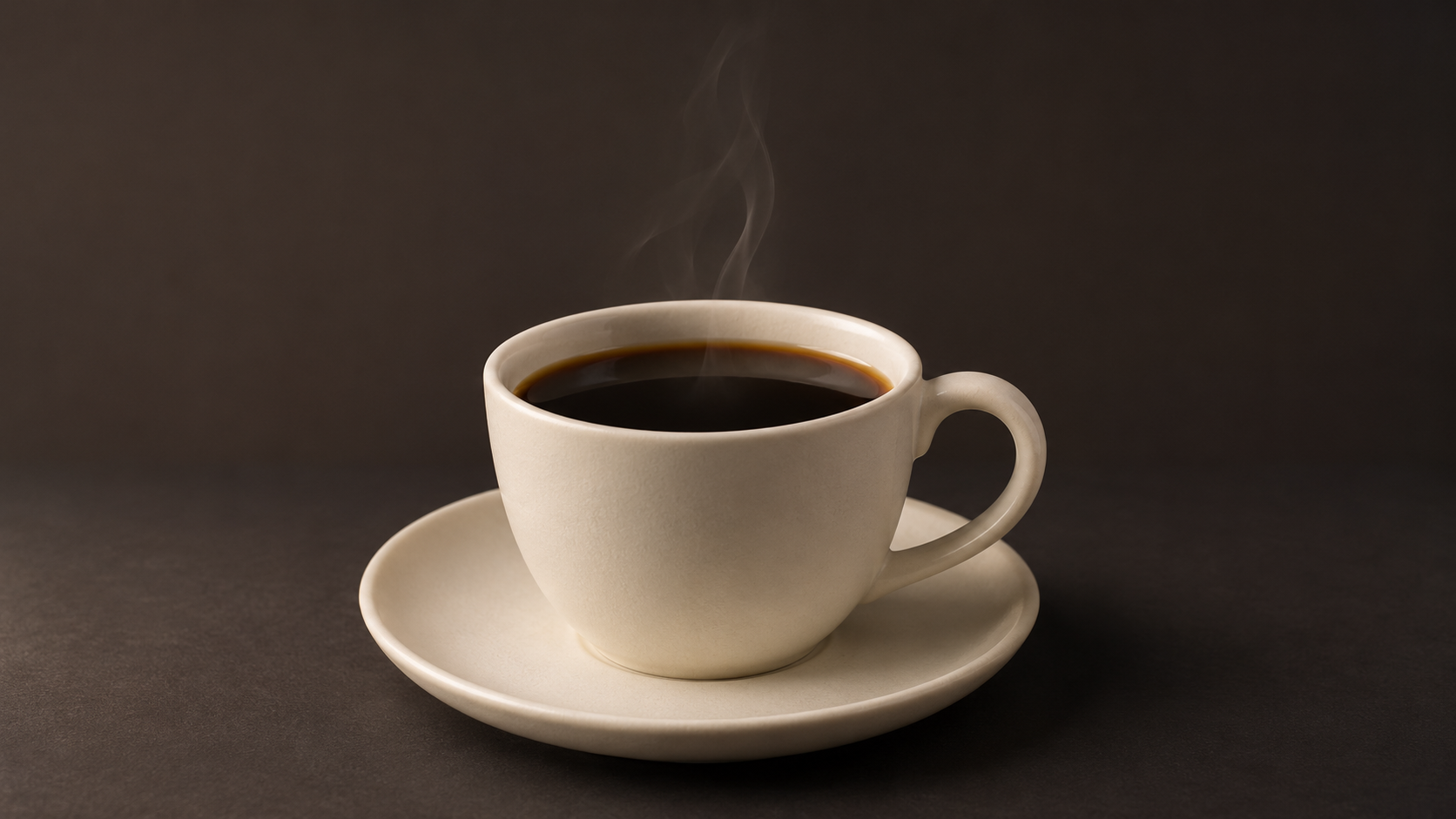
16. Hot coffee with rising steam
For this product photo-to-video shot, choose a filled coffee cup with steam already visible against a darker background.
The existing steam rises gently above the coffee while the cup remains stationary. Preserve the cup shape, handle, liquid level, and tabletop. Locked camera, delicate steam movement, consistent lighting, a calm liquid surface, one continuous shot.
Source image
Generated video
17. Cold drink with a slow push-in
For cold-drink product video ads, use a chilled drink with visible ice, garnish, and condensation.
The camera slowly moves closer to the glass while the drink remains still. Keep the existing ice, garnish, condensation, liquid level, and glass outline consistent. Maintain the original angle and use one smooth shot with a calm liquid surface.
18. Pastry texture close-up
For a food product video from a photo, use a pastry with a clearly visible crust and uncluttered presentation.
The camera gradually moves toward the pastry's visible crust texture. Keep the pastry, crumbs, and plate stationary. Preserve the original shape, surface details, and colors, using soft side lighting and a short, continuous move within the existing composition.
19. Plated meal with a moving napkin corner
Use a meal beside a loose napkin that is separate from the plate.
The napkin's loose corner moves slightly in a light breeze while the plate and food stay still. Preserve the ingredients, portion arrangement, plate shape, and original colors. Fixed camera, subtle fabric movement, steady daylight, one continuous shot.
20. Open chocolate gift box
For ecommerce gift videos, use an already-open box with every chocolate and its position clearly visible.
A soft reflection moves slowly across the visible chocolates while the open box remains stationary. Preserve the number, arrangement, shapes, and packaging details. Fixed overhead camera, restrained lighting movement, one continuous shot with every piece in its original position.
Fix Common AI Product Video Problems
After generating an AI product video, check whether the clip still represents the item accurately. Review the first visible error and simplify the part of the shot that caused it.
| Problem in the result | First adjustment to try |
|---|---|
| The label changes or becomes unreadable | Keep the product front-facing and use a fixed camera with steady light. |
| The cap, handle, or product silhouette changes | Reduce the camera movement and choose an image with a clearer outline. |
| A box bends or its corners drift | Keep the original viewing angle and remove rotation from the prompt. |
| Metal or glass changes color | Reduce the lighting effect and use a more evenly lit source photo. |
| New ingredients, props, or accessories appear | Simplify the scene description and name only the visible movement you need. |
| The video feels almost static | Give one element a visible action, such as drifting steam or a moving reflection. |
| The camera cuts to a different shot | Simplify the prompt to one movement and one continuous shot. |
If a product photo-to-video result changes essential packaging text, a conventional pan or zoom on the original photo in a video editor is a practical fallback. Add exact branding, offers, and specifications as editable elements during finishing. A moving image is useful only if the item remains accurately represented.
Edit Ecommerce Product Videos for Product Pages and Social Posts
When creating ecommerce product videos, choose the placement before the final edit. A product-page detail clip may need a quiet view of the item, while a social post may need room for captions and a clear closing frame.
Review the finished version at its intended display size:
- Compare the color, shape, printed design, and visible features with the real product.
- Check the opening frame, the middle of the movement, and the ending frame.
- Watch for duplicated objects, drifting edges, and changing quantities.
- Keep captions clear of the product and check their readability on a phone.
- Confirm the price, offer, and call to action in the final edit.
- Play the exported file to check framing, sound, and playback.
Product photo animation can add movement to a creative product presentation. Use real footage when you need to demonstrate assembly, fit, capacity, or performance that a buyer will rely on.
Product Photo to Video FAQs
How Can I Turn a Product Photo into a Video Without Filming?
Use an image-to-video generator to turn one product image into a short clip. In ezVideo, upload the photo and describe a movement, such as a slow camera push or a soft reflection. Review the generated clip against the original product before using it in your store or an advertisement.
What Is the Best First Prompt for an AI Product Video?
Start with a stationary product, one small movement, and a short description of the important details to preserve. For a bottle, try a fixed camera and a moving highlight. For a fabric product, try a short push-in toward the visible texture.
Can a Product Photo-to-Video Workflow Preserve My Logo and Label?
A product video prompt can request consistency, but exact lettering and logos can still change during generation. Use a sharp source, keep the printed panel visible, and inspect the full clip. Use conventional editing for exact text or branding when generation cannot preserve it reliably.
Can a Product Video from a Photo Show a Complete 360-Degree View?
A single-image clip can include an imagined rotation, but it does not document the hidden surfaces. A generated back or side view may misrepresent the item. Use real additional-angle images or footage when the video needs to show those details accurately.
Can I Turn Several Product Photos into One Video?
The current image-to-video workspace accepts one starting image per task. Make separate clips from other product photos and combine selected takes in a video editor if you need several views.
Do Product Video Prompts Need Negative Instructions?
That depends on the model used for your product photo to video task and its available controls. Start by describing the desired state, such as a stationary bottle, consistent label layout, and a fixed camera. If the model provides a separate negative-prompt field, use it for a specific problem you observed.
Can I Use AI Product Videos in Ecommerce Ads?
Before using AI product videos as ads, review the product's accuracy, add the final copy and audio, and check the requirements of the placement. Source-image permissions and the current tool terms also matter for commercial use. A generated clip still needs those finishing decisions.
Ready to try a product photo to video project? Open the ezVideo image-to-video generator, choose one clear product photo, and start with the prompt that best matches its visible details.