Recent tasks

This task list is saved only in this browser for 4 hours. Uploaded images are deleted from our servers within 24 hours after processing.

No recent tasks yet.

Generated result

Select a task to check its latest result.

Seedance 2.0 AI Video Generator

Your image sets the scene. You direct what happens next. Use Seedance 2.0 on EzVideo to turn portraits, illustrations, and product photos into short videos with a motion prompt.

Sample preview

32 credits

Generate video

Duration≈32 credits

Aspect ratio

Resolution

0 / 600

≈32 credits

From a still image to a scene worth watching

Explore these motion studies before planning your own Seedance 2.0 video. Choose a clear subject, give the shot one action, and let the camera reveal the rest.

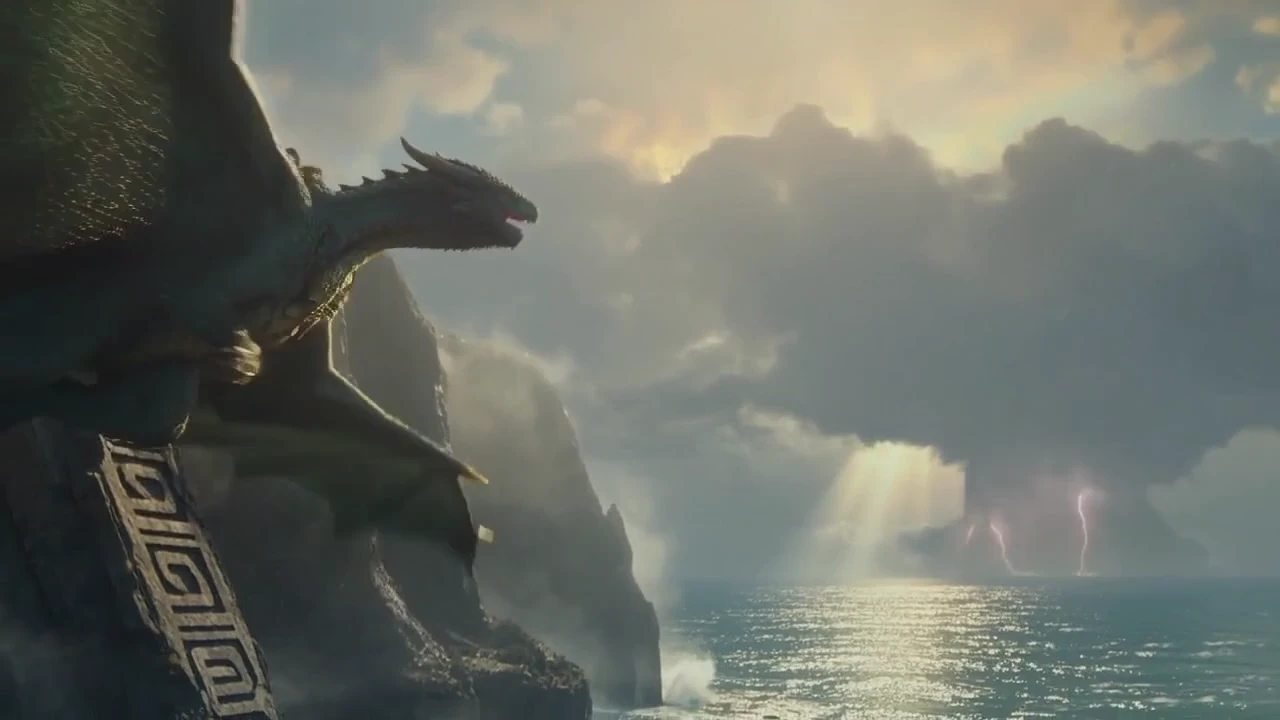
Build suspense before the reveal

A distant creature and an ocean horizon can open a much bigger story. Try this direction: “The camera glides toward the dragon while storm clouds drift across the coast; hold the horizon steady.” Use the pause before the action as a fantasy teaser or an opening shot.

Dragon overlooking the ocean beneath storm clouds

Build suspense before the reveal

A distant creature and an ocean horizon can open a much bigger story. Try this direction: “The camera glides toward the dragon while storm clouds drift across the coast; hold the horizon steady.” Use the pause before the action as a fantasy teaser or an opening shot.

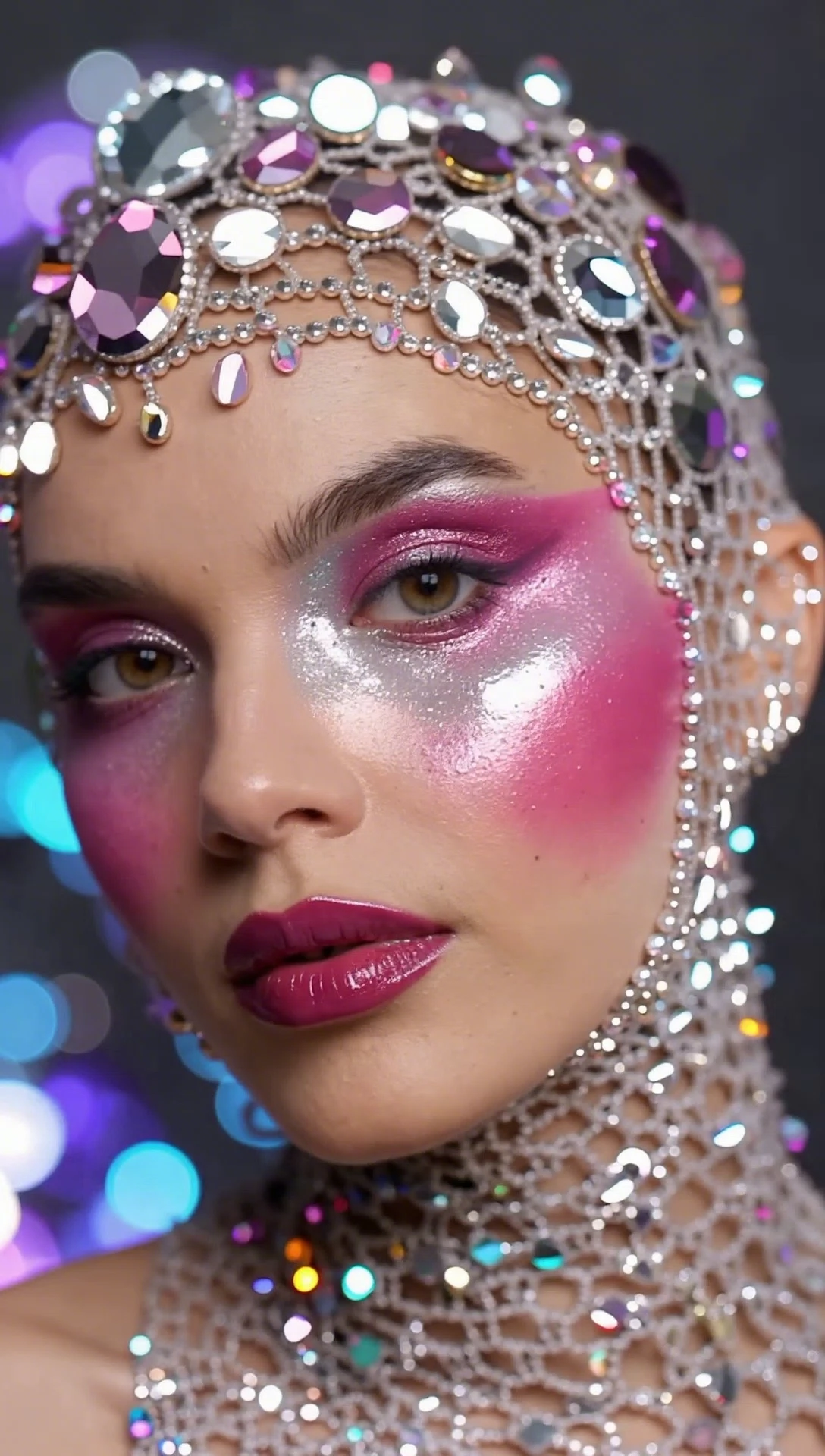
Portrait with pink and silver makeup and a jeweled headpiece

Let light travel across a face

Turn a detailed portrait into a study of texture and reflection. Try “A slight head turn toward soft light; the camera stays close; the jeweled headpiece remains in view.” Keep the movement restrained so makeup, skin texture, and highlights remain the focus of your editorial clip.

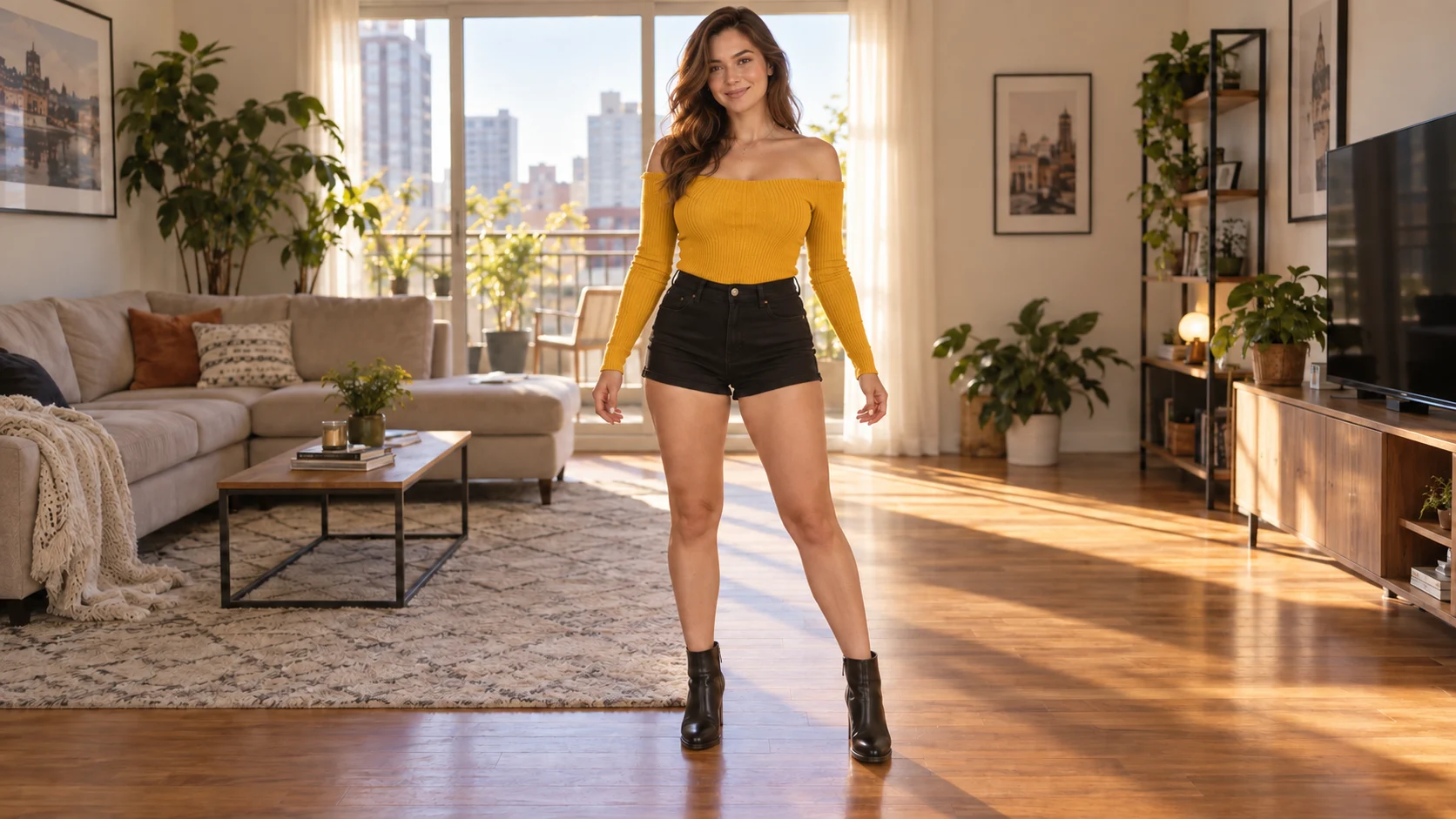
Woman in a yellow top standing in a sunlit living room

Find the beat in a single gesture

Start a social clip with a relaxed sway or a playful step. Give a full-body photo space around the arms and legs, then describe a short movement with a fixed camera. Review the body motion first and add your chosen music when editing the finished sequence.

Animated child on a slide in a pastel candy landscape

Rehearse a storybook adventure

Use an illustrated scene to test how a character enters the action. A prompt such as “The child slides forward through the pastel landscape as the camera gently follows” gives an animation pitch a readable story beat. Build longer scenes from separately reviewed clips in your editor.

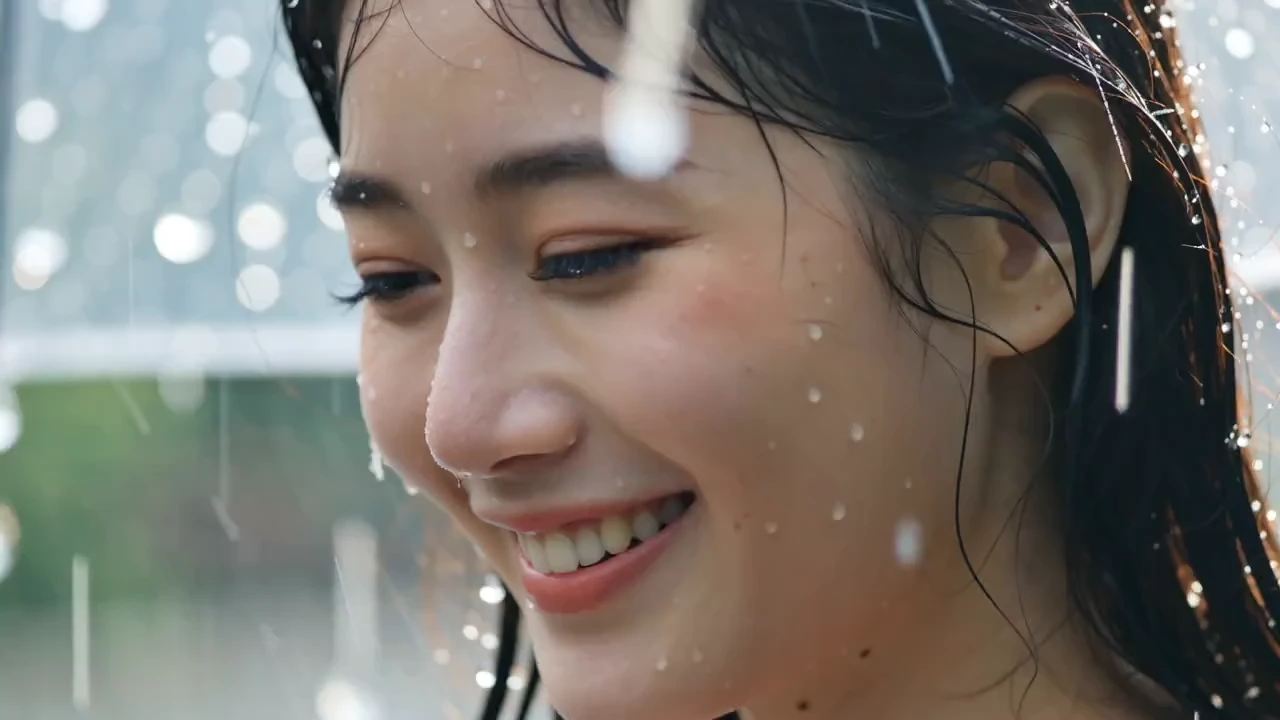
Smiling woman with water droplets around her face

Hold the moment before a smile

A small expression can carry an entire close-up. Try “A gentle smile forms as the camera slowly moves closer; keep the face centered.” Use a clear portrait to explore an intimate greeting, a character introduction, or a quiet closing shot.

Direct your Seedance 2.0 image-to-video shot

Use the image for composition and the prompt for change. A few deliberate choices make it easier to review your first take and decide what to adjust.

Give the scene a clear starting frame

Choose a sharp image with one readable focal point. Leave room in the direction your subject will move. For a product, make its shape and label easy to see; for a portrait, begin with a clean view of the face.

Separate subject motion from camera motion

Write the action first, then the camera instruction: “The subject turns toward the window. The camera slowly pushes in.” Keep the background still when you want the viewer to concentrate on one expression or object.

Choose the length and framing of the take

Select Seedance in the workspace and review its available duration, resolution, and aspect-ratio settings. Use a wide composition for an establishing shot or a vertical crop for a portrait. Check the displayed credit cost before generating.

Refine one decision at a time

Watch for changes in facial features, hands, lettering, and small accessories. If a take feels too busy, simplify the action before increasing the duration. Compare the revised clip with your source image before downloading.

Where your next AI video can begin

Build a useful shot for the project you are making: a story opening, a visual pitch, a social post, or a product reveal.

Film concepts and opening scenes

Turn a concept illustration into a short camera test before committing to a longer sequence. Explore a slow approach, moving weather, or a character reveal, then use the result to communicate the mood of your film or game pitch.

Portrait portfolios and fashion stories

Give a lookbook image a subtle change of pose or light. Keep the face, fabric, and accessories in view so the movement supports the styling. Review fine details before adding the clip to a portfolio or campaign edit.

Product teasers from existing photos

Start with a product image you already own and explore a gentle camera move or shifting reflection. Leave space for copy to be added later, and check the generated packaging and text against the real product before publishing.

Short social stories with a strong first frame

Use a gesture, expression, or animated character to open a Reel or Short. Plan one visual beat per clip, choose a suitable frame, and assemble your captions, music, and ending in your video editor.

How to use Seedance 2.0 online

Create an image-to-video clip in the EzVideo workspace above, then review the result before your next take.

  1. Upload the image that opens your shot

    Choose a portrait, product photo, or illustration. If the image needs a new background or a different composition, prepare it in the image editor before bringing it into the video workspace.

  2. Select Seedance and describe the motion

    Check that Seedance is selected, especially if you have saved settings from another page. Describe one subject action and one camera move, then choose the available settings and review the credit cost.

  3. Generate, watch, and download

    Start generation and watch the complete result when it is ready. Keep a take you like, or adjust the motion prompt for another attempt. Download your clip and add it to your final edit.
Seedance 2.0 questions, prompts, and free credits

Seedance 2.0 is an AI video generation model developed by ByteDance. This EzVideo page provides an image-to-video workspace: upload a source image, select Seedance, and describe the motion you want to explore.

You can select Seedance in the EzVideo generator at the top of this page. Prepare a source image and motion prompt, check the available settings and credit cost, and start your clip in the browser.

EzVideo offers daily free credits. You can use them toward a Seedance generation when your balance covers the displayed cost. The number of clips depends on the selected duration and resolution; review the estimate in the workspace before starting.

Describe what changes after the first frame: the subject action, camera movement, and pace. For example: “The portrait subject slowly turns toward the window; the camera moves closer; the background stays still.” Start with one action, review the result, and change one instruction for the next take.

This workspace needs an image plus a prompt. If your idea only exists as text, create a source image in the image editor first. Return here with that image and describe the movement you want to add.

Use the options shown for the selected model in the workspace. Start with a short clip to test your motion prompt, and match the framing to your project. Longer clips and higher resolutions can cost more credits, so check the estimate each time you change the settings.

Turn your first frame into your next scene

Bring one image and a motion idea. Open Seedance in the EzVideo workspace and direct your first take.

Image Editor