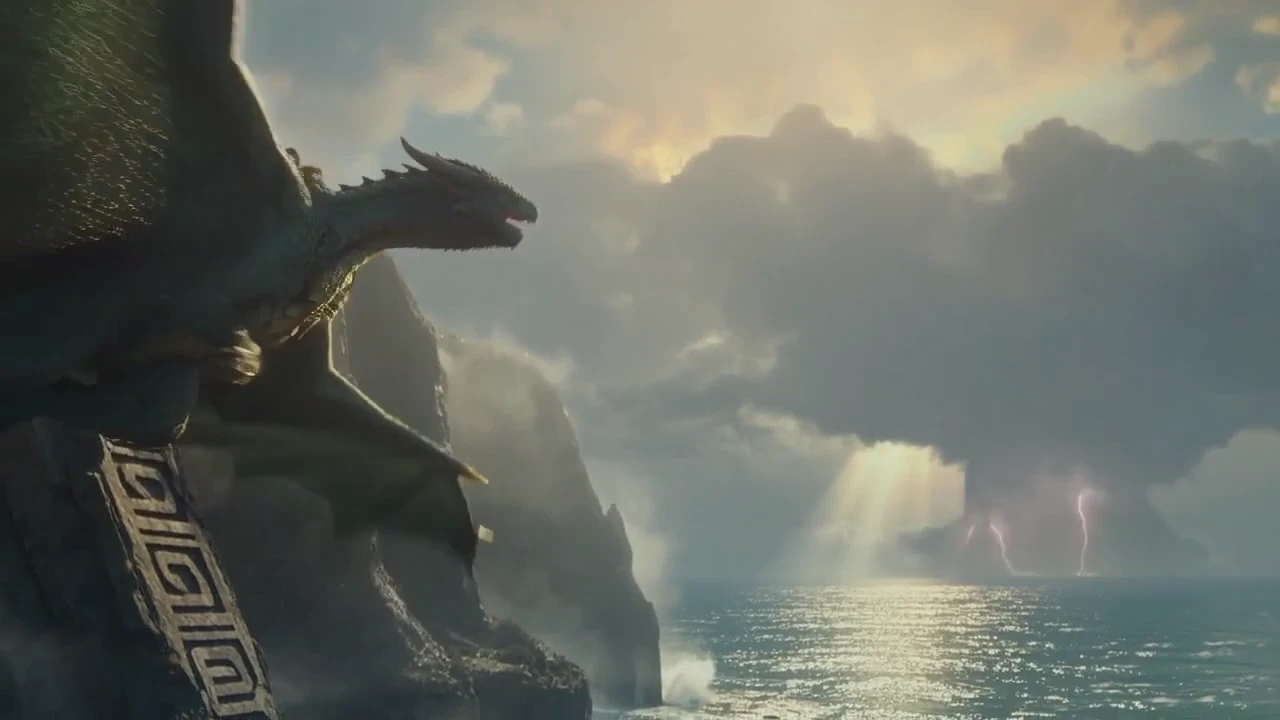
Build a cinematic fantasy scene
Explore dramatic light, vast landscapes, and a mythical creature in a cinematic scene.
Bring your image-to-video ideas to life with EzVideo. One photo, a motion prompt, and a story ready to move.
Explore video ideas across cinematic fantasy, animated characters, beauty close-ups, expressive portraits, and AI dance videos.
Build a cinematic fantasy scene
Explore dramatic light, vast landscapes, and a mythical creature in a cinematic scene.
Explore dramatic light, vast landscapes, and a mythical creature in a cinematic scene.
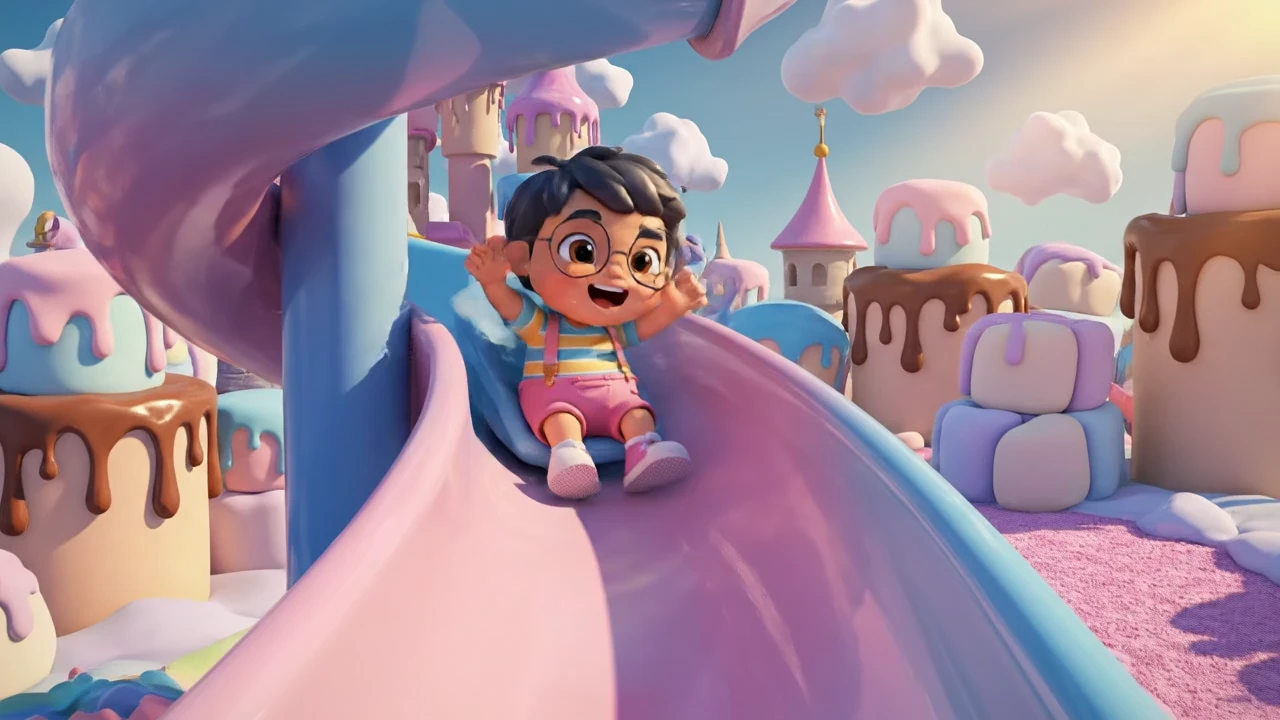
Turn a playful character and a colorful setting into a short animated story.
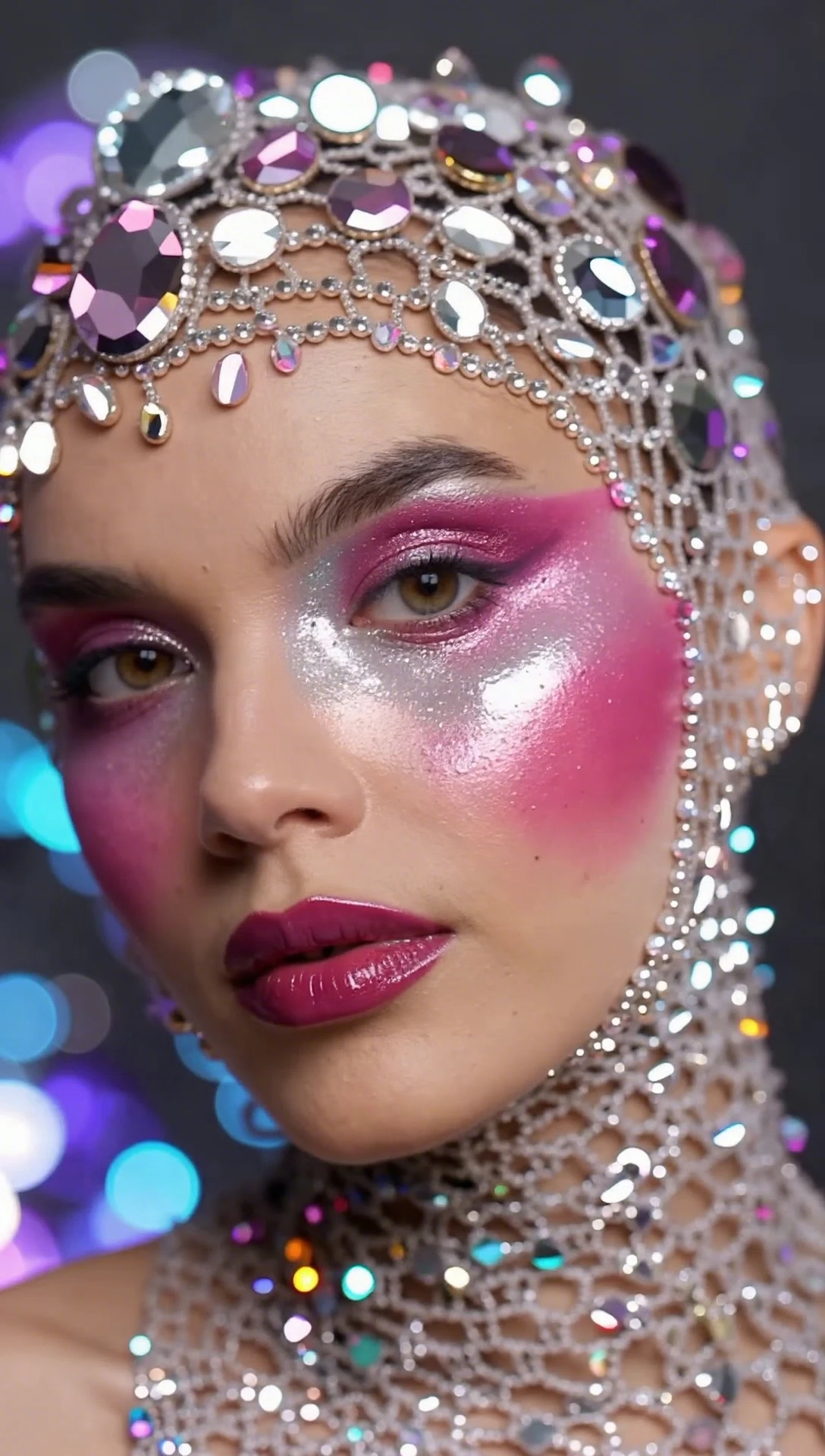
Explore a close-up portrait with bold makeup, reflective jewels, and carefully framed detail.
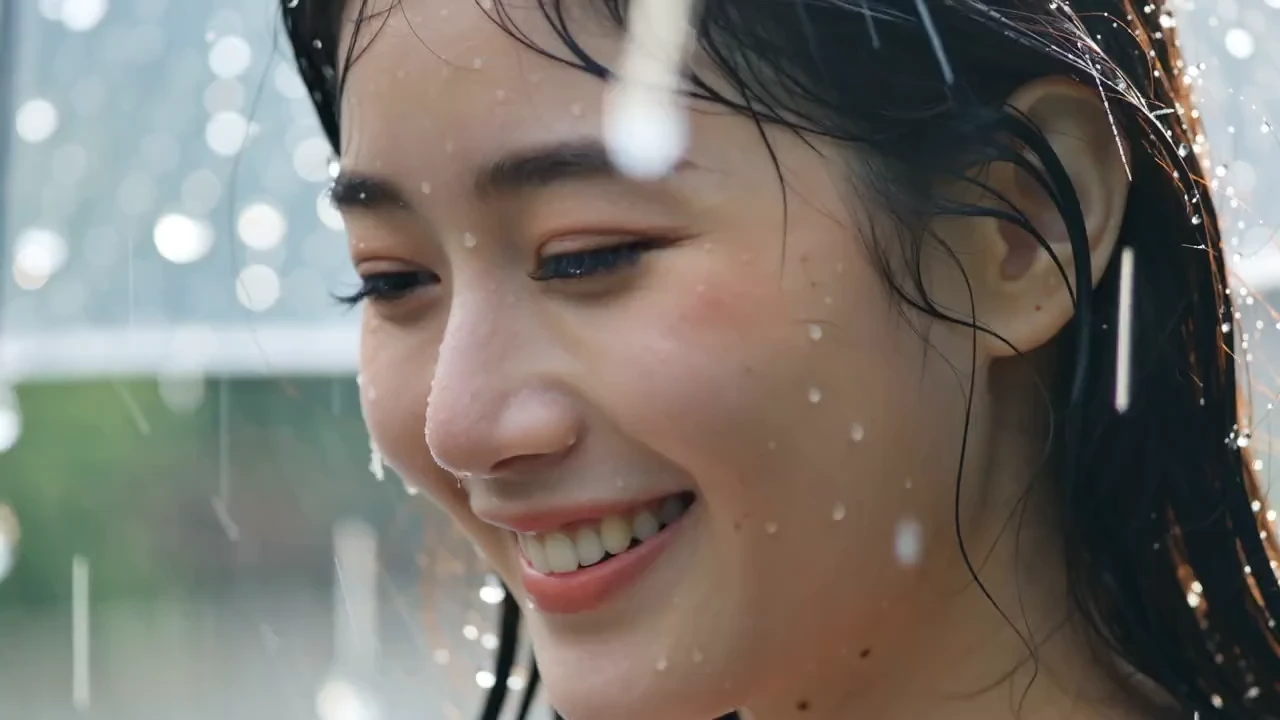
Create a short portrait scene around an expression, a glance, and the surrounding atmosphere.
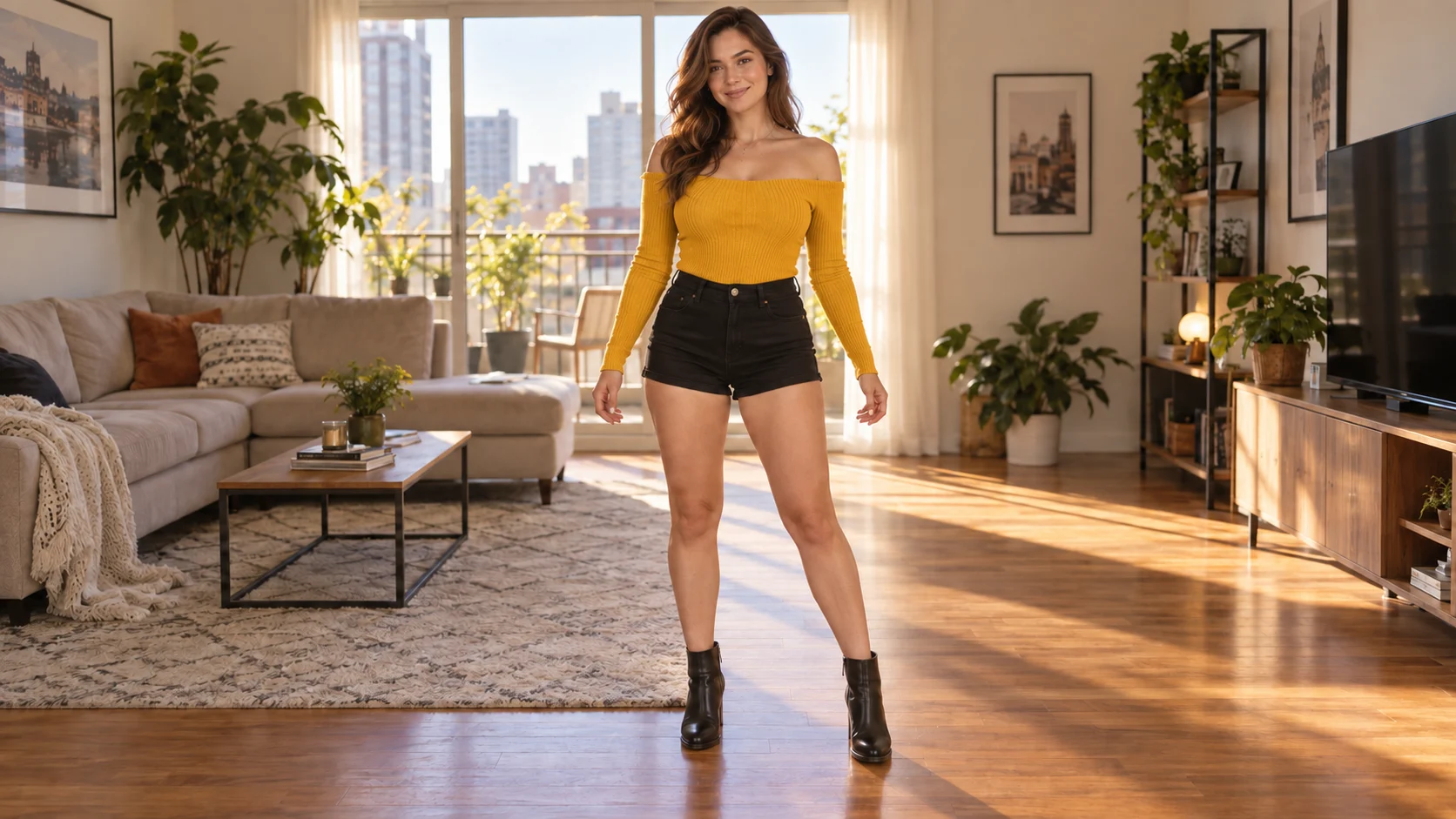
Describe a simple sway, step, or wave to turn one photo into a short dance clip.
Take the photo-to-video workflow further with tools for your source image, motion, and final clip.
Start with a portrait, product photo, illustration, or pet image. A clear subject and uncluttered composition give the animation a stronger starting point.
Write a short motion prompt: a slow push-in, a head turn, or fabric moving in the breeze. Focus on one action before adding more detail.
Explore the models available in EzVideo and choose settings for your shot. Review the duration, resolution, and credit cost shown before generating.
Use the image editor to prepare the scene, adjust the background, or develop a new visual direction. Then bring the finished image into the video studio.
Build a short clip around a single idea, whether you are posting for yourself or developing a campaign.
Make an opening shot for a Reel or Short from a portrait, pet photo, or illustration. Keep the action clear and add your caption in the final edit.
Explore a product reveal, a fashion teaser, or a mood shot from an existing image. Test motion directions before committing to a larger production.
Give character art a small gesture or add atmosphere to a scene. Use the result as a story teaser, visual reference, or creative experiment.
Turn a favorite portrait into a short keepsake with a subtle expression or gesture. Choose a clear photo and keep the movement simple.
Start in your browser. No editing timeline or software installation is needed.
Open the EzVideo studio and add one clear photo or illustration. Choose an image with the subject and framing you want in the video.
Add a motion prompt, choose an available model, and review its settings and credit cost. Generate a clip when the shot is ready.
Watch the result and check the subject and motion. Refine your prompt for another take, or download the clip for your next edit or post.
A2E AI is an online creative platform with image-to-video, avatar, and other image and video tools. For a photo-first creation workflow, you can explore the examples here and start a clip in the EzVideo studio.
Image-to-video starts with a still image and generates movement around its subject and scene. In EzVideo, upload one image, describe the action or camera movement, and select the model and settings for your clip.
Describe the subject action, camera movement, and pace. For example: “The subject slowly turns toward the camera; the camera stays still.” Start with one action, then refine the prompt after reviewing the first result.
EzVideo offers daily free credits for trying image-to-video. The number of clips depends on the model and settings you choose. Check the credit balance and generation cost in the studio before starting.
You can use the EzVideo studio directly in a desktop or mobile browser. Upload an image, enter a prompt, and preview the result online, then download the finished clip.
Use the options shown for your selected model in the studio. Start with a short clip to check the motion, then choose the available settings that fit your final project.
Open EzVideo, add your image, and give your idea its first move.