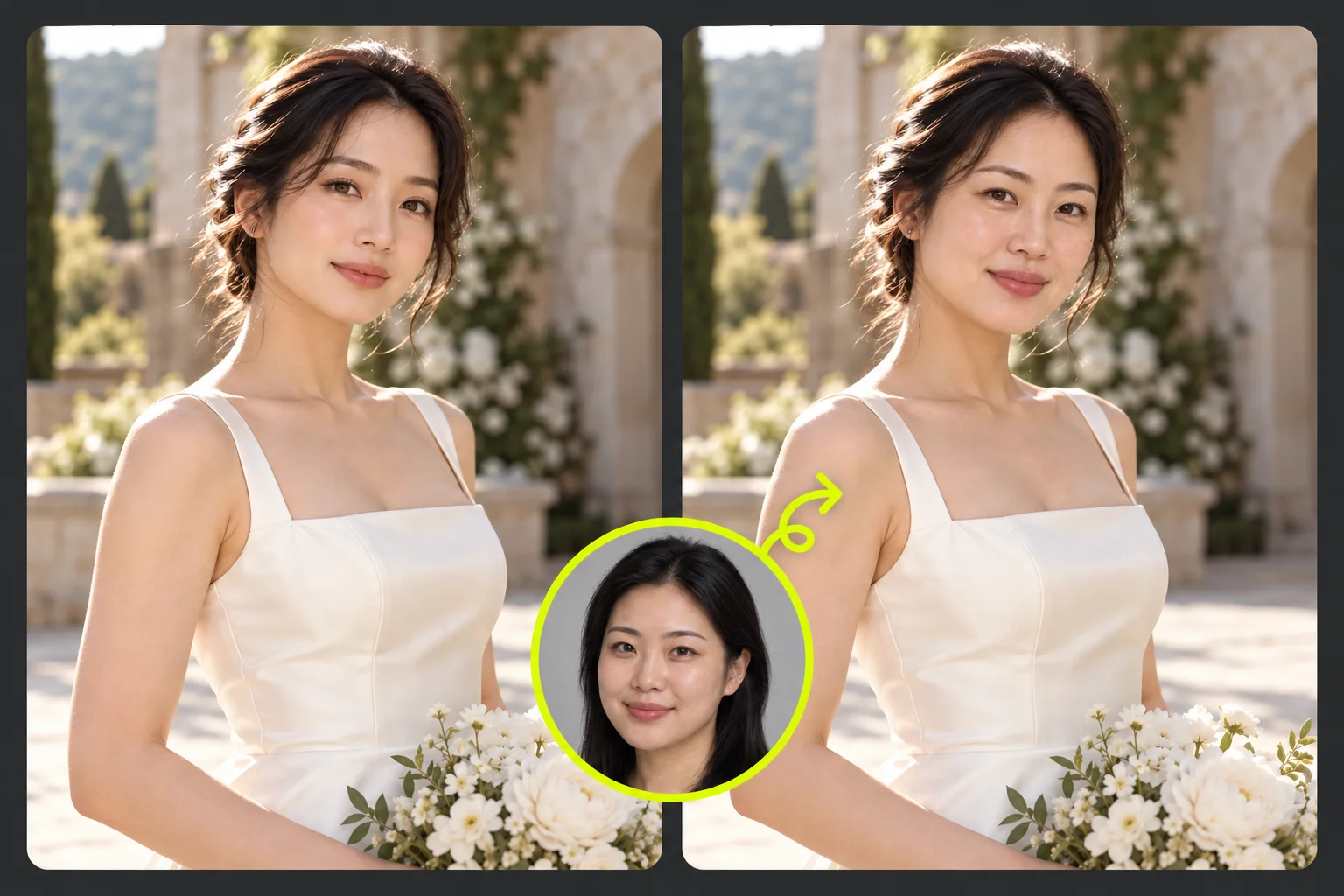
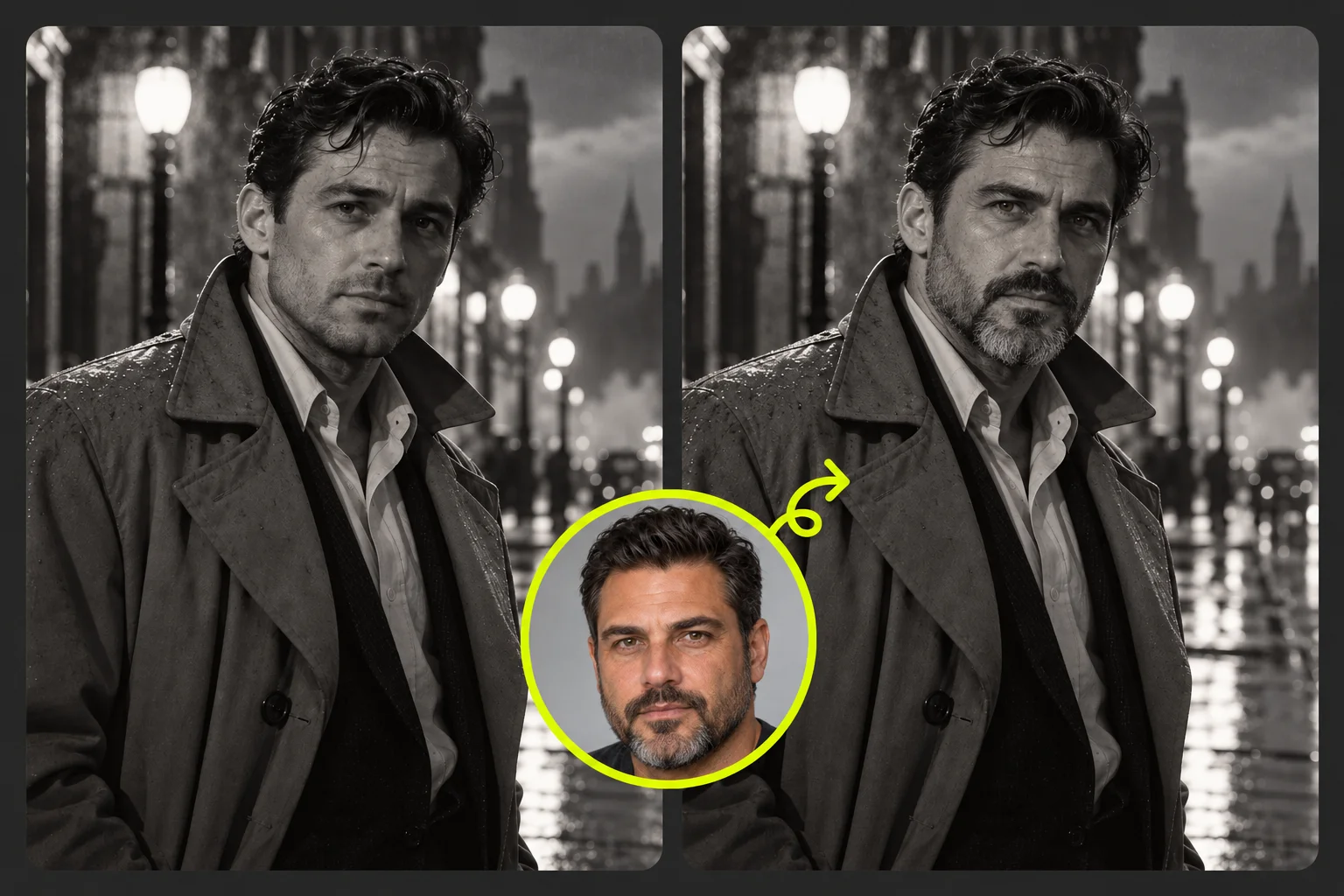
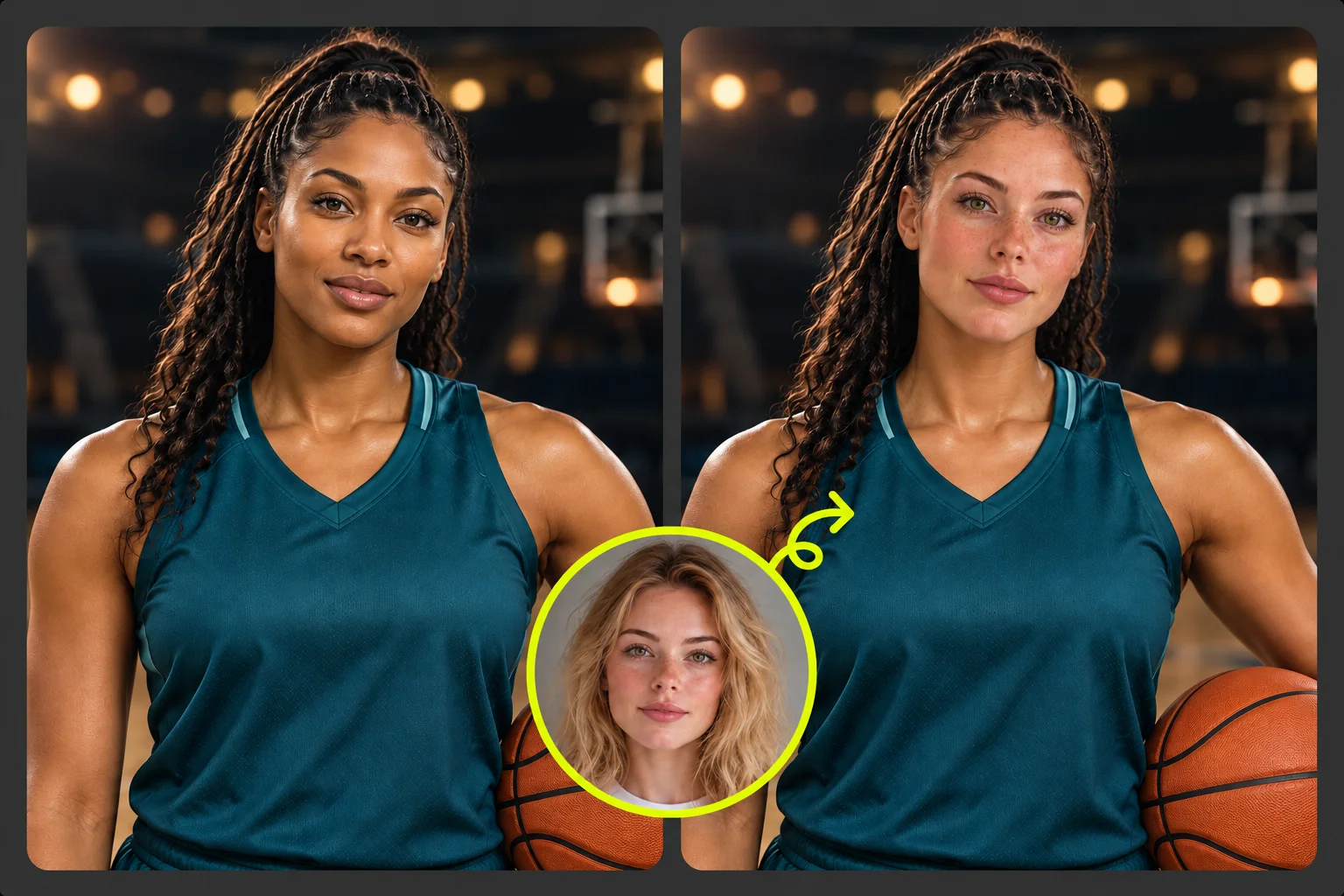
Start with one visible face
For these four portrait projects, choose a scene with one person. A close or waist-up crop makes the face easier to inspect than a distant full-body shot.
- Keep both eyes visible
- Leave room around the head
Make the evening look your own: a satin dress, rooftop lights, and a confident portrait. Exploring Vidnoz face swap? Upload your favorite scene and a clear reference face to create your look with EzVideo.
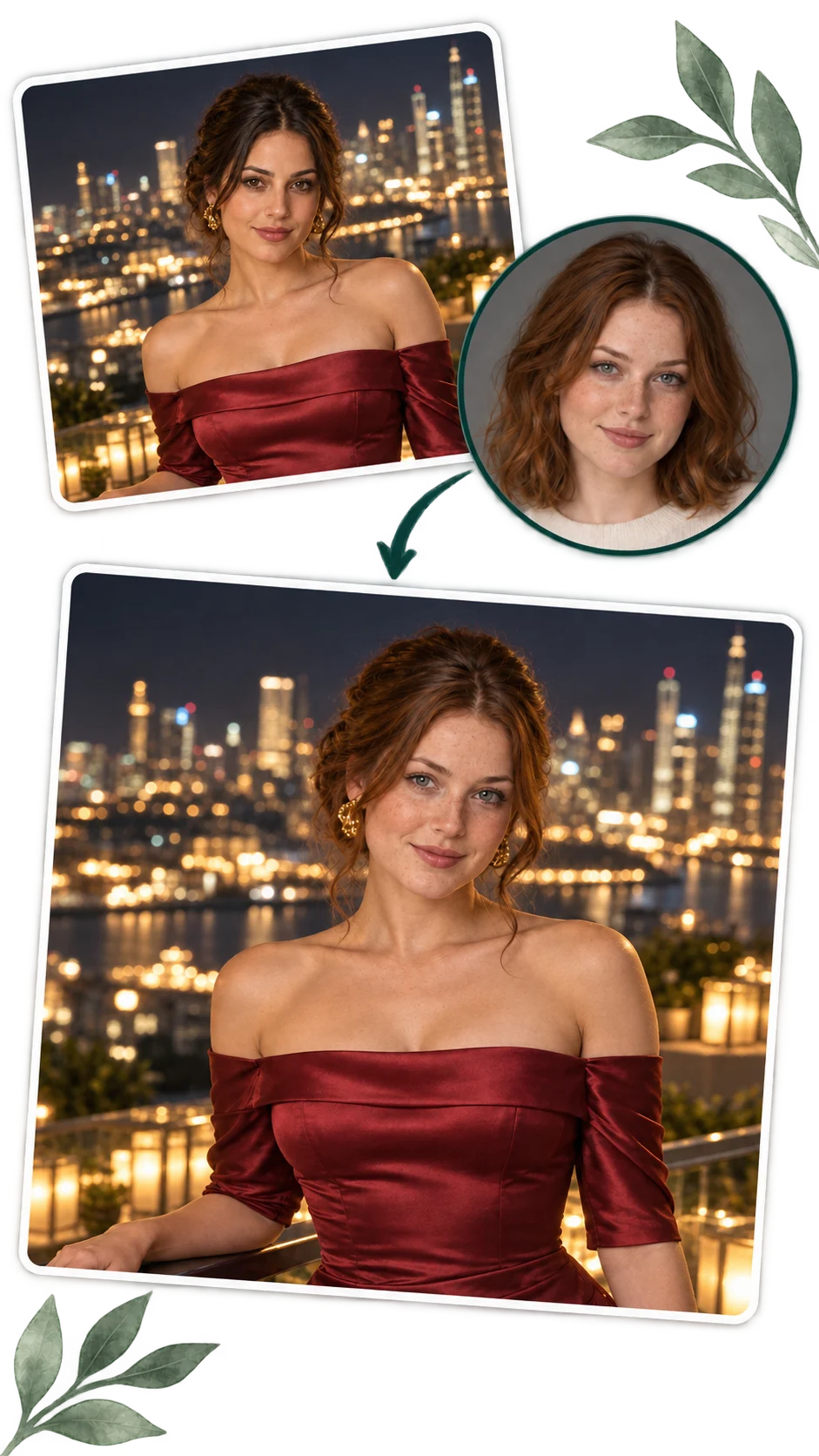
A strong starting photo gives your portrait a clear direction. Plan the crop, pose, and finishing touches before uploading.
For these four portrait projects, choose a scene with one person. A close or waist-up crop makes the face easier to inspect than a distant full-body shot.
Your reference supplies the face; the scene supplies the styling. Pick a similar head angle and expression instead of trying to recreate the costume in your selfie.
A yearbook portrait needs space above the hair; a sports card needs space for a name and border. Keep that room in the original scene before swapping.
Inspect the eyes, jaw, and hairline before adding grain, text, or a card frame in your editor. Styling should come after you are happy with the portrait.
AI-generated scene concepts for inspiration. Choose a theme, then use your own scene and reference portrait in the workspace above.
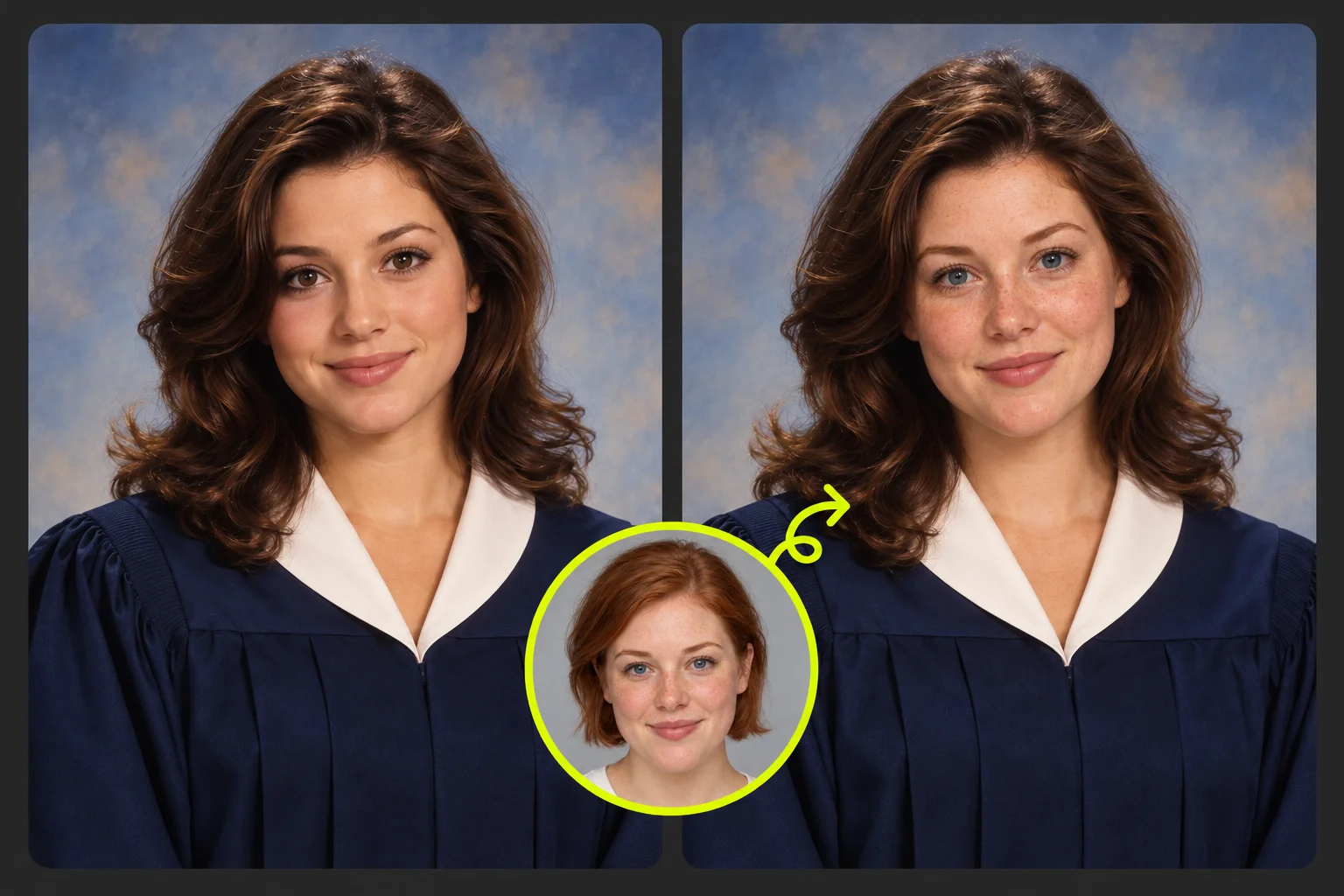
Start with a straight-on studio portrait and an uncovered forehead. Match it with a relaxed selfie, then check the hairline before adding a date or vintage border.
Four small checks that matter more than adding another effect.
Fringes and graduation caps can hide the edge of the face. If the hairline looks uneven, try a reference with the forehead visible before adding film grain.
Veils, loose hair, and large earrings can cross the face boundary. Choose a clearer scene if these details blend into the cheek or jaw.
A face hidden in darkness is a difficult starting point. Use a lighter source scene first, then deepen the black-and-white contrast after reviewing the swap.
Check the face before cropping to a vertical card. Add lettering and a border afterward so they do not cover the forehead or chin.
The same simple workflow for every scene: original image, reference face, finished photo.
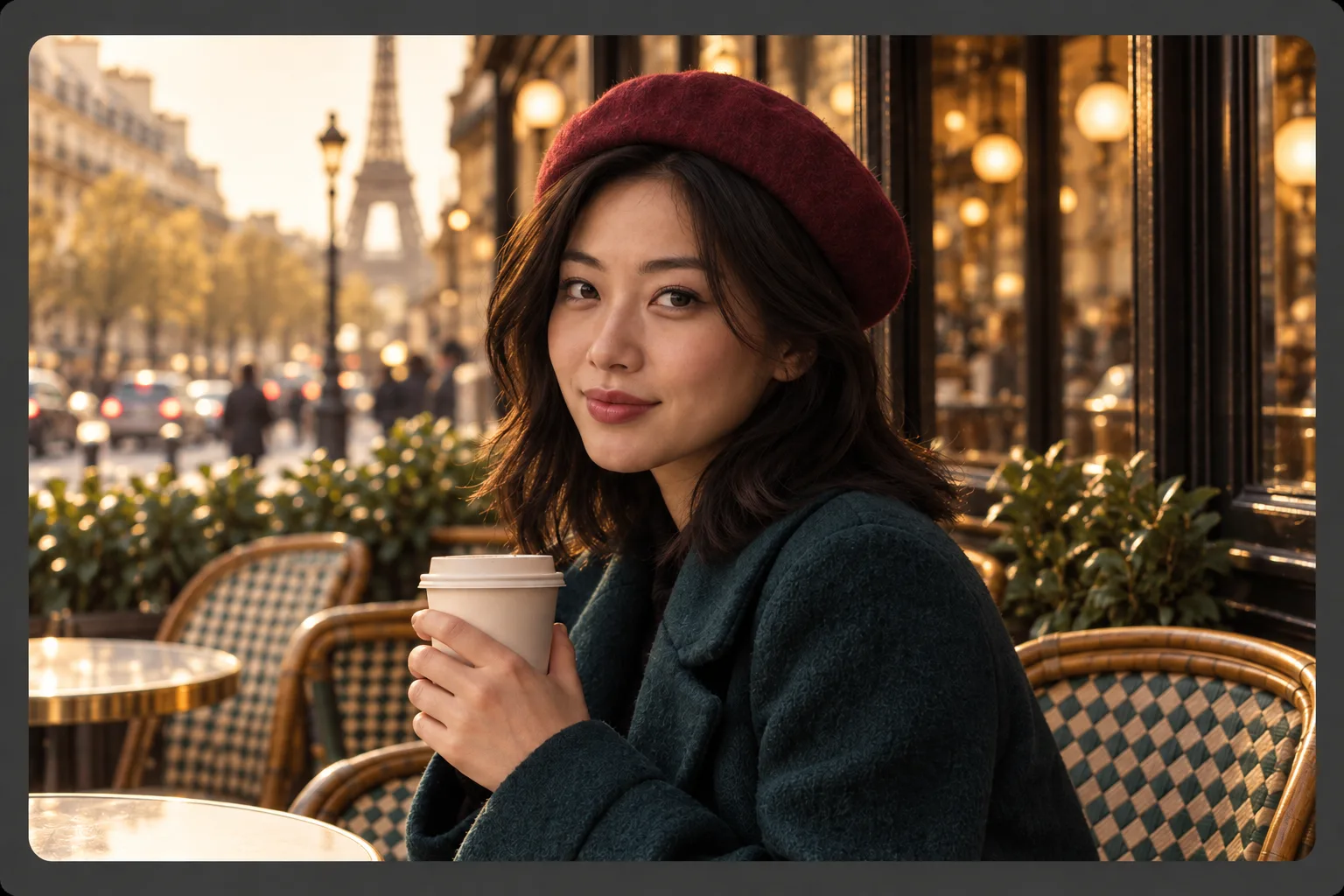
Upload a JPG, PNG, or WebP image up to 20 MB. Pick the outfit, pose, and background you want to keep.
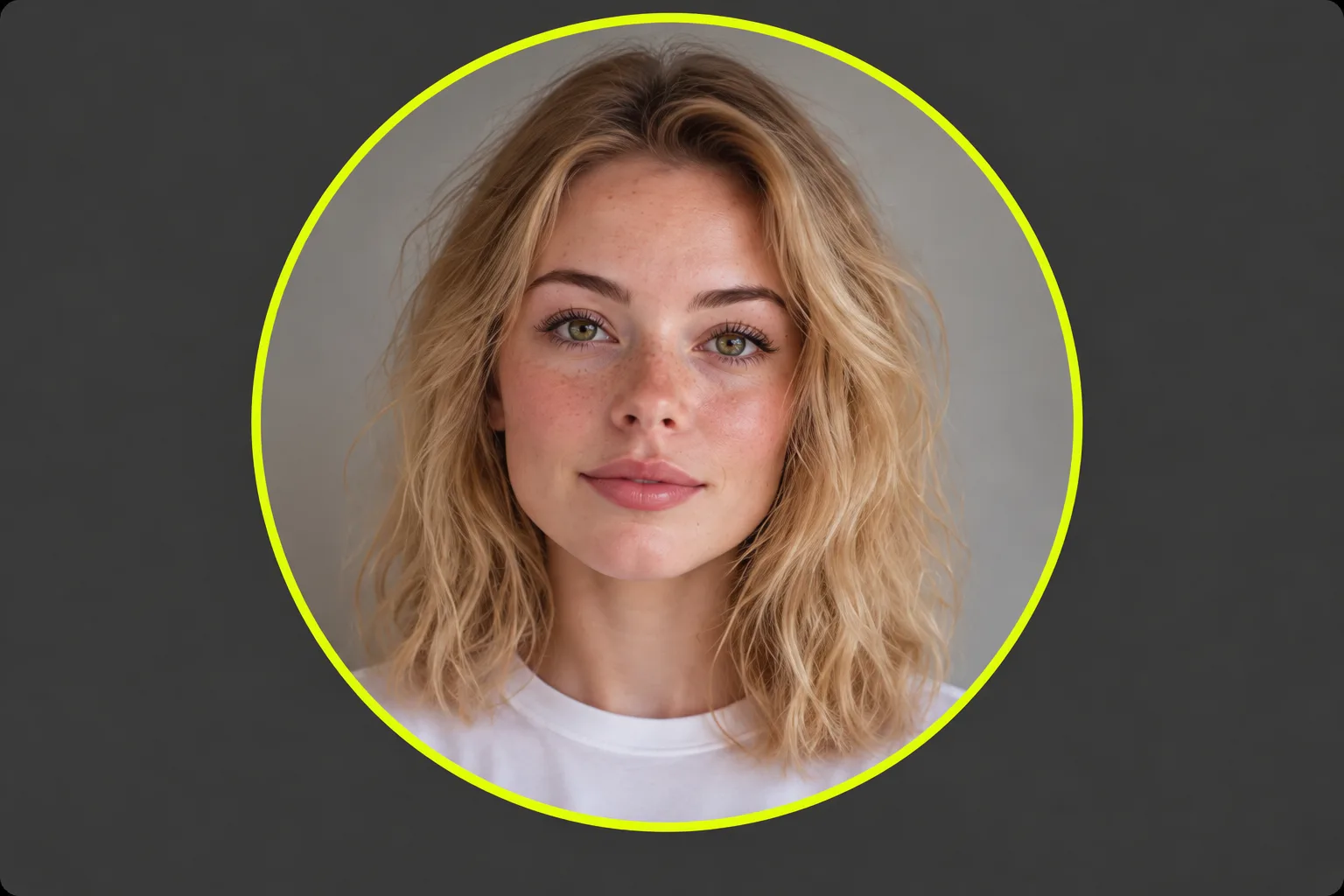
Add a sharp reference portrait. A similar head angle and even lighting give the edit a better starting point.
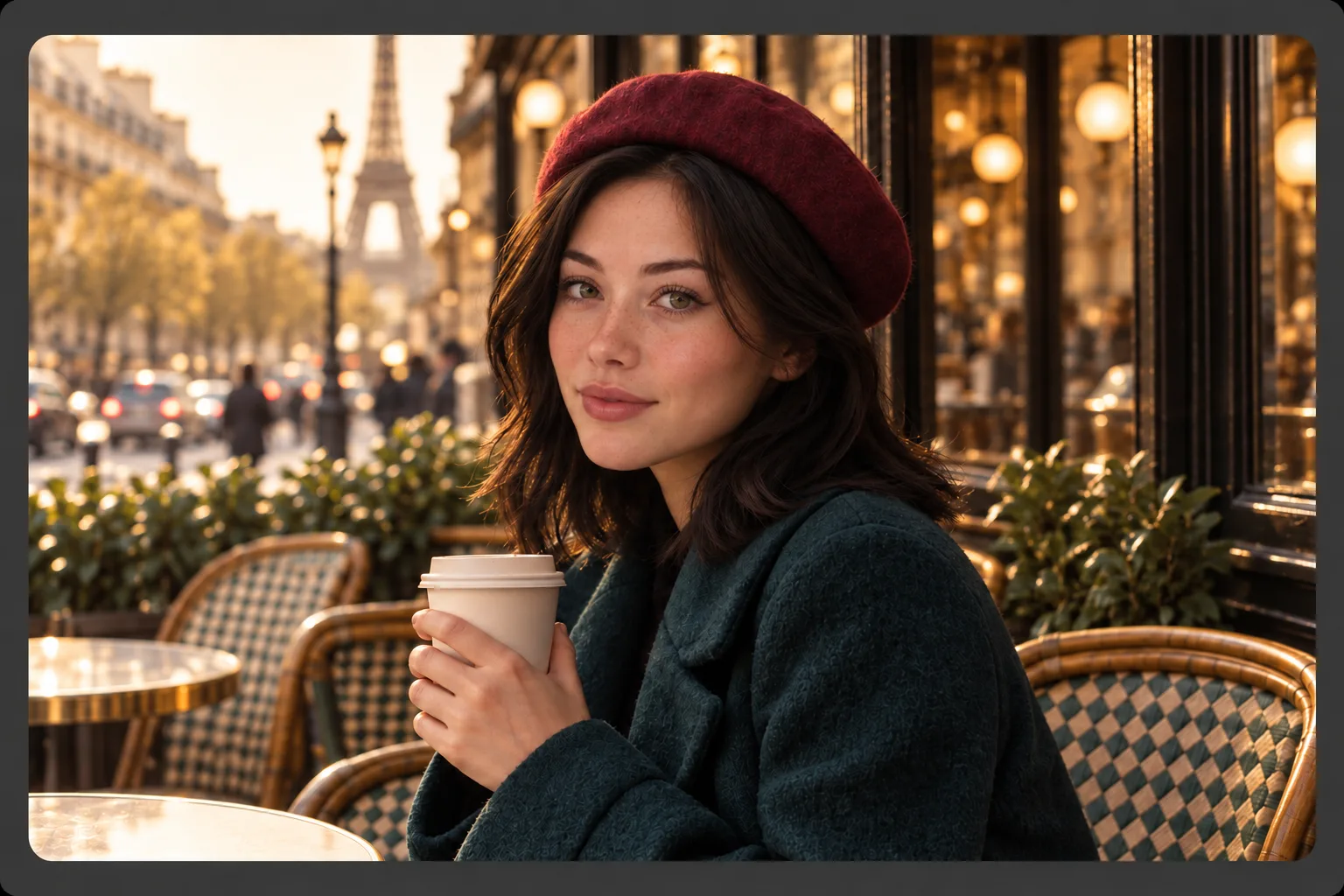
Run the face swap, check the eyes and hairline in the preview, then download your image. Try another reference if needed.
Use EzVideo to personalize a still portrait with one reference face. The scene concepts on this page focus on retro graduation photos, wedding styling, noir characters, and sports cards. Choose your own source image to try a theme.
Yes. The EzVideo photo face swap workflow on this page is free to use and does not require a login. Downloaded results have no watermark.
This workspace uses one reference face. It does not assign different replacement faces to several people or let you select a person in a group. Review the result when using group photos.
This page processes still photos. Video and GIF face swapping are not supported by this workspace.
You can reuse a clear reference, but one selfie will not suit every angle. Keep a front-facing photo for the graduation and sports portraits and a slight three-quarter view for a tilted wedding or noir scene.
Start with a scene that already contains the outfit and setting you want. Face swapping focuses on the face; use Image Editor separately if you want to change clothing, scenery, or other details.
Bring your favorite portrait scene and a clear reference photo. Create the face swap first, then finish the design in Image Editor.