Recent tasks

This task list is saved only in this browser for 4 hours. Uploaded images are deleted from our servers within 24 hours after processing.

No recent tasks yet.

Generated result

Select a task to check its latest result.

Pollo AI Video Generator

Exploring Pollo AI for your next video? Turn a photo into a product teaser, a character moment, or a social clip with EzVideo. Choose your shot and bring it to life.

Sample preview

Generate video

Duration≈10 credits

Resolution

0 / 600

≈10 credits

Pollo AI video ideas: give your imagination a first move

Step into a myth, explore the details of a face, or let a smile begin your story. Discover five creative directions for image to video, then bring your own photo and motion idea to EzVideo.

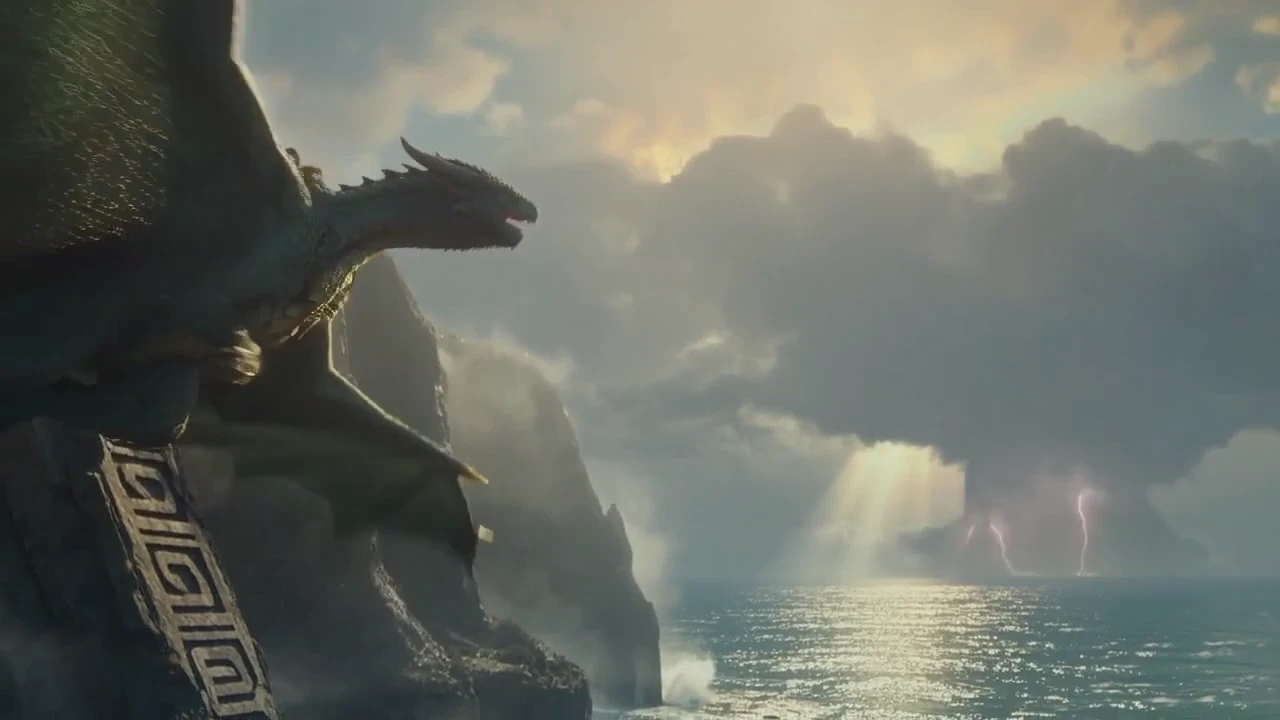
Step Into a Myth

Let one illustration open the door to a world of ocean mist, gathering clouds, and mythical creatures. Try a slow camera approach as the atmosphere shifts around your subject, creating an opening for a fantasy story or a cinematic teaser.

Dragon overlooking the ocean beneath storm clouds

Step Into a Myth

Let one illustration open the door to a world of ocean mist, gathering clouds, and mythical creatures. Try a slow camera approach as the atmosphere shifts around your subject, creating an opening for a fantasy story or a cinematic teaser.

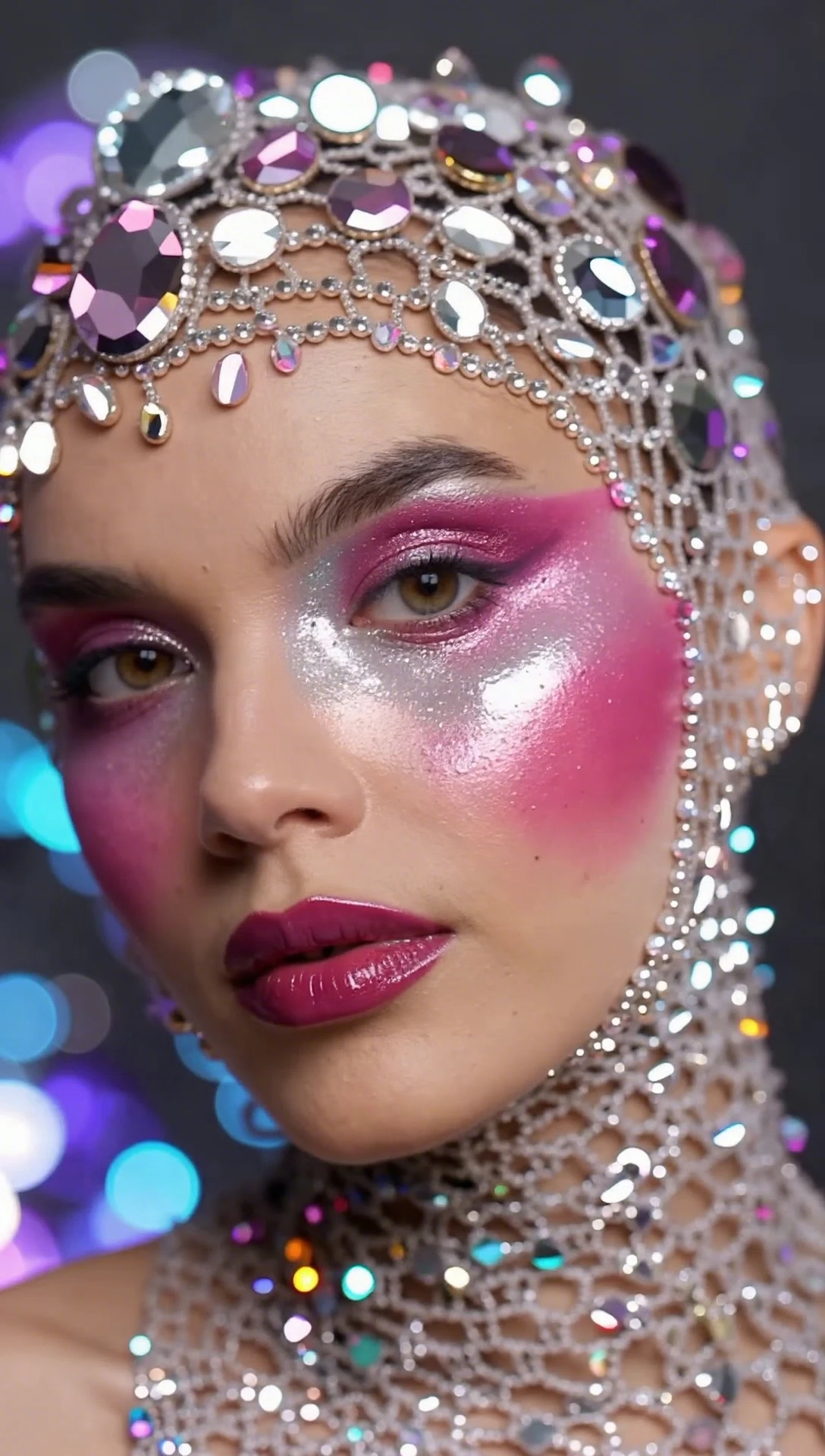
Portrait with pink and silver makeup and a jeweled headpiece

Bring Skin Details Into Focus

Bring attention to facial texture, layers of makeup, and the way light falls across a face. Try a slight turn toward soft light to explore those details in motion, shaping a close-up for an editorial portrait or a beauty portfolio.

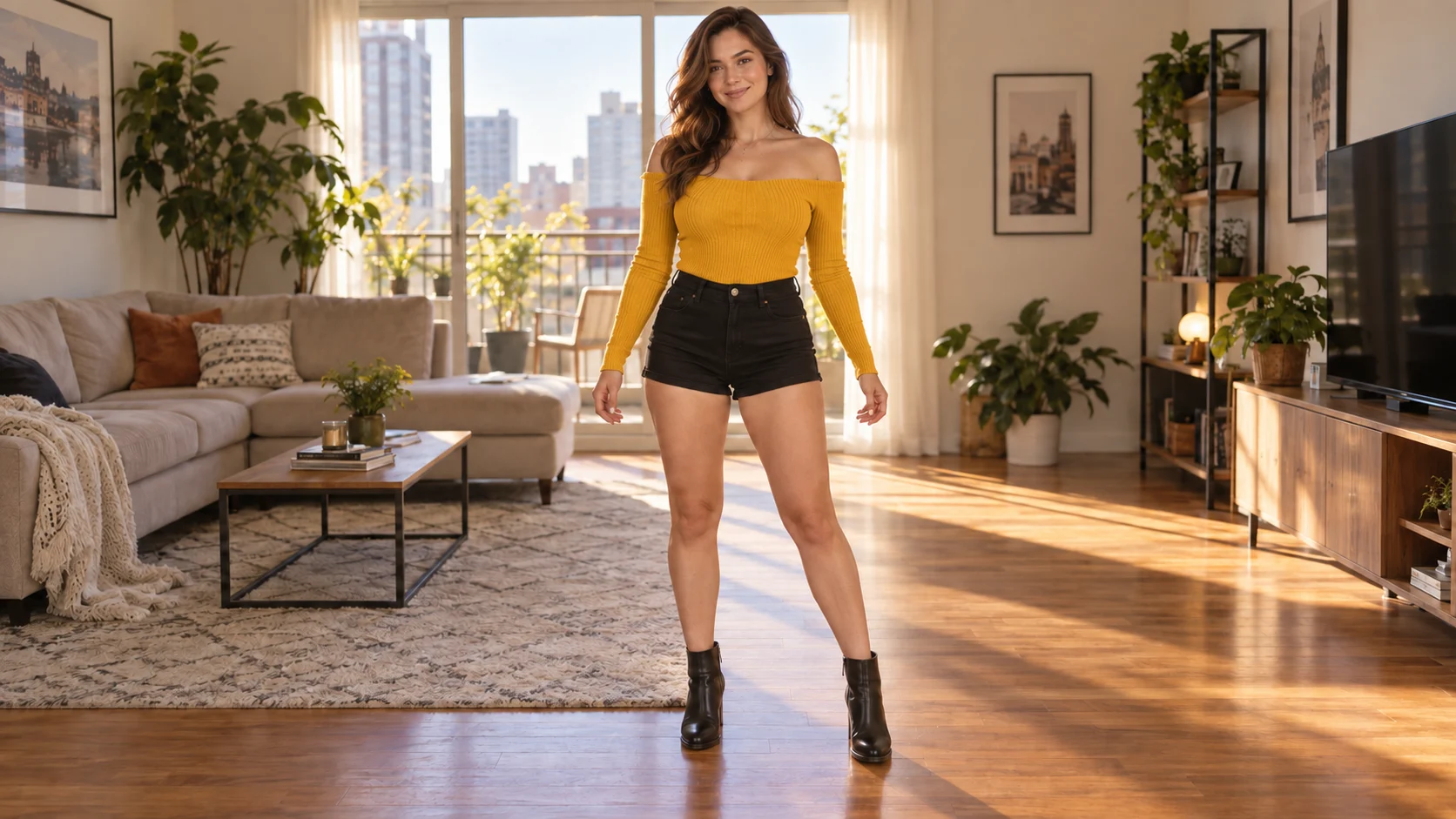
Woman in a yellow top standing in a sunlit living room

Give Your Photo a Rhythm

Give a still pose a little energy with a relaxed sway, a playful step, or a welcoming gesture. Start with a full-body photo and room to move, then add music in your edit to make an upbeat social video opening.

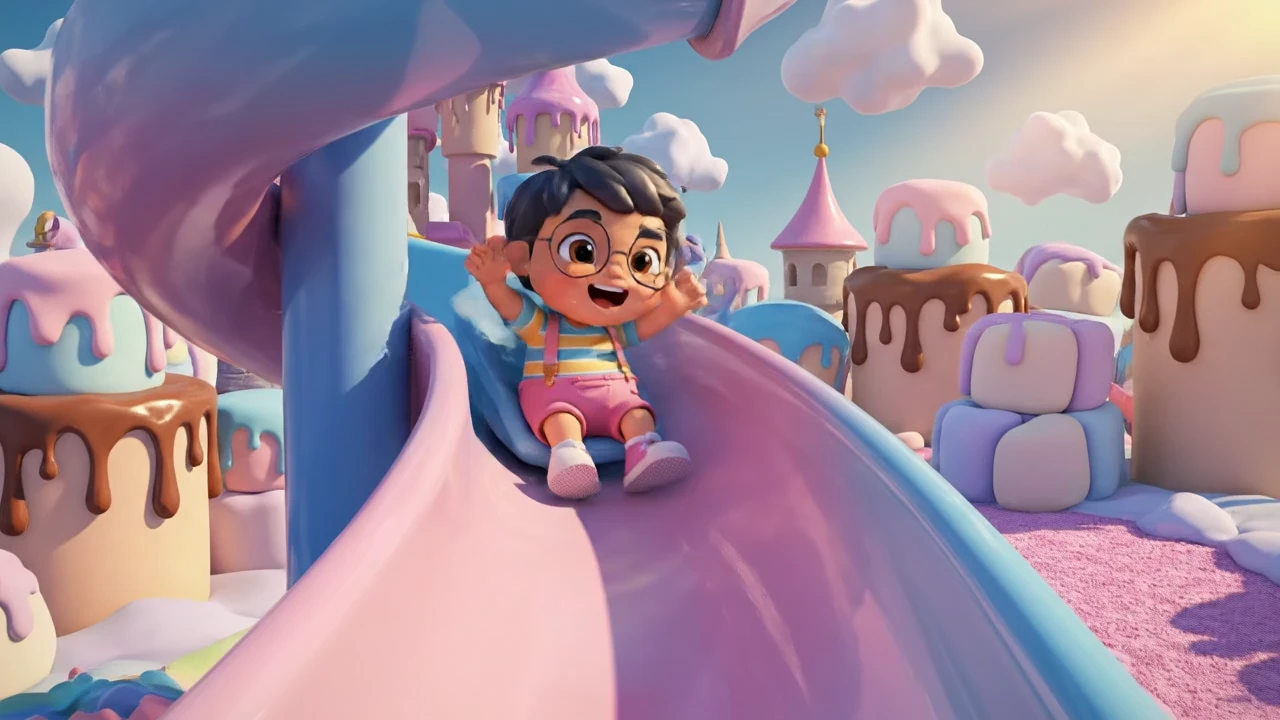
Animated child on a slide in a pastel candy landscape

Set Your Imagination in Motion

Turn a colorful character and a candy-colored setting into the beginning of a small adventure. Describe one playful action, such as a gentle slide or an excited wave, to introduce a storybook world, a new character, or an animation idea.

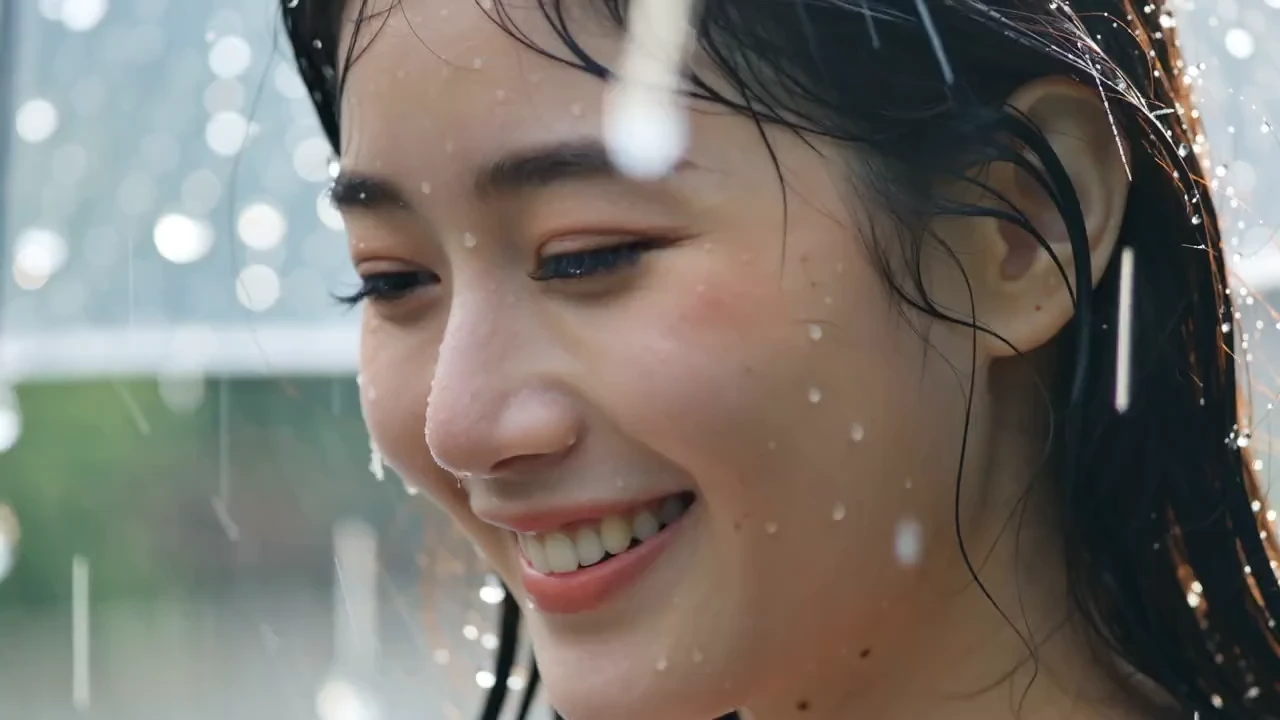
Smiling woman with water droplets around her face

Let a Smile Tell the Story

Let a smile, a glance, or a small change in expression carry the feeling of your video. Try a gentle camera push toward a clear portrait to create a warm greeting, a personal introduction, or an opening for a memory montage.

Pollo AI image to video: plan your next shot

Exploring Pollo AI image to video? Build your shot around a clear subject, one movement, and a format that fits the story. Use the EzVideo workspace above to try your idea.

Start with the frame you want to keep

Choose fantasy artwork with a clear silhouette, a beauty portrait with visible detail, or a full-body photo with room to dance. Your source image establishes the subject, palette, and composition.

Write motion instead of a second image description

Try “clouds drift behind the dragon as the camera slowly approaches” or “the subject turns slightly toward the light.” Give the clip one main action so the viewer knows where to look.

Match the settings to the destination

Use a wide frame to give a fantasy landscape room and a vertical frame to emphasize a beauty portrait or dance. Choose from the aspect ratios, durations, and resolutions available for your selected model.

Review the take before making another

Check facial expressions, jewelry, hands, and character details throughout the clip. Adjust one motion instruction at a time to explore a different pace or camera direction.

Give each AI video scene a place in your next project

Turn a visual idea into a short opening, teaser, or character moment. Plan the scene first, then add titles, music, and surrounding footage in your final edit.

Invite viewers into your story

Use drifting clouds, an ocean horizon, or a mythical silhouette to set the mood before revealing a title. Give a book teaser, game concept, or creative pitch a brief opening that leaves viewers curious about the world beyond the frame.

Make the small details worth watching

Build an editorial portrait around facial texture, makeup, and changing light. Keep the movement subtle so viewers can linger on the details, then add a look name or artist credit when assembling your portfolio.

Give an imagined character a first adventure

Start with one playful moment in an illustrated world. Use it to introduce a character or tease a story, then connect separate clips with captions or narration in your editor.

Open with energy or emotion

Choose a playful step for an upbeat introduction or a gentle smile for a personal greeting. Let the mood guide the motion, then add music and a short message to finish your social clip or memory montage.

Use an AI video generator from an image in three steps

Use the EzVideo workspace above to prepare, generate, and review your shot.

  1. Choose a source photo

    Upload a fantasy illustration, a beauty close-up, or a portrait with room for movement. If it needs a different background or framing, prepare it in the image editor first.

  2. Describe the action and choose your settings

    Enter a short motion prompt and select an available video model. Check its duration, resolution, and displayed credit cost before starting.

  3. Preview, refine, and download

    Watch the full clip and check important details. Download a take you like, or adjust one part of the prompt before trying another generation.
Pollo AI and image-to-video questions

Pollo AI is an online platform for AI image and video creation, including image-to-video and text-to-video tools. If you are exploring photo animation ideas, the EzVideo workspace on this page lets you begin with an image and a motion prompt.

Upload a clear image, describe what should move, and select the available generation settings. In EzVideo, your image sets the scene while your prompt guides the action. Review the result before downloading or generating another take.

EzVideo offers daily free credits. The number of clips you can create depends on your balance and the selected model and settings. Review the cost shown in the workspace before generating; free credits do not mean unlimited generation.

This workspace uses an image plus a prompt. If you only have an idea, create or prepare a source image in the image editor first, then bring it here to animate. Your motion prompt should describe the action you want in that image.

Start with the part of your picture you want to animate: a portrait expression, a pet reaction, or a product close-up. In EzVideo, upload the image and describe one movement. A small action is a useful first test before trying a more elaborate shot.

Name the subject action, the camera movement, and the pace. For a product shot, try “Slow camera push toward the bottle; soft light moves across the glass; the bottle stays still.” Avoid combining several scene changes in one short clip.

Give your next idea a first take

Choose one image and one motion. Create your next photo-to-video clip with EzVideo.

Image Editor