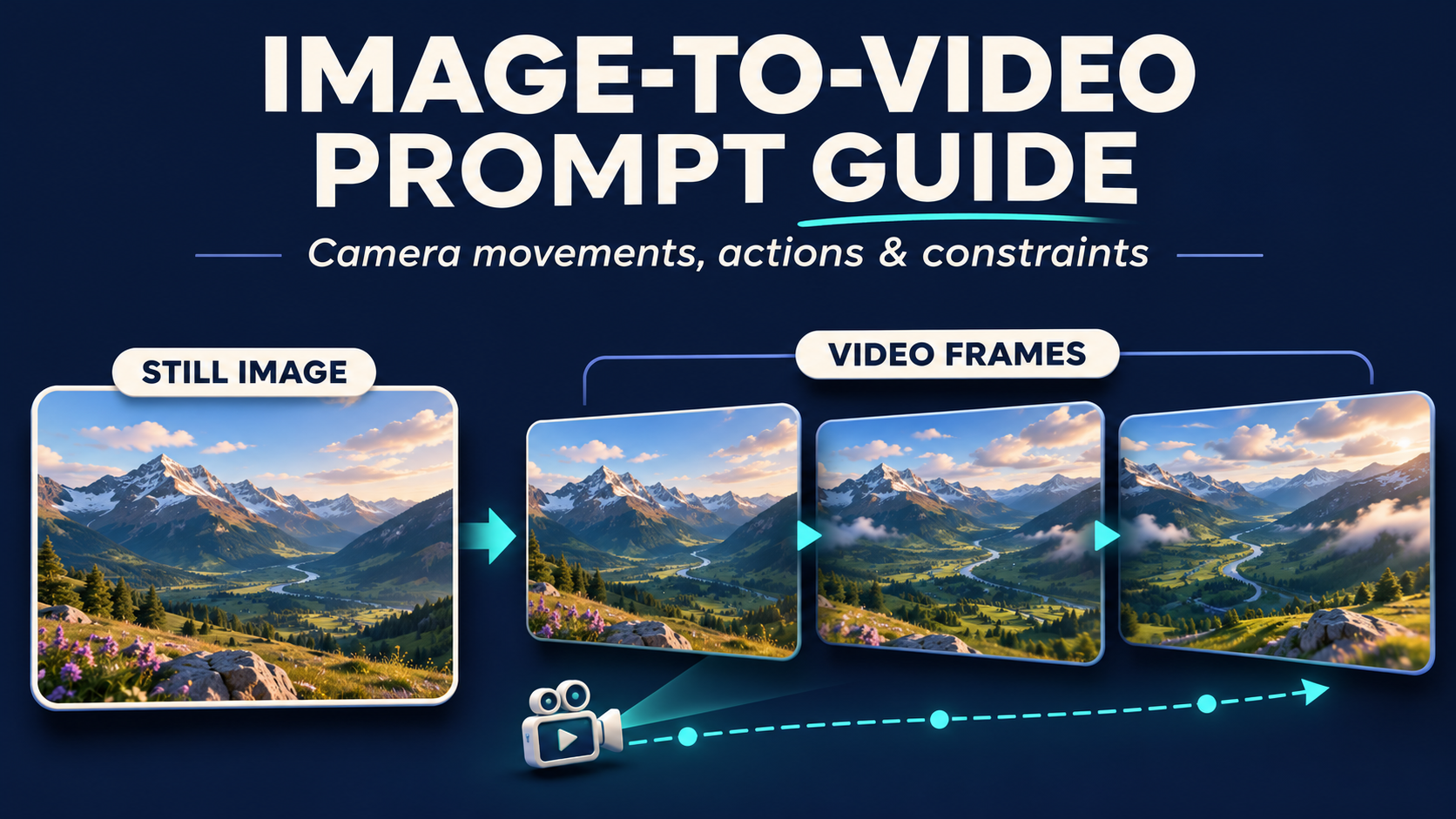
A useful image-to-video prompt describes what should happen after the source image becomes the first frame. Name the subject's movement, choose one camera move, and explain which visible details should stay consistent.
For example, "make this photo cinematic" leaves most decisions to the model. "The subject smiles gently as the camera slowly moves closer, with steady framing and consistent facial features" gives it a clearer direction.
This guide covers a practical prompt formula, camera movement vocabulary, action words, negative prompts, and 12 copyable image-to-video prompt examples. You can try the examples in the ezVideo free image-to-video generator.
Quick Guide to Image-to-Video Prompts
Start with one subject, one action, and one camera movement. Add lighting and constraints only when they help explain the result you want.
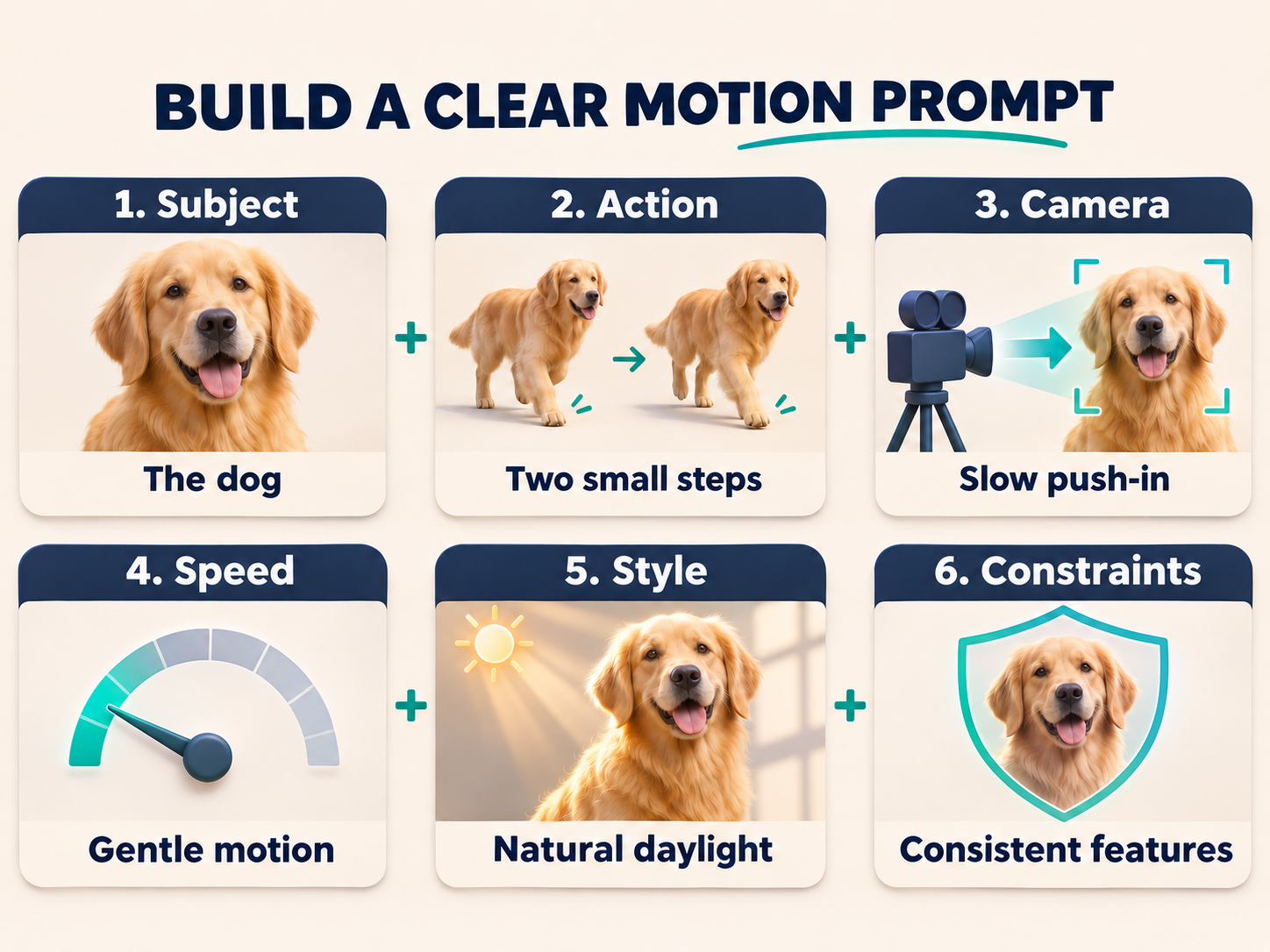
| Prompt element | What to describe | Example |
|---|---|---|
| Subject | The person, animal, product, or scene already visible | The dog in the image |
| Action | One clear movement | Takes two small steps |
| Camera | One camera movement or a fixed view | Slow push-in |
| Speed | How quickly the action happens | Gentle, natural motion |
| Style and lighting | The visual mood to preserve or introduce | Soft natural daylight |
| Constraints | Important details to keep consistent | Stable facial features and fur markings |
These are starting points for testing, not guarantees of an exact result. Motion accuracy and detail preservation depend on the source image, selected model, settings, and generation.
What Makes a Good Image-to-Video Prompt?
The source image already supplies much of the visual information. You usually do not need to describe every object, color, or item of clothing again. Focus on the changes you want to see over time.
A useful formula is:
Subject + Action + Camera movement + Motion speed + Style or lighting + Constraints
For a pet photo:
The golden retriever takes two small steps and gently wags its tail. A slow push-in keeps the dog centered. Natural daylight, consistent facial features and fur markings.
Compare that with:
Make the dog move.
The shorter prompt leaves the action, pace, and framing unspecified. The longer version gives the model a manageable sequence.
You do not have to include all six elements every time. If the source lighting already looks right, spend your prompt on the action and camera rather than asking for a new style.
Camera Movement Prompts for Image-to-Video
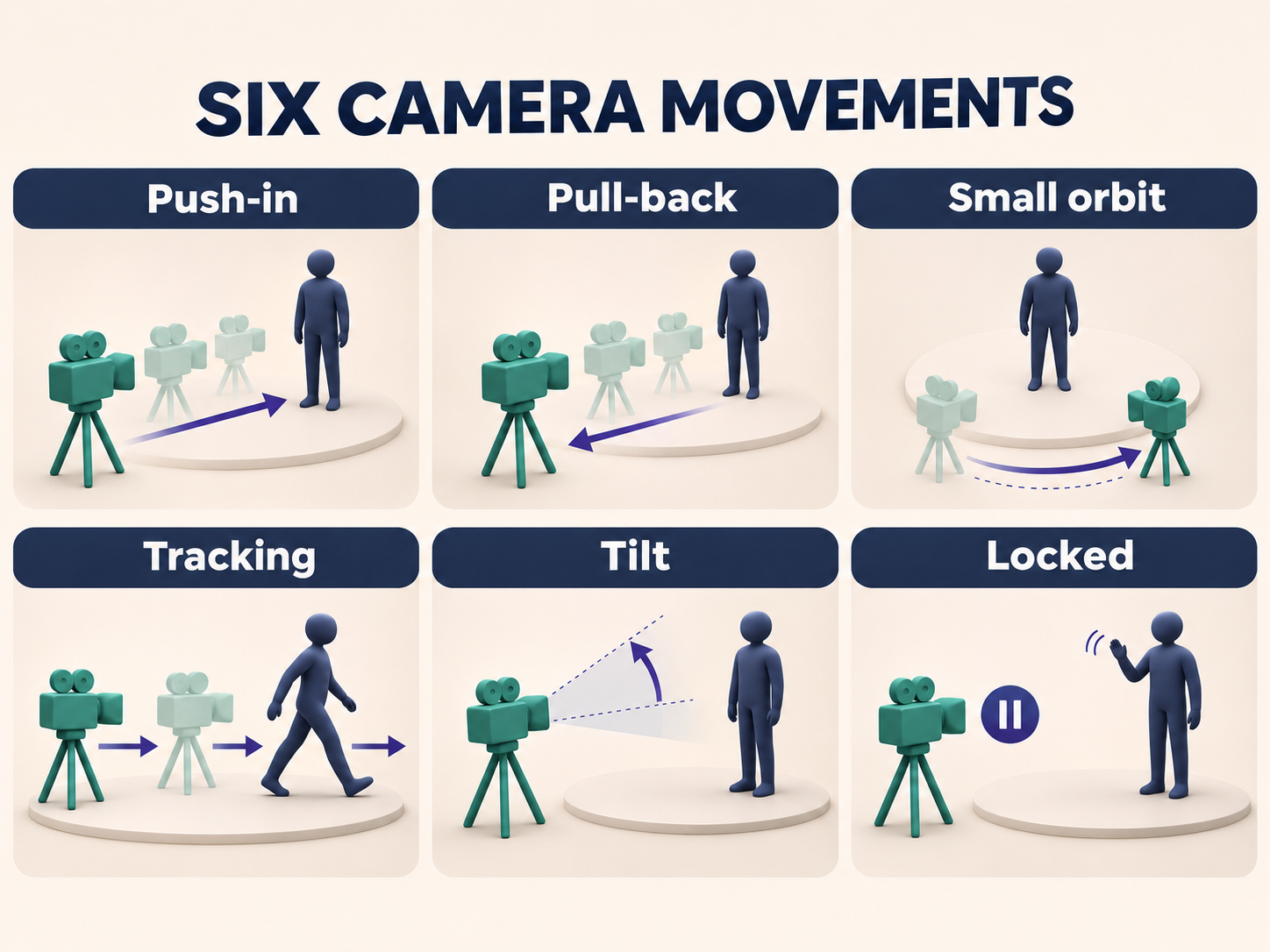
Camera instructions tell the model how the viewer should move through the scene. For single-image animation, small moves are often a more practical starting point than large changes in angle.
Slow Push-In
A push-in moves the viewpoint closer to the subject. It can make a portrait feel more intimate or bring attention to a product.
Prompt phrase:
Slow, steady push-in toward the subject.
Example:
The woman smiles gently and blinks once as the camera slowly pushes closer. Soft daylight, consistent facial features, one continuous shot.
A push-in changes the viewpoint; a zoom changes the framing through magnification. Generated results may approximate either effect, so describe the visual outcome if the distinction matters.
Slow Pull-Back
A pull-back moves away from the subject and reveals more of the setting.
Prompt phrase:
Slow camera pull-back with steady framing.
Example:
The camera slowly pulls back from the cabin while leaves sway gently. Preserve the visible architecture and surrounding trees.
Use modest pull-backs when the image has limited space around the subject. Revealing areas outside the source frame requires the model to invent additional details.
Small Orbit
An orbit moves around the subject to suggest depth.
Prompt phrase:
Small, smooth camera orbit around the subject.
Example:
A small camera orbit shows the front of the perfume bottle from a slightly different angle. Gentle reflections, consistent bottle shape and label design.
Avoid starting with a 180-degree orbit around a product shown from only one side. The model has no source information for the hidden surfaces and may invent the back, change the packaging, or alter the logo.
Tracking Shot
A tracking shot follows a moving subject. Make the subject's action and the camera's direction compatible.
Prompt phrase:
Smooth side-tracking shot following the subject.
Example:
The person takes one slow step forward as the camera tracks alongside them. Natural posture, consistent clothing, steady framing.
Tilt Up or Tilt Down
A tilt turns the camera upward or downward from a relatively fixed position.
Prompt phrase:
Slow upward tilt from the shoes to the jacket.
Example:
The model holds a relaxed pose as the camera slowly tilts upward from the shoes to the jacket. Preserve the outfit details and body proportions.
Choose an image that already shows the areas you want to reveal. A tight portrait is a poor starting point for a full-body reveal.
Locked Camera
A locked camera keeps the viewpoint stable while the subject or environment moves.
Prompt phrase:
Fixed camera, subtle subject motion.
Example:
Steam rises gently from the cup. The cup, handle, and table remain still. Fixed camera, soft window light.
This is a useful starting point when product geometry, text, or composition matters more than a dramatic camera move.
Action Words That Make Prompts More Specific
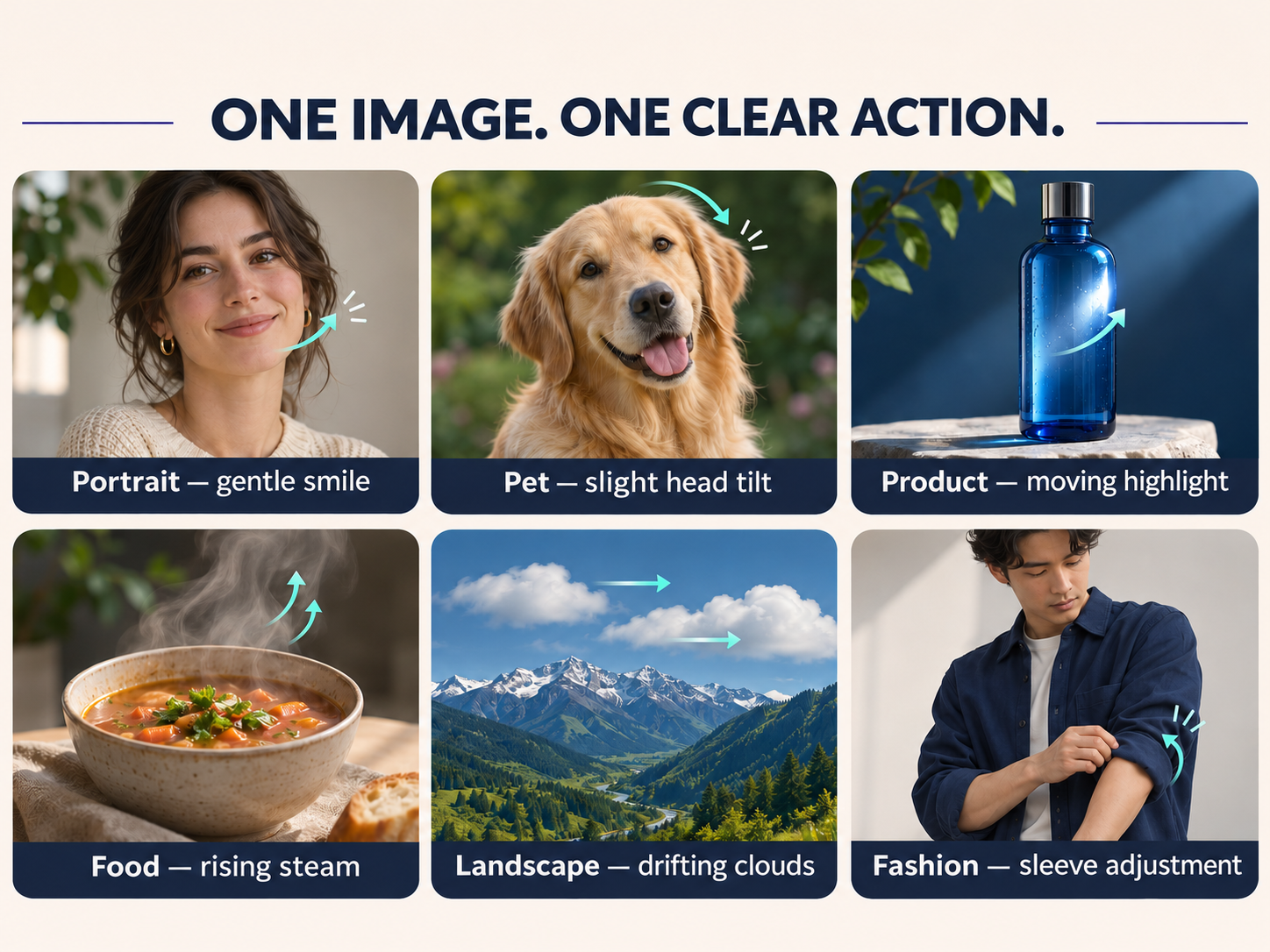
Choose actions that fit the pose and visible space in the source image.
| Subject | Useful starting actions | Keep in mind |
|---|---|---|
| Portrait | Smile gently, blink once, turn the head slightly | Subtle actions reveal less unseen facial detail |
| Full-body person | Take one step, adjust a sleeve, shift weight | Hands and feet should be visible if they need to move |
| Pet | Tilt the head, wag the tail, take two small steps | Check that the requested body parts are in frame |
| Product | Rotate slightly, remain still under a moving highlight | Large rotations may change unseen surfaces |
| Food | Release steam, show a small surface ripple | Request steam only when it suits the dish |
| Landscape | Clouds drift, leaves sway, water flows | Keep environmental motion consistent with the scene |
Avoid asking for a long sequence in a short clip. A person walking, turning, waving, jumping, and sitting down gives the model several changes to coordinate.
Start with one action. Add another only after the simpler version works.
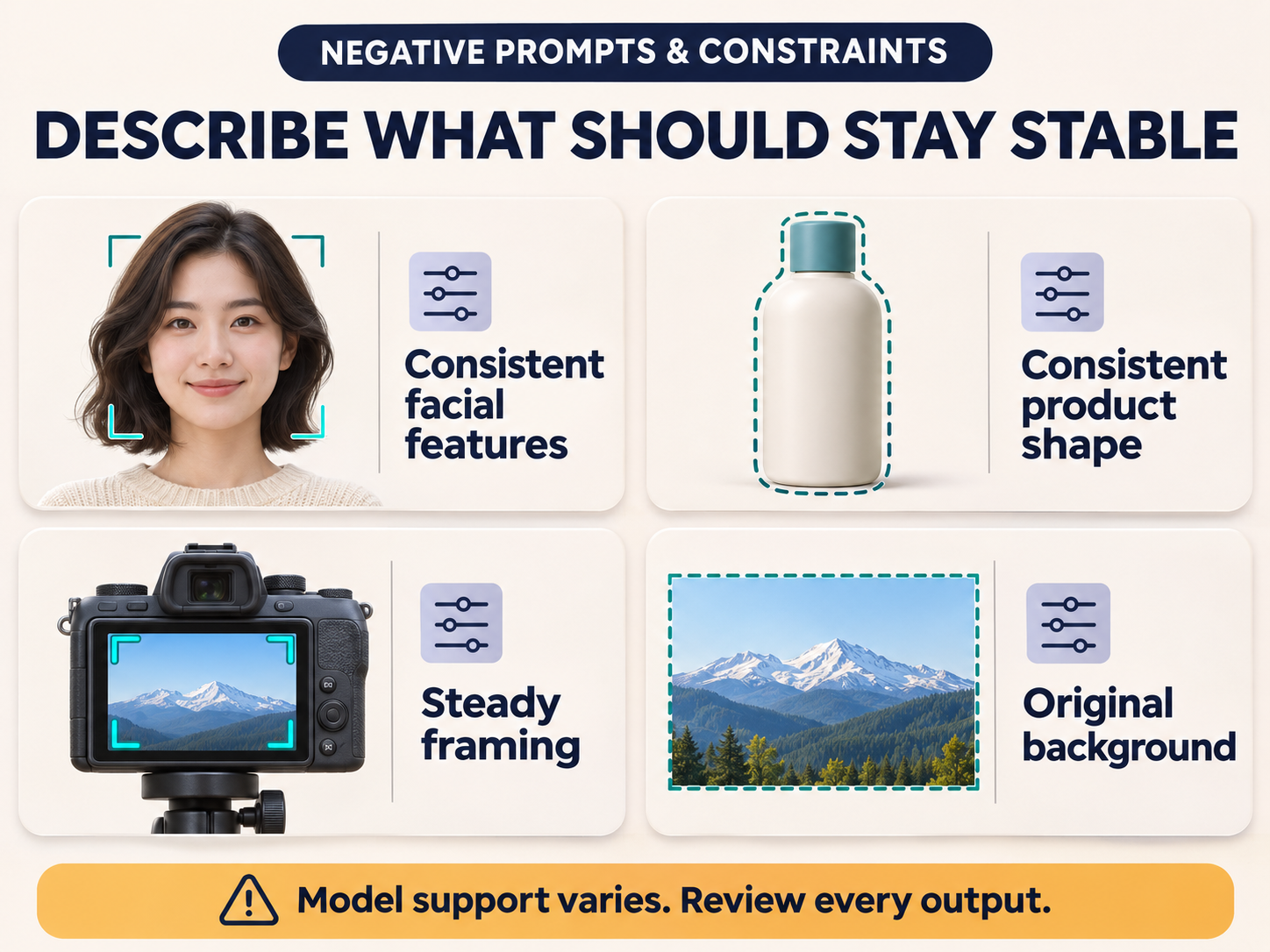
Negative Prompts: What They Can and Cannot Do
Negative prompts describe unwanted elements or behaviors. Their support and effectiveness vary by model.
Do not assume every model has a separate negative-prompt field. If the interface only provides a main prompt, start with clear descriptions of the desired state, such as "steady camera" or "consistent product shape." Add a short constraint when it addresses a specific problem.
| Goal | Describe the desired result | Optional negative phrase, if the model supports it |
|---|---|---|
| Stable portrait | Consistent facial features, subtle expression | Face distortion |
| Stable product | Consistent shape, label layout, and colors | Altered label, duplicated product |
| Smooth shot | One continuous shot, steady framing | Sudden cuts, camera shake |
| Natural anatomy | Natural posture and visible hand positions | Extra limbs, distorted hands |
| Stable setting | Preserve the visible background and composition | Background replacement |
For a portrait, try:
Subtle smile and natural blinking, consistent facial features, steady camera.
For a product, try:
The product stays still while a soft highlight moves across it. Consistent packaging shape, label layout, and brand colors.
Instructions such as "keep the logo unchanged" can express your goal, but they do not guarantee exact text, branding, or facial preservation. Review the output before using it in an ad or publishing it.
If the source image needs a cleaner background or better lighting, prepare it first in the AI image editor.
12 Copyable Image-to-Video Prompt Examples
Adapt the subject and action to what is actually visible in your image. Each example describes one short scene.
The sample clips below were generated with MiniMax H3 at 768P using a 4-second duration setting. Each source image is paired with the prompt and its generated video.
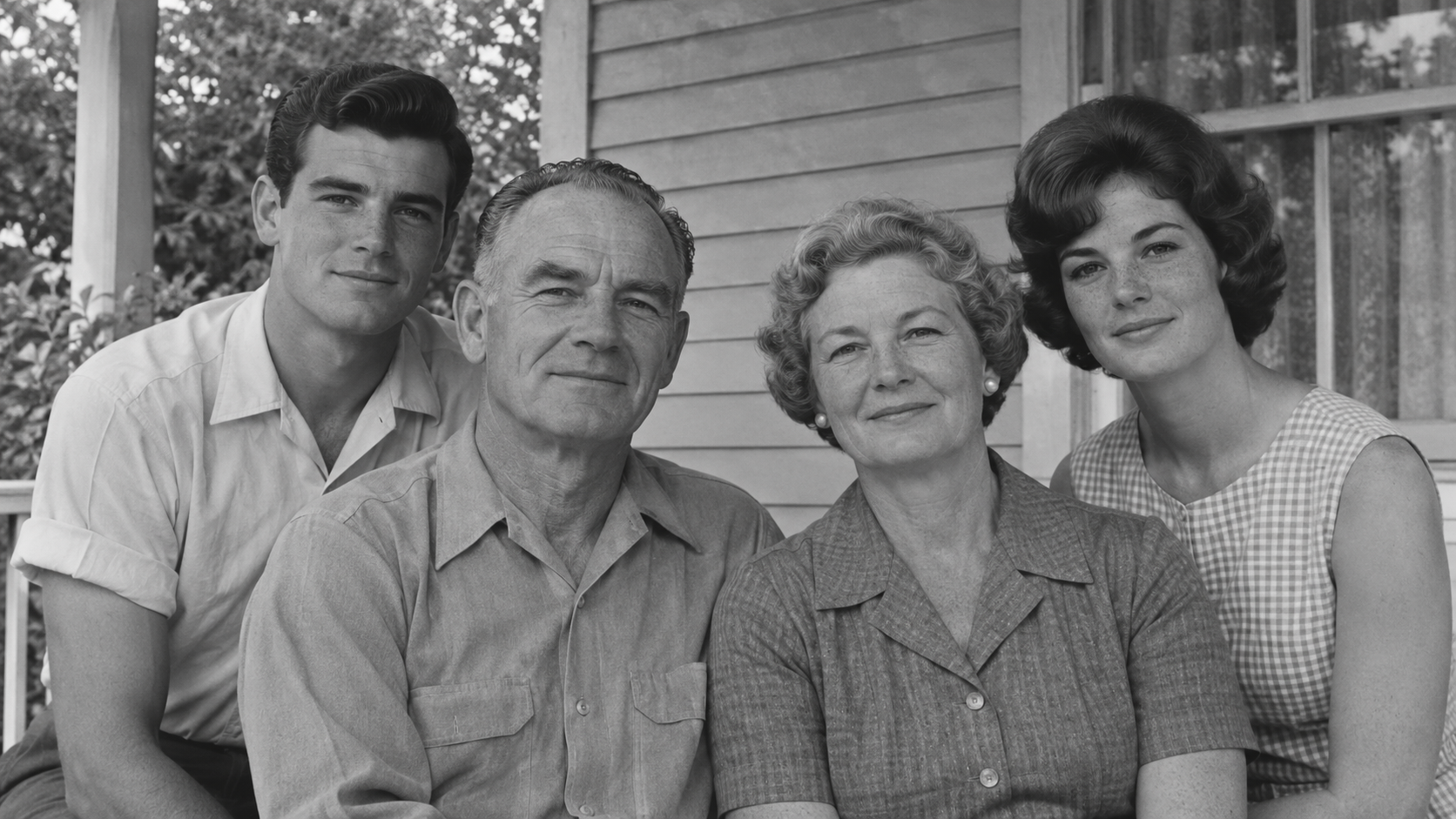
1. Old Family Photo
Source image
Prompt
The family members smile gently and blink naturally, with subtle breathing. A very slow push-in keeps the group centered. Preserve the original lighting, clothing, and facial features.
Generated video
For crowded photos, start with smaller movements rather than asking every person to perform a different action.
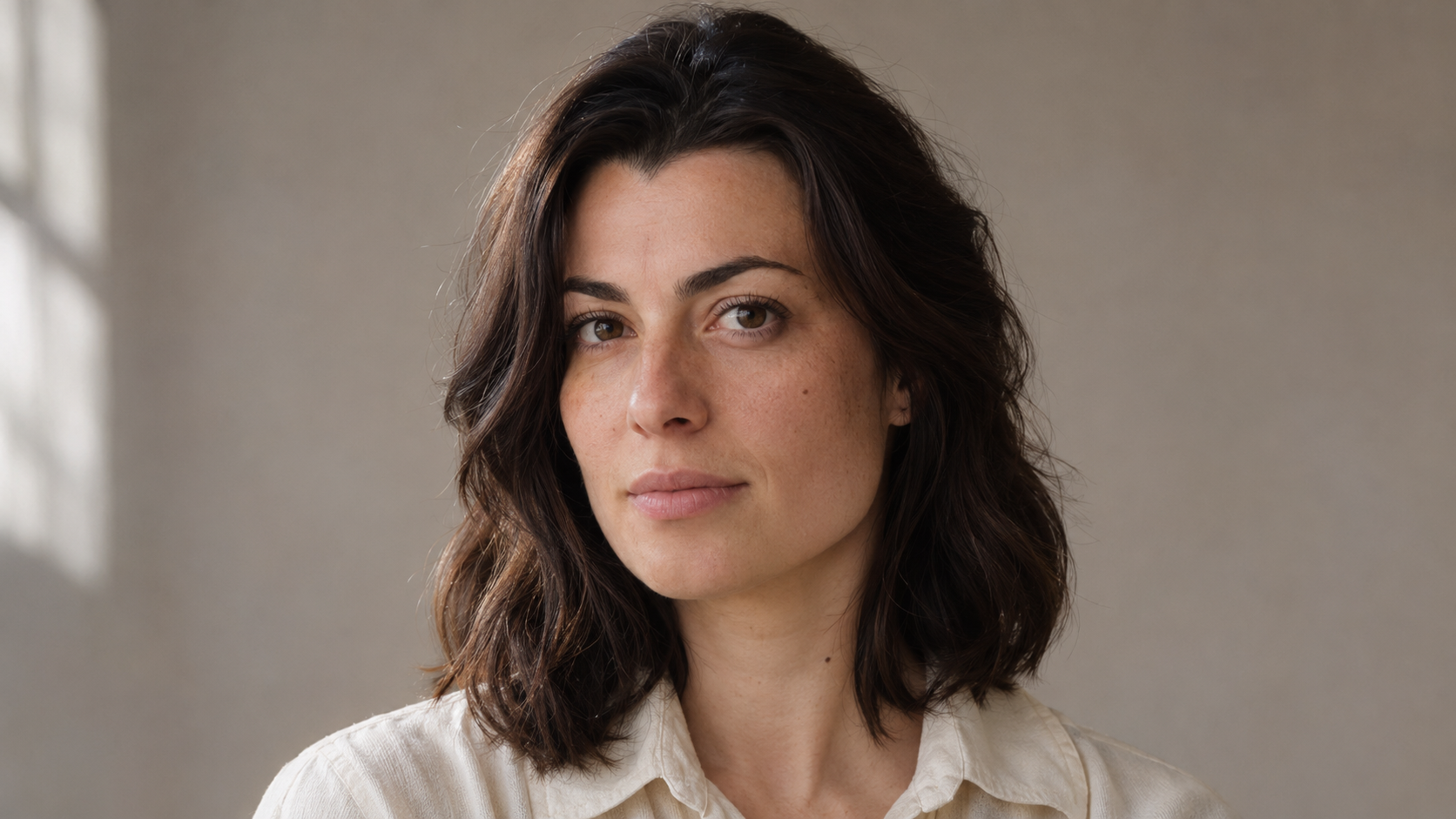
2. Portrait Photo
Source image
Prompt
The subject makes a small head turn toward the camera and gives a gentle smile. Slow push-in, soft natural light, consistent facial features and hairstyle, one continuous shot.
Generated video
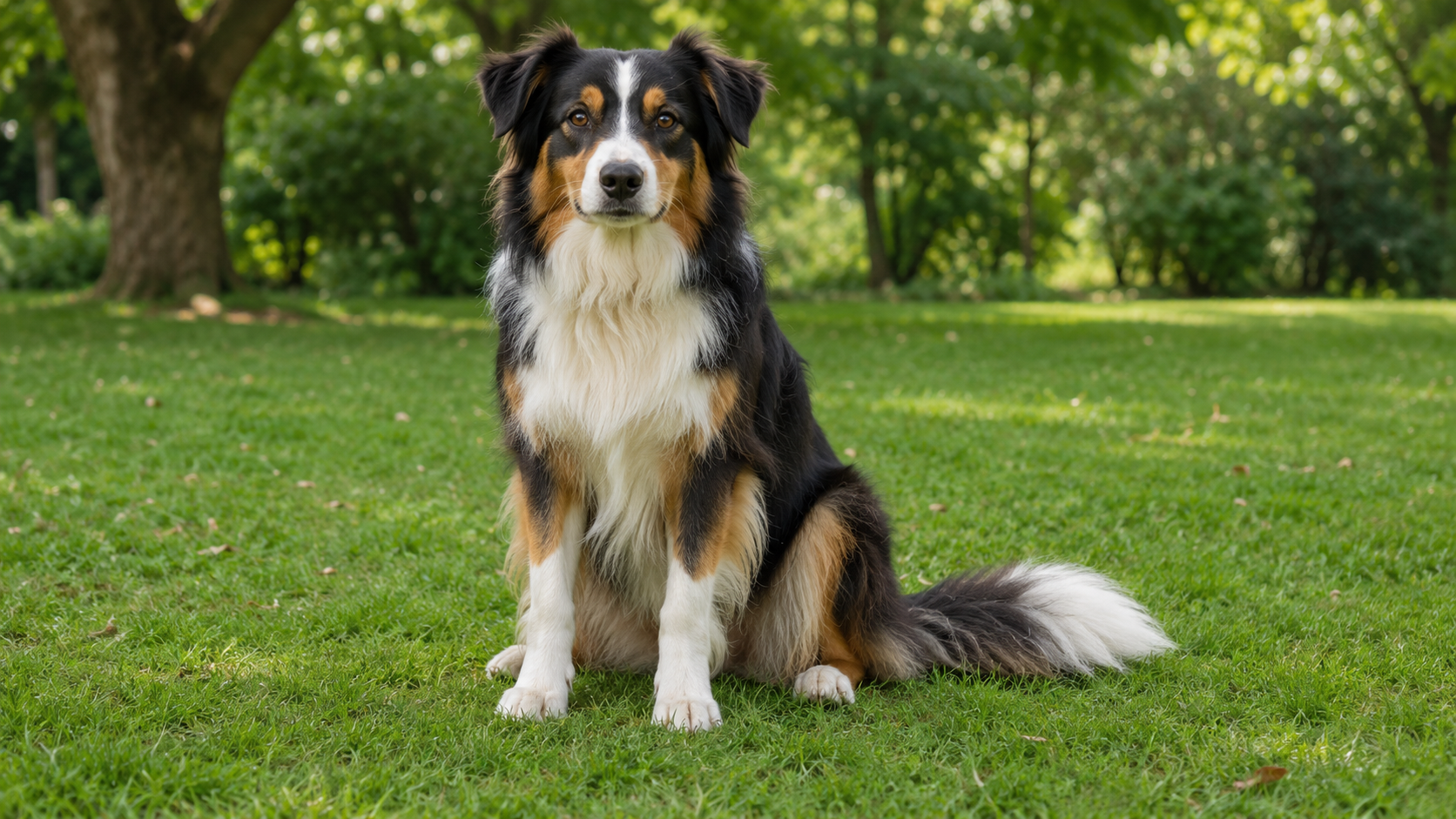
3. Pet Photo
Source image
Prompt
The dog tilts its head slightly and gently wags its visible tail. Fixed camera, natural body motion, consistent fur markings and facial features.
Generated video
If the tail is outside the frame, remove that instruction.
4. Product Bottle
Source image
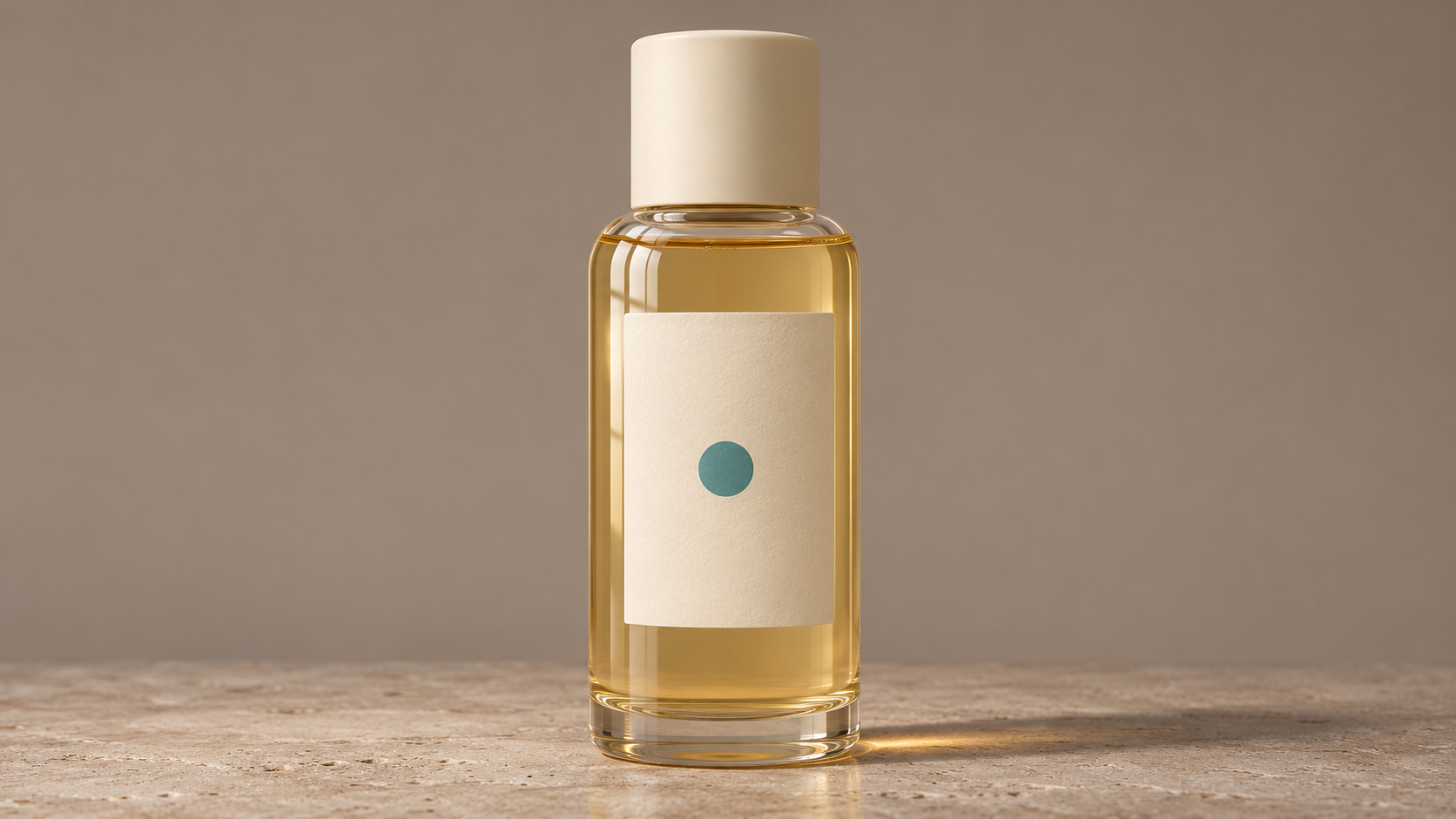
Prompt
The bottle remains still on the studio surface while a soft highlight sweeps across the glass. Fixed camera, consistent bottle shape, label layout, logo, and colors.
Generated video
Keeping the bottle still can be a more useful first test than rotating it when the label is important.
5. Fashion Photo
Source image
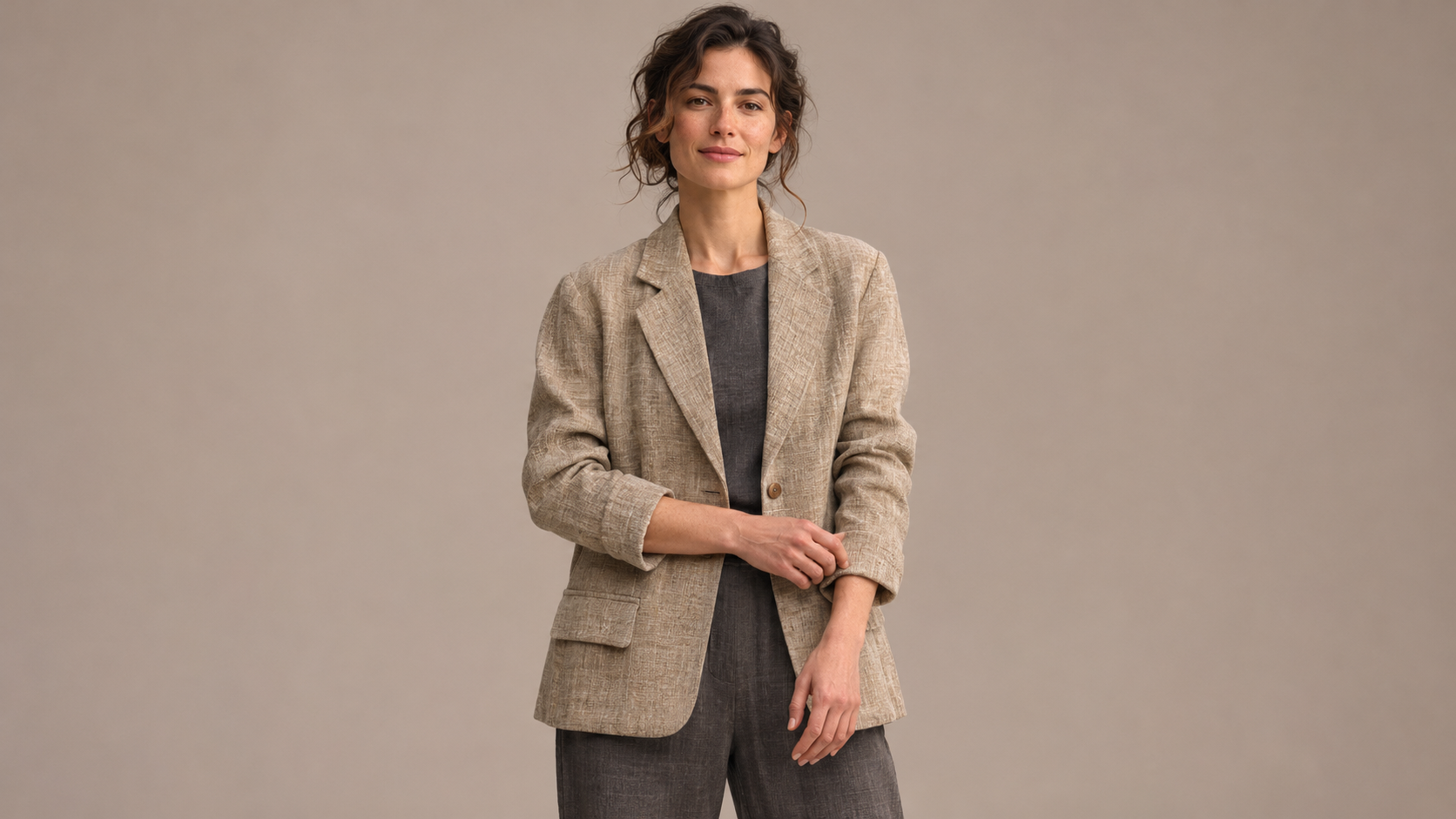
Prompt
The model gently adjusts a visible sleeve and shifts weight slightly. A small camera move reveals the fabric texture. Soft studio light, consistent garment design and body proportions.
Generated video
6. Food Photo
Source image
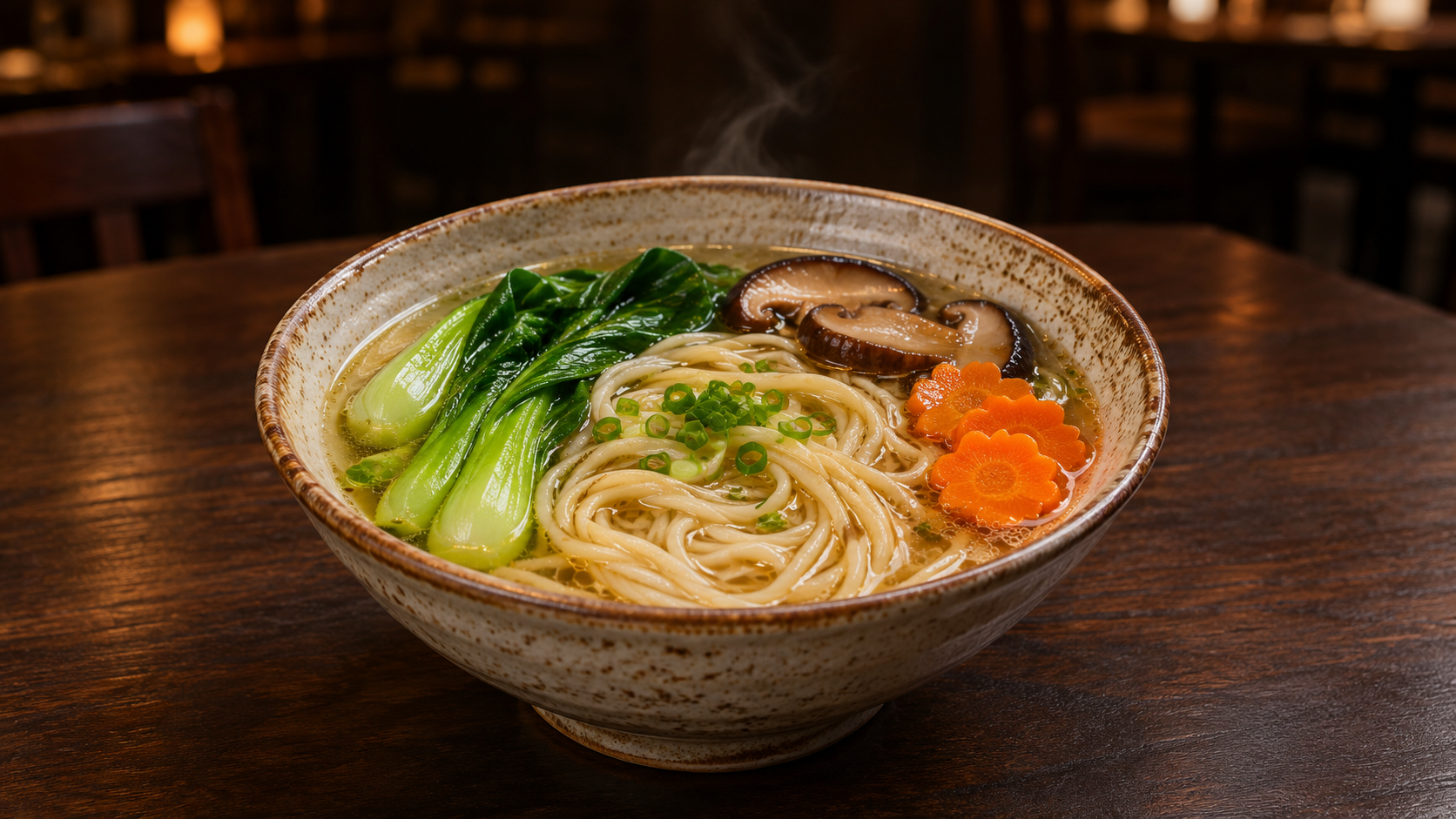
Prompt
Gentle steam rises from the hot dish as the camera makes a slow close-up push-in. Warm restaurant lighting, consistent food arrangement, dish shape, and colors.
Generated video
7. Travel Landscape
Source image
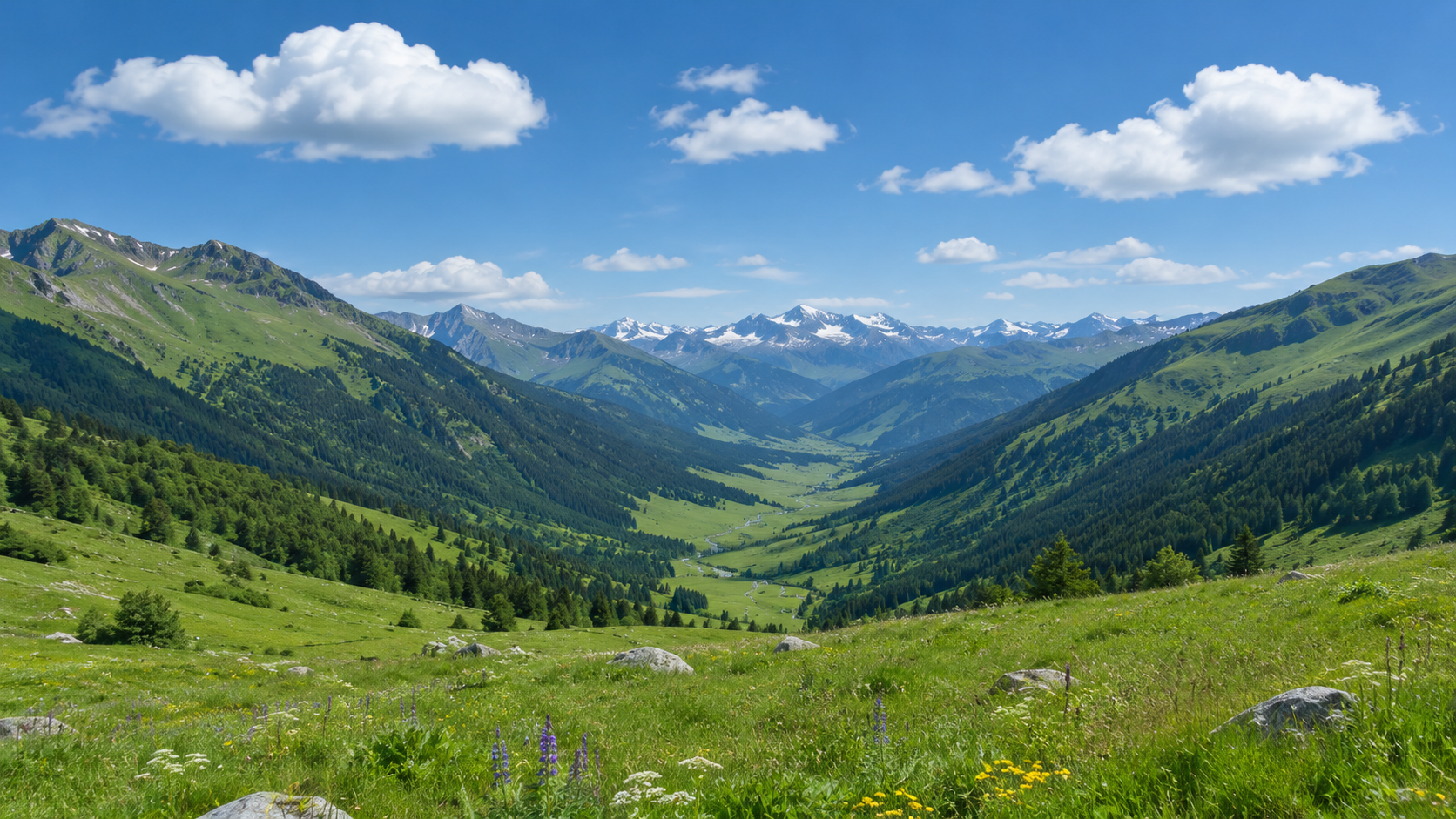
Prompt
A slow forward camera glide moves through the visible valley view. Clouds drift gently across the sky. Preserve the mountains, horizon, and original daylight.
Generated video
8. Beach Photo
Source image
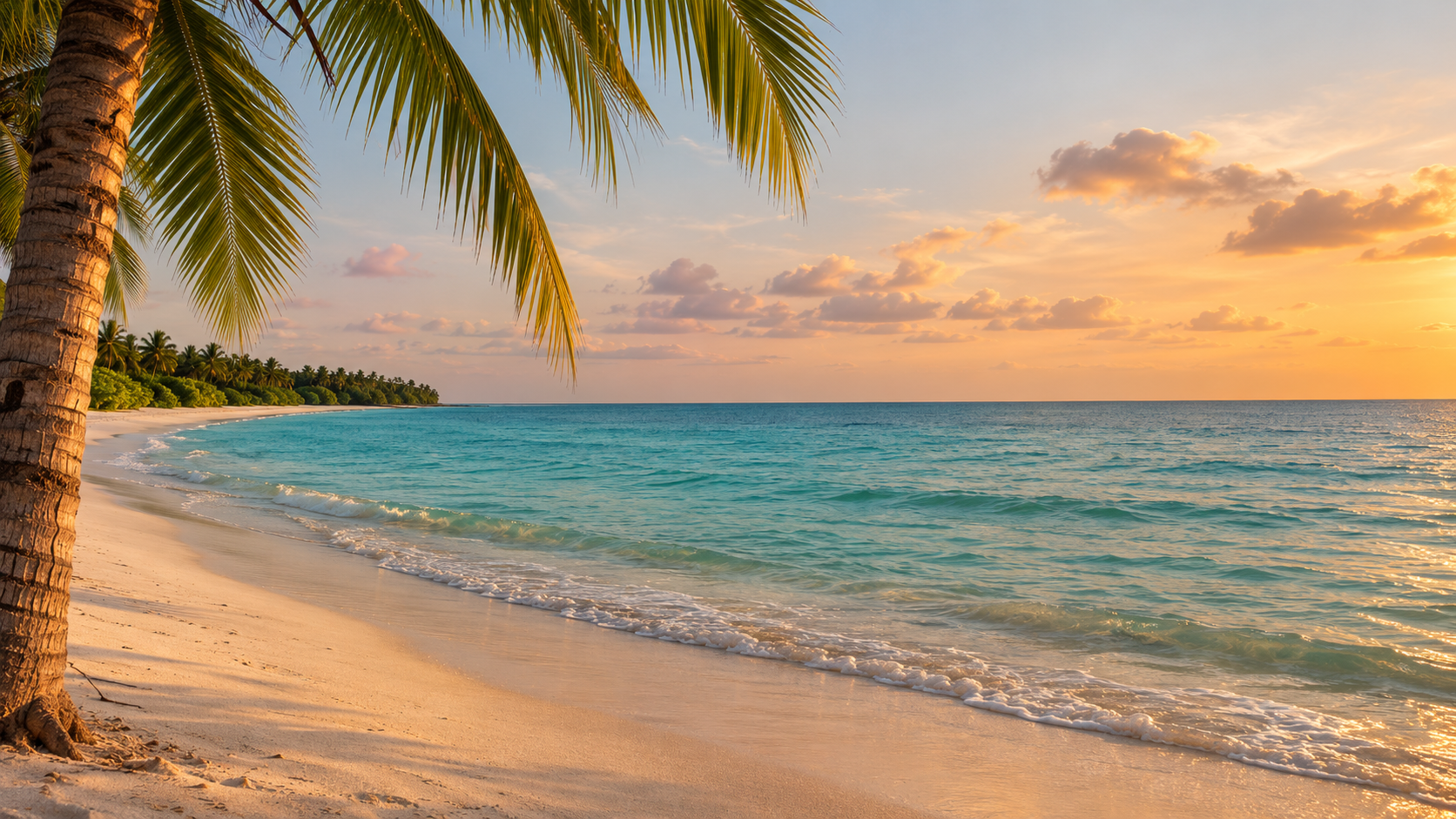
Prompt
Small waves roll naturally toward the shore while palm leaves sway gently. Slow sideways camera movement, warm golden-hour light, stable coastline and horizon.
Generated video
9. Real Estate Interior
Source image
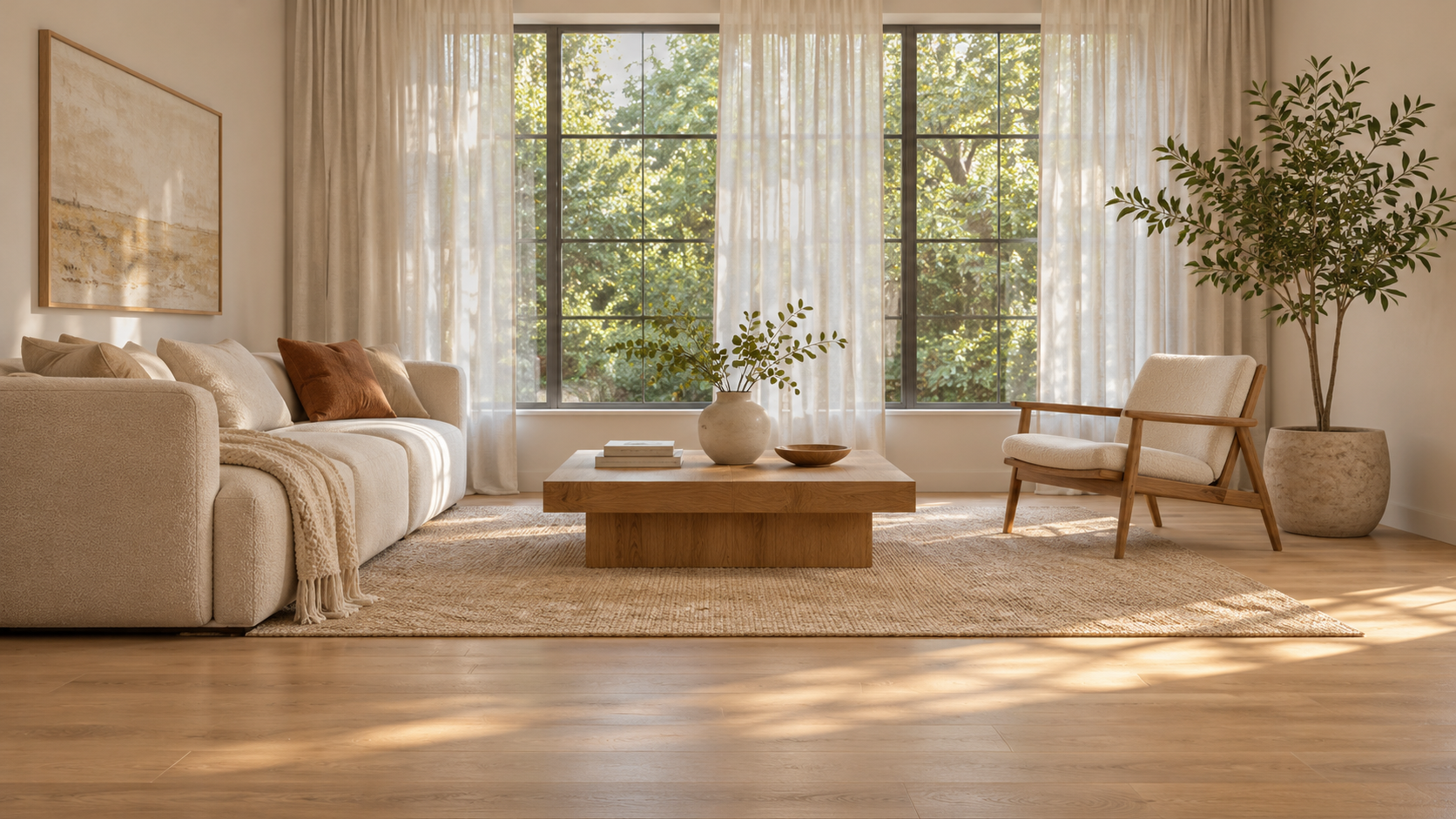
Prompt
A short, slow camera move travels forward within the room. Subtle sunlight shifts across the floor. Preserve straight architectural lines, furniture positions, and the visible room layout.
Generated video
A single room image is best treated as a short interior shot, rather than a full tour through spaces that are not shown.
10. Anime Character
Source image
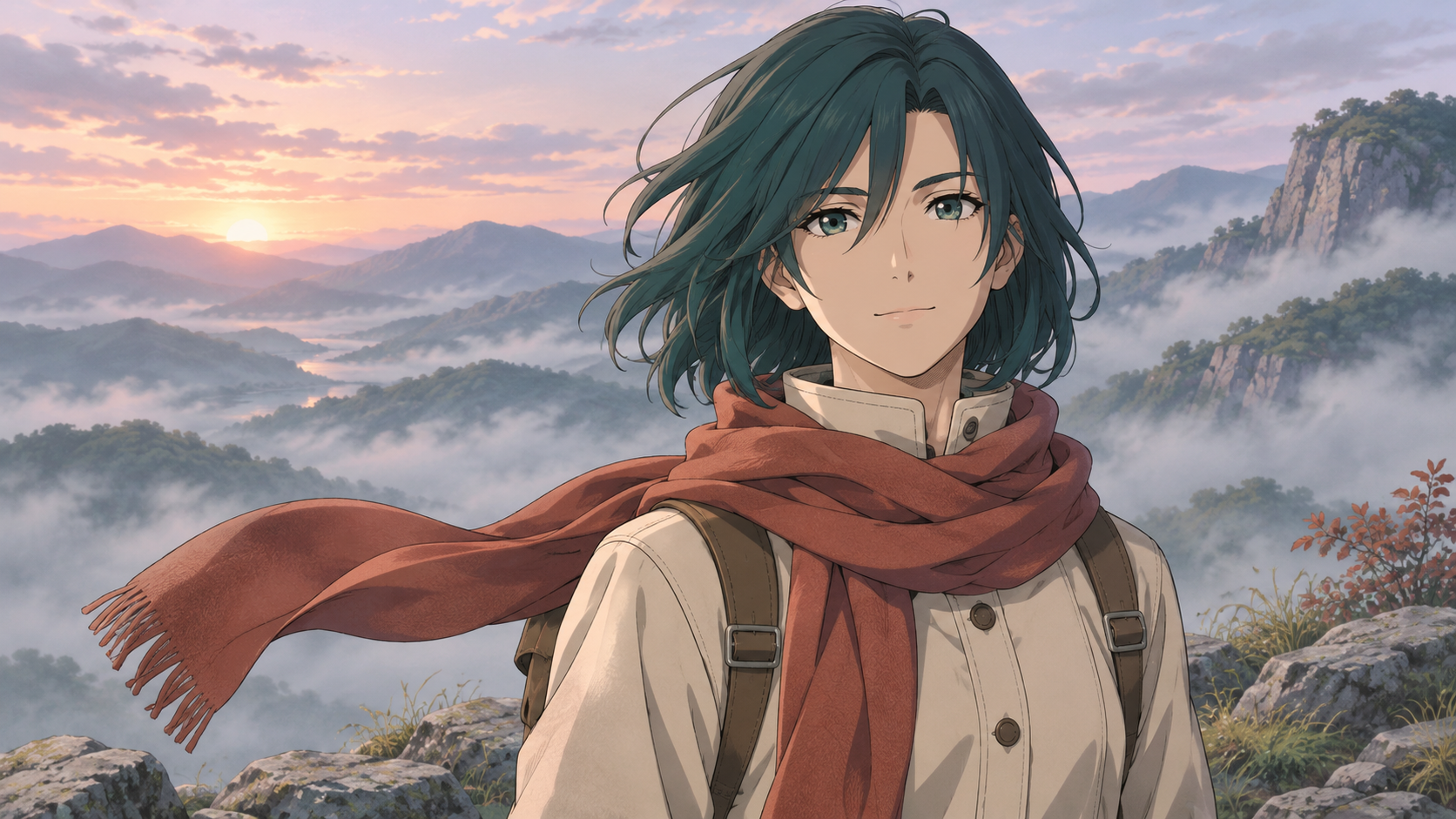
Prompt
The character blinks once as the hair and visible clothing move gently in the breeze. Slow push-in, soft atmospheric light, consistent facial design and costume details.
Generated video
11. Product Packaging
Source image
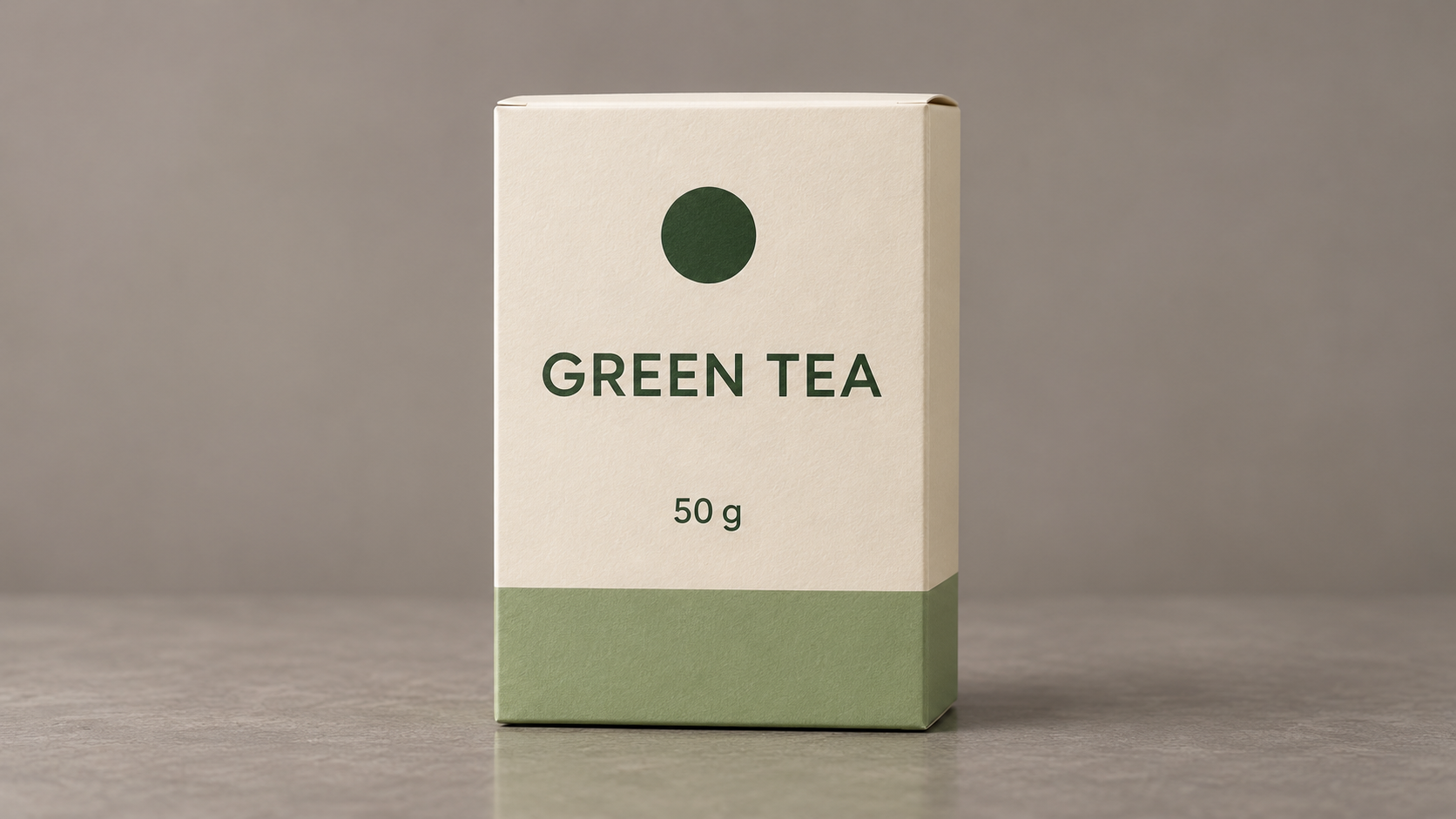
Prompt
A soft light moves across the front of the package while the package remains still. Fixed studio camera, consistent box geometry, label layout, brand colors, and visible text.
Generated video
Inspect small print frame by frame before using the result commercially.
12. Dynamic Poster
Source image
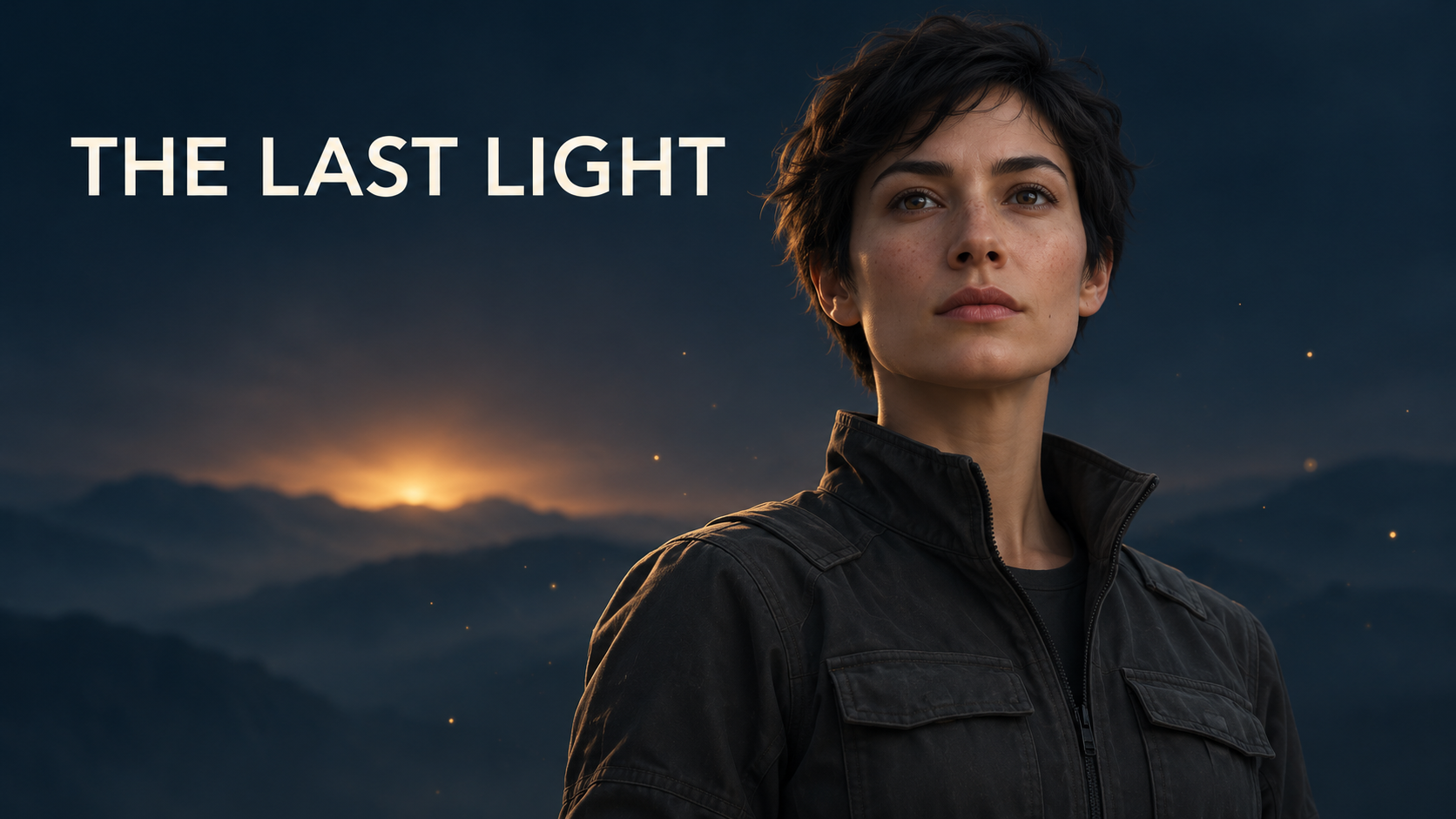
Prompt
The main character makes a subtle head movement while background particles drift slowly. Fixed framing, gentle motion, preserve the poster layout and title placement.
Generated video
If exact typography is essential, consider animating an image without text and adding the original lettering afterward in a video editor.
You can use these examples as starting points in the Seedance 2.0 AI video generator. Adjust them for the selected model rather than expecting identical results across models.
How to Test Image-to-Video Prompts in ezVideo
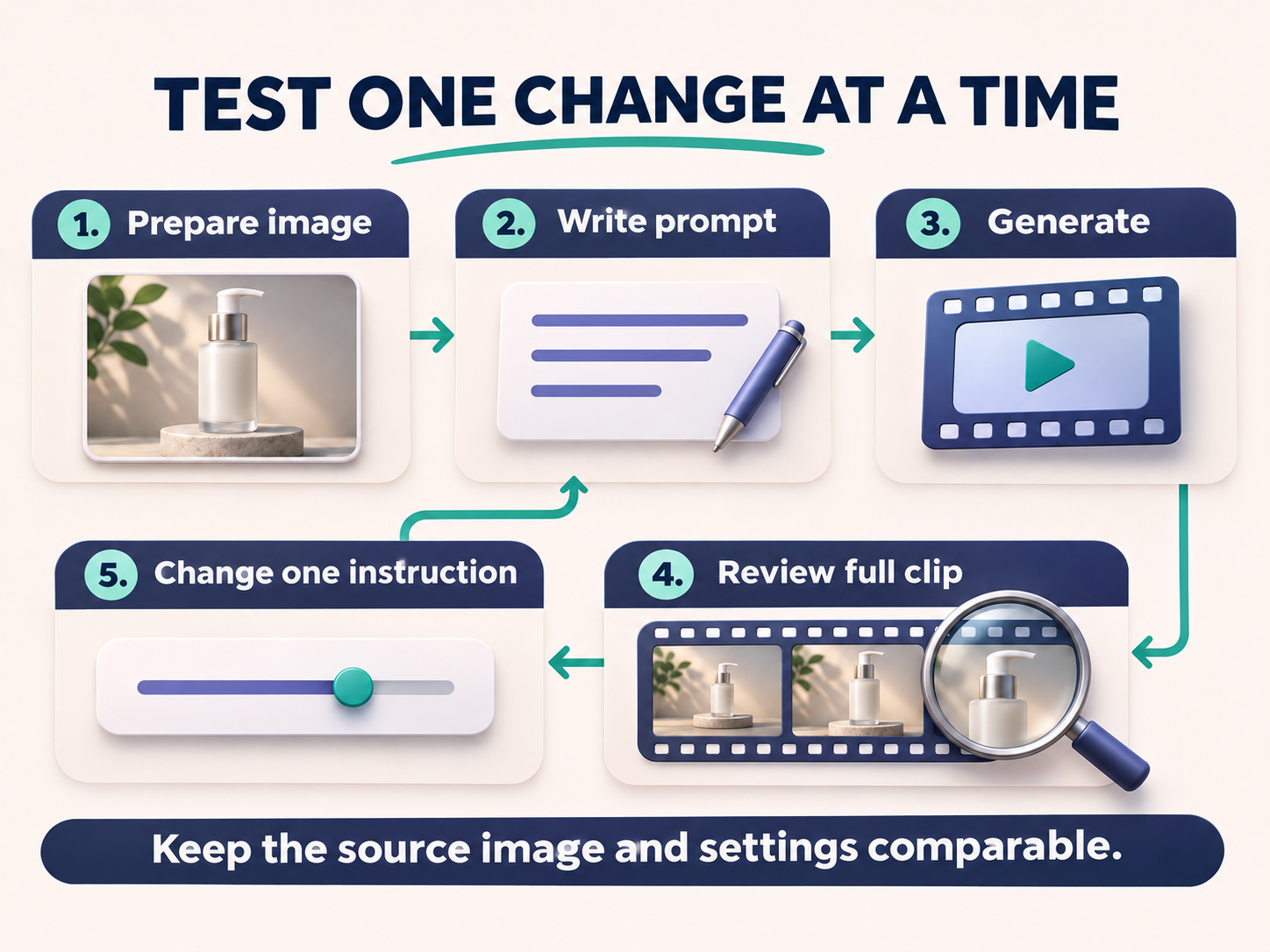
Use a clear source image and begin with a single motion idea. Check the current model options, input requirements, duration, and resolution in the workspace before generating.
1. Prepare the Source Image
Choose an image with a clear subject, enough space for the intended movement, and visible details you want the model to preserve.
If the face is blurred or a product label is unreadable in the source, a motion prompt cannot reliably reconstruct the exact original detail. Use the ezVideo image editor for source preparation where needed, and check that edits preserve important features.
2. Write a Simple Baseline Prompt
Start with the action and camera:
The subject smiles gently. Slow push-in, one continuous shot.
Generate a first version before adding a long list of instructions.
3. Review the Whole Clip
Check the start, middle, and end. Look for changes in faces, fingers, product edges, text, backgrounds, and framing.
A convincing first frame does not mean every frame is suitable for publication.
4. Change One Instruction at a Time
If the camera moves too quickly, revise only the camera instruction:
Very slow push-in with steady framing.
If the subject changes too much, reduce the action:
Subtle breathing and one natural blink.
Keep a note of the image, model, settings, and prompt so you can compare versions. Generation has variation; one improved result does not prove a phrase will always work.
5. Review Credits Before Iterating
Different models and settings may use different amounts of credits. Check the workspace estimate and the ezVideo pricing page before running repeated tests.
Common Prompt Problems and What to Try
| Problem | Possible cause | What to try next |
|---|---|---|
| The subject barely moves | The action is vague or competes with many constraints | Name one visible movement, such as a slight head turn |
| The subject moves too much | The requested action is large for the frame or duration | Reduce it to a subtle movement and simplify the prompt |
| The face changes | The turn reveals unseen detail or the source is unclear | Use a clearer image and a smaller head movement |
| The product label changes | Rotation or generation alters fine details | Keep the product still and animate lighting or the camera slightly |
| The background warps | The move reveals areas absent from the source | Reduce camera travel and use a more stable composition |
| The clip contains cuts | The prompt suggests multiple scenes or events | Ask for one continuous shot and one action |
| Hands look unnatural | The motion is complex or the hands are obscured | Use a pose with visible hands and request less movement |
These adjustments may help, but they cannot eliminate every generation error. If several simplified attempts still fail, try a different source image or model.
Image-to-Video Prompt Checklist
Before generating, check that:
- The requested action fits the subject's pose.
- Important moving body parts or product surfaces are visible.
- The prompt contains one main action and one camera direction.
- The movement is realistic for the intended clip length.
- The lighting instruction fits the source image.
- Constraints focus on the details that matter.
- The prompt describes one continuous scene.
- You have a plan to review faces, text, and branding afterward.
Start with a clear image, one action, and one camera move. Test the result, then add a specific correction where it is needed.
Upload your source image to the ezVideo image-to-video generator and use one of the prompts above as your first version.
FAQ
What is a good image-to-video prompt?
A good prompt describes a visible subject, a specific action, a camera movement, and any important consistency requirements. For example: "The subject smiles gently as the camera slowly pushes closer, with consistent facial features and soft daylight."
How long should an image-to-video prompt be?
Use enough detail to explain the movement clearly, while staying within the selected tool's input limit. Start with a few focused sentences. Add instructions only when they help define the scene or address a result you have reviewed.
What camera movement should I try first?
A slow push-in or a fixed camera is a practical starting point for many portraits and products. Large orbit shots and dramatic reveals require the model to create details that may not exist in the source image.
Do negative prompts work with every AI video model?
No. Support and behavior vary by model. If there is no separate negative-prompt field, start by describing the desired result clearly in the main prompt. Test short constraints rather than assuming a list of negative phrases will be followed.
Can a prompt keep a logo or face exactly unchanged?
It can express that goal, but it cannot guarantee exact preservation. Reduce motion around critical details, inspect the entire clip, and use original overlays or further editing when exact branding or typography is essential.
Should I describe everything in the source image?
Usually, focus on what should change over time. Repeat visual details only when they are important to the motion or to consistency, such as a product label, facial features, or a garment design.
Can I reuse the same prompt across different models?
Yes, as a starting point. Models can interpret the same motion and camera language differently. Keep the source image and settings comparable, then adapt the prompt to the results.