Animating a photo with AI means turning a still image into a short video with controlled movement. The original image usually becomes the first frame, while the model estimates how a face, body, product, background, or camera could move over time.
The most reliable results come from a simple workflow: choose a clear source image, describe one visible action, generate a short first draft, and review the entire clip before making changes. This guide walks through that process in ezVideo and explains how to fix common problems such as a changing face, warped hands, unstable text, or a background that bends.
If you already know the workflow and want more detailed wording, see the Image-to-Video Prompt Guide for camera movements, action verbs, and negative prompt ideas.
What does it mean to animate a photo with AI?
An AI photo animation tool creates motion from a still image. You provide an image and a description of the movement you want, and the model generates a sequence of frames that connects the original image to the requested action.
For example, a portrait can include a natural blink and a small head turn. A landscape can include drifting clouds and a slow camera move. A product photo can stay still while a soft highlight travels across the packaging.
The result is an interpretation of the source image, not a frame-by-frame recovery of an event that actually happened. Details that are hidden, blurry, or outside the original frame may be reconstructed differently from one generation to another. Treat the first clip as a draft to review, then refine the instructions if needed.
Before you start: choose a good source image
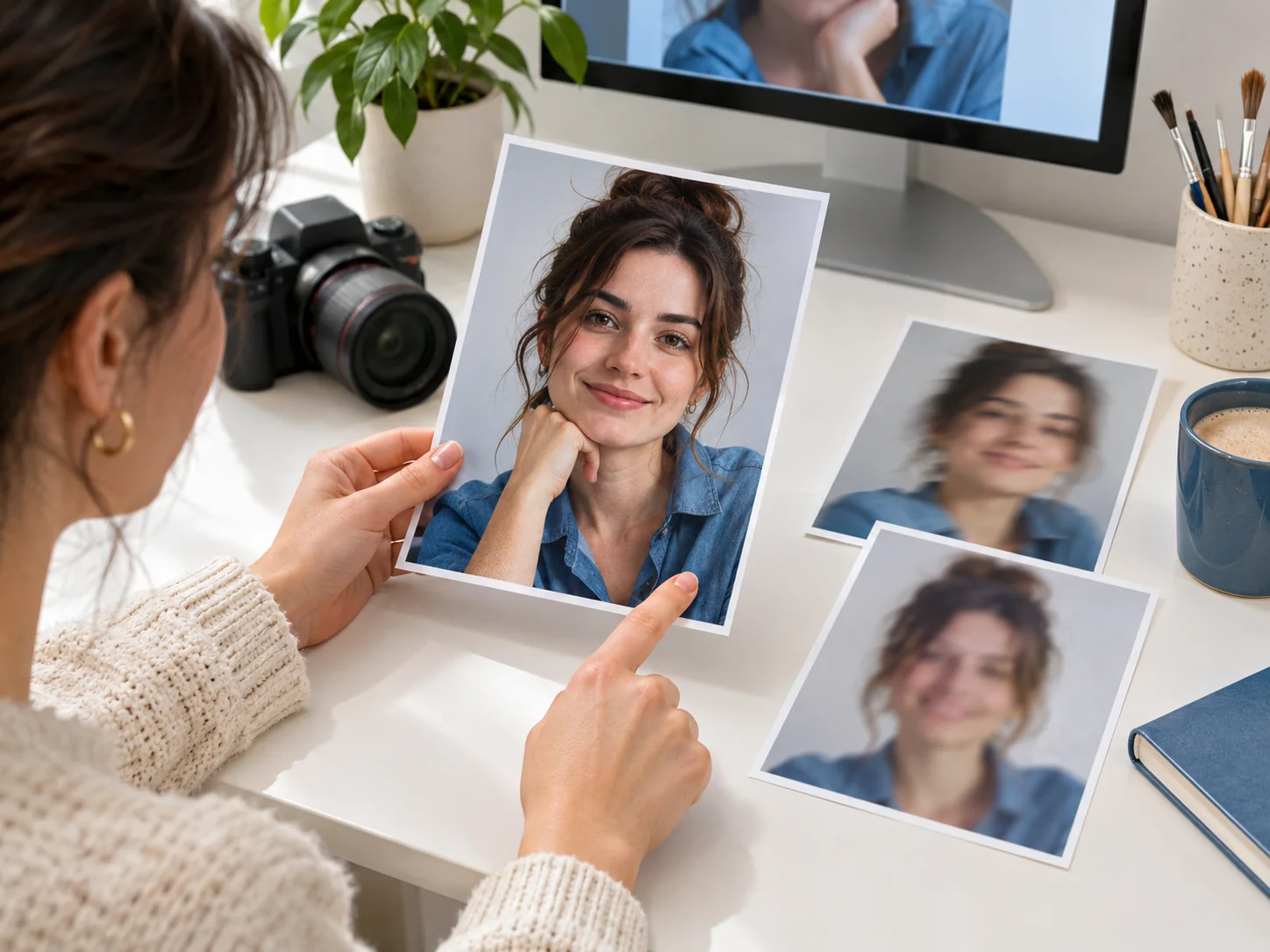
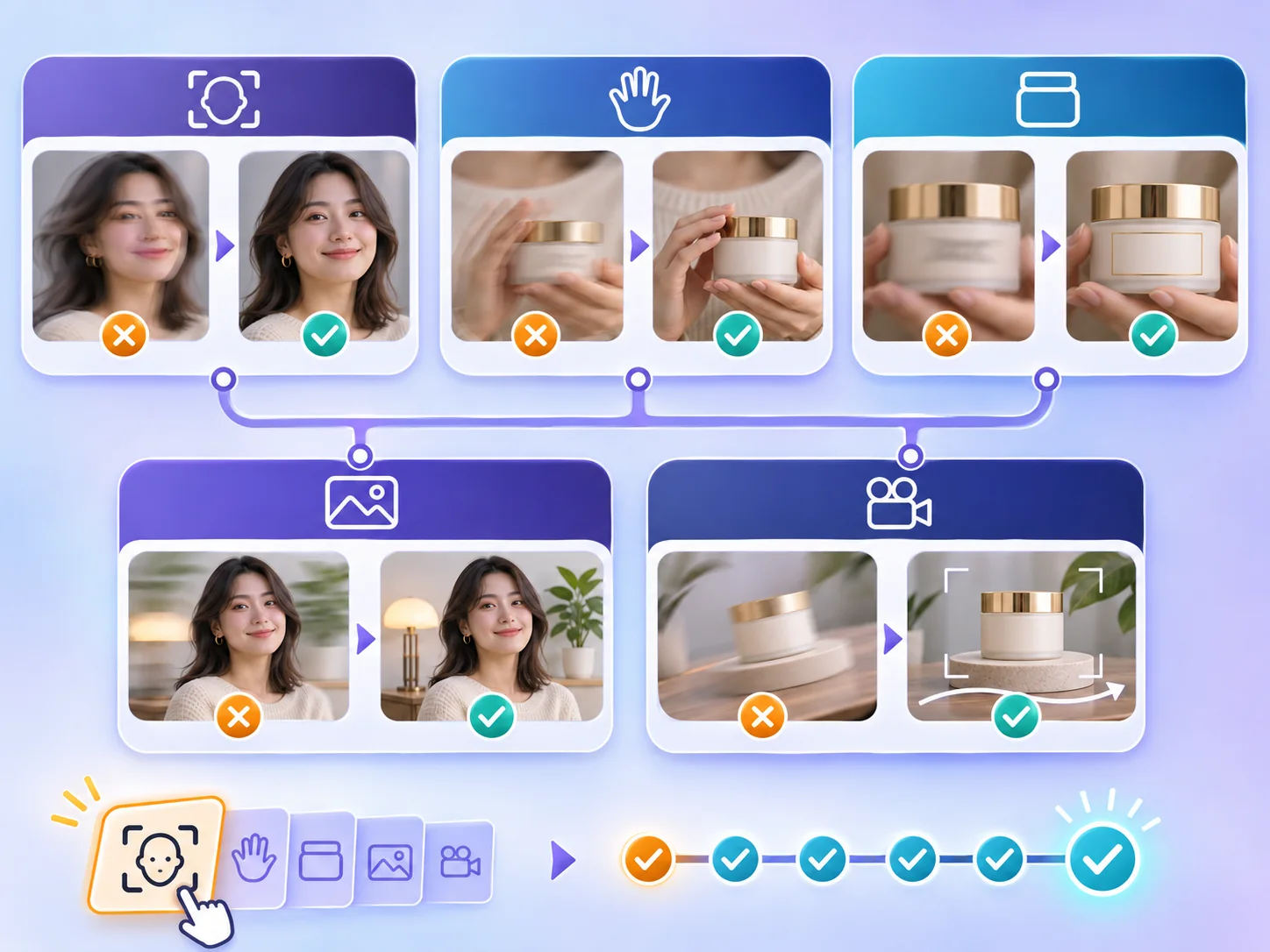
The source image has a major effect on the final video. A prompt can guide motion, but it cannot reliably restore a face, label, or hand that is already too blurry to read.
Choose an image with:
- One clear subject or a small group.
- A reasonably sharp face if the subject will blink, smile, or turn.
- Visible hands when the action includes the hands or arms.
- Enough space around the subject for the requested movement.
- A stable background when you want a camera move.
- Readable product shapes, labels, or logos when those details matter.
Avoid starting with a crowded image, a heavily cropped face, or a subject whose intended movement is hidden behind another object. If the background needs cleaning or the subject needs a small correction first, prepare the image in the ezVideo AI image editor.
Match the action to the image
The requested action should be possible from the visible pose. A person facing the camera can blink, smile, breathe subtly, or turn slightly. A side profile can look toward the camera, but asking for a full turn may require the model to invent facial details that are not visible.
The same rule applies to products and scenery. A front-facing box can show moving light or a small camera push. Asking the model to reveal every side of the box in one short clip makes label and shape changes more likely.
How to animate a photo with AI in ezVideo
The steps below are designed for a first, easy-to-evaluate generation. Model names, input limits, available settings, and credit estimates can change, so check the current workspace before generating.
1. Open the image-to-video generator
Start in the ezVideo image-to-video generator. Upload the source image you want to animate and wait until the image preview is clear before writing the prompt.
Keep the first test focused on one image and one motion idea. Testing several unrelated images at once makes it harder to understand why a result changed.
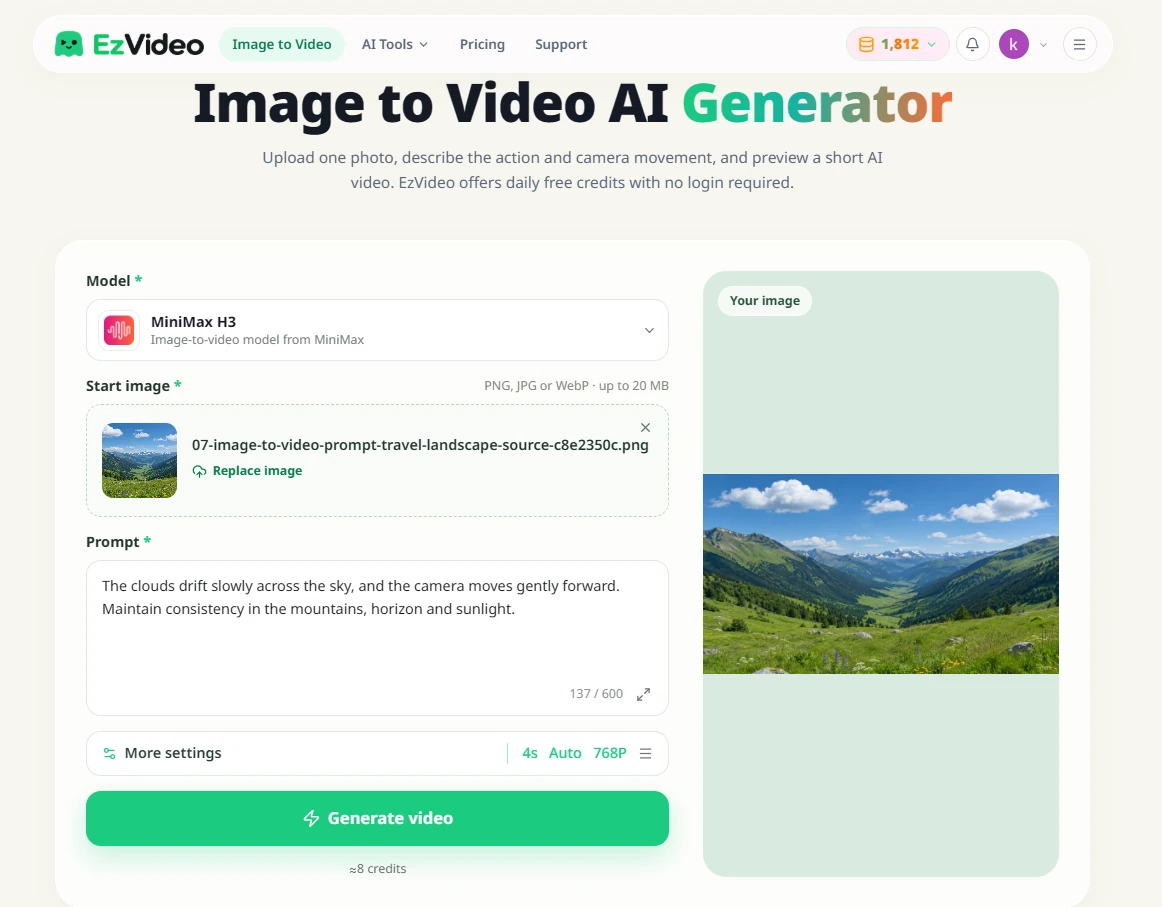
2. Write a simple baseline prompt
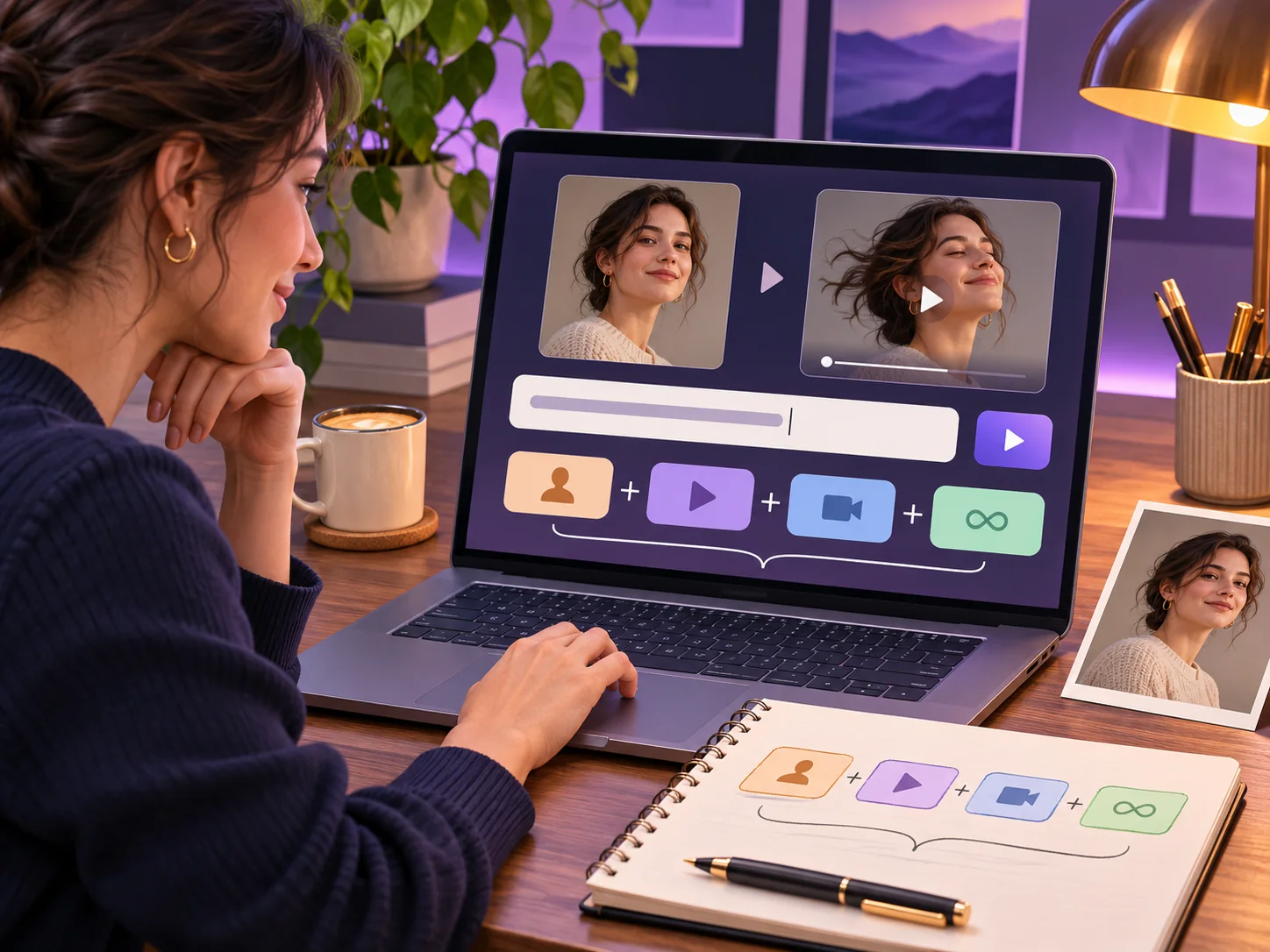
Describe the subject, one action, the camera, and the details that should stay consistent. A practical structure is:
Subject + visible action + camera movement + pace + consistency requirement
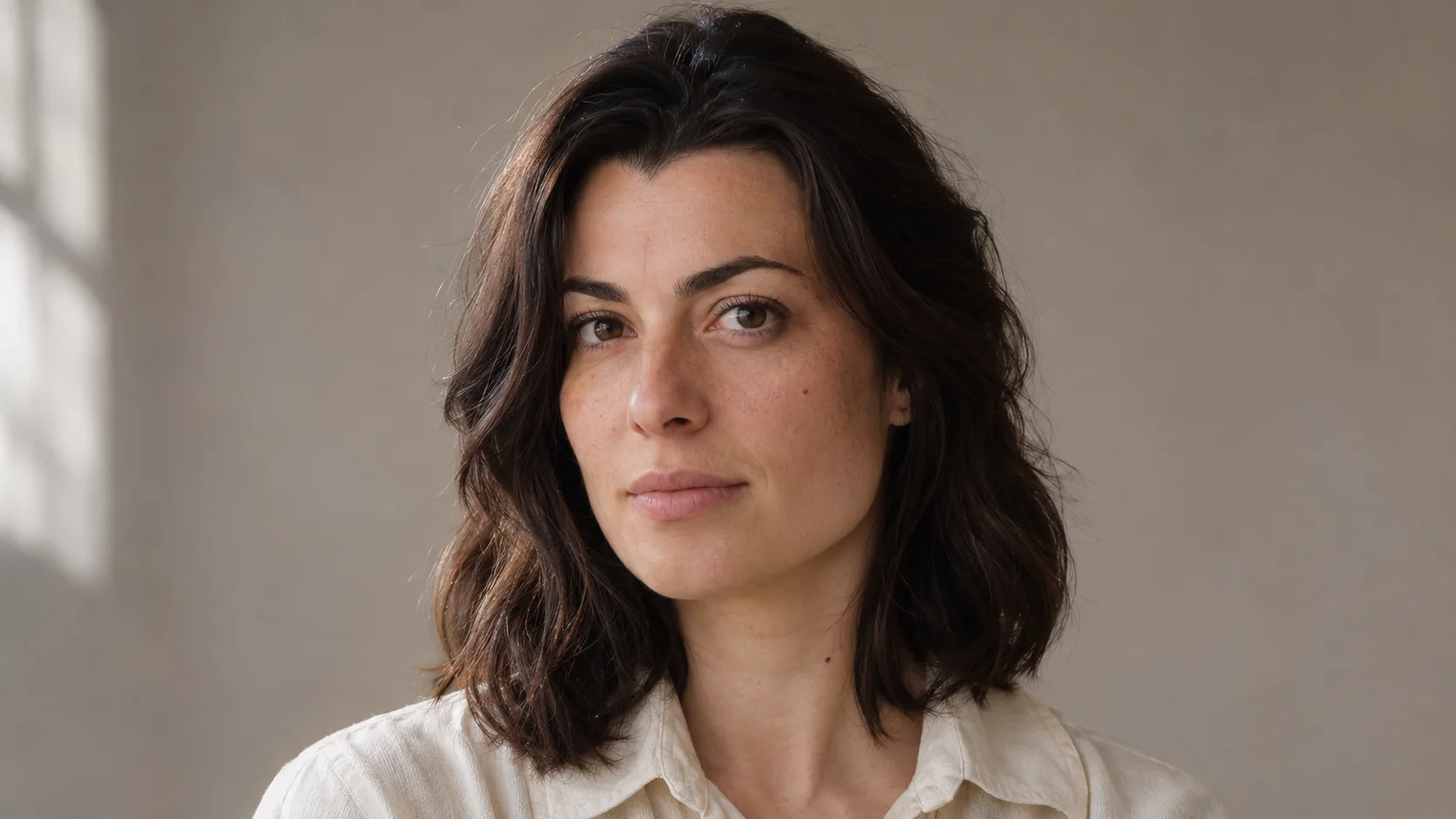
For a portrait, start with:
The subject smiles gently and blinks once. Slow push-in, soft natural light, consistent facial features, one continuous shot.
Gentle portrait smile: source image and generated video
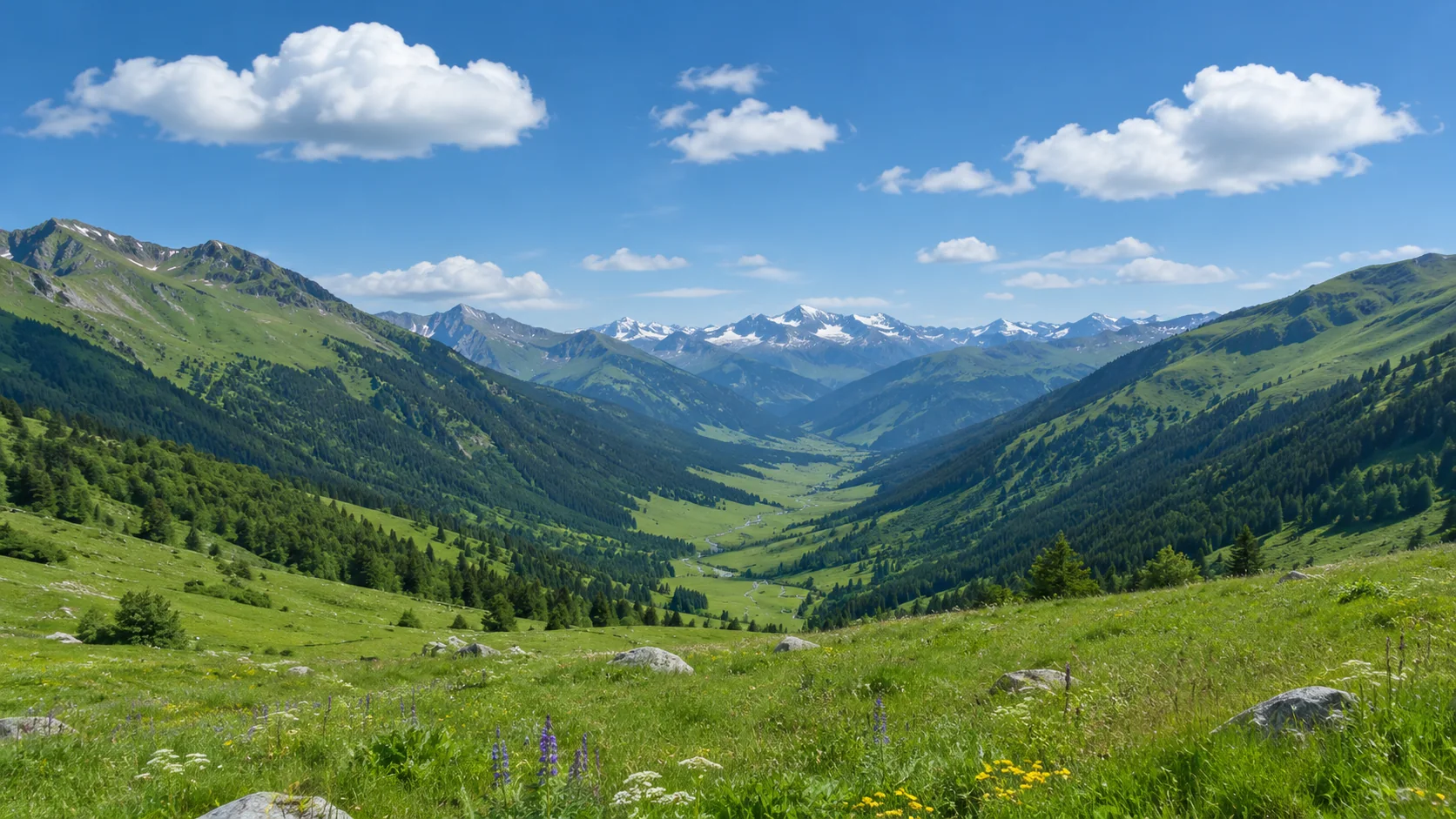
For a landscape, try:
Clouds drift slowly across the sky while the camera moves forward gently. Keep the mountains, horizon, and daylight consistent.
Drifting clouds in a landscape: source image and generated video
For a product, try:
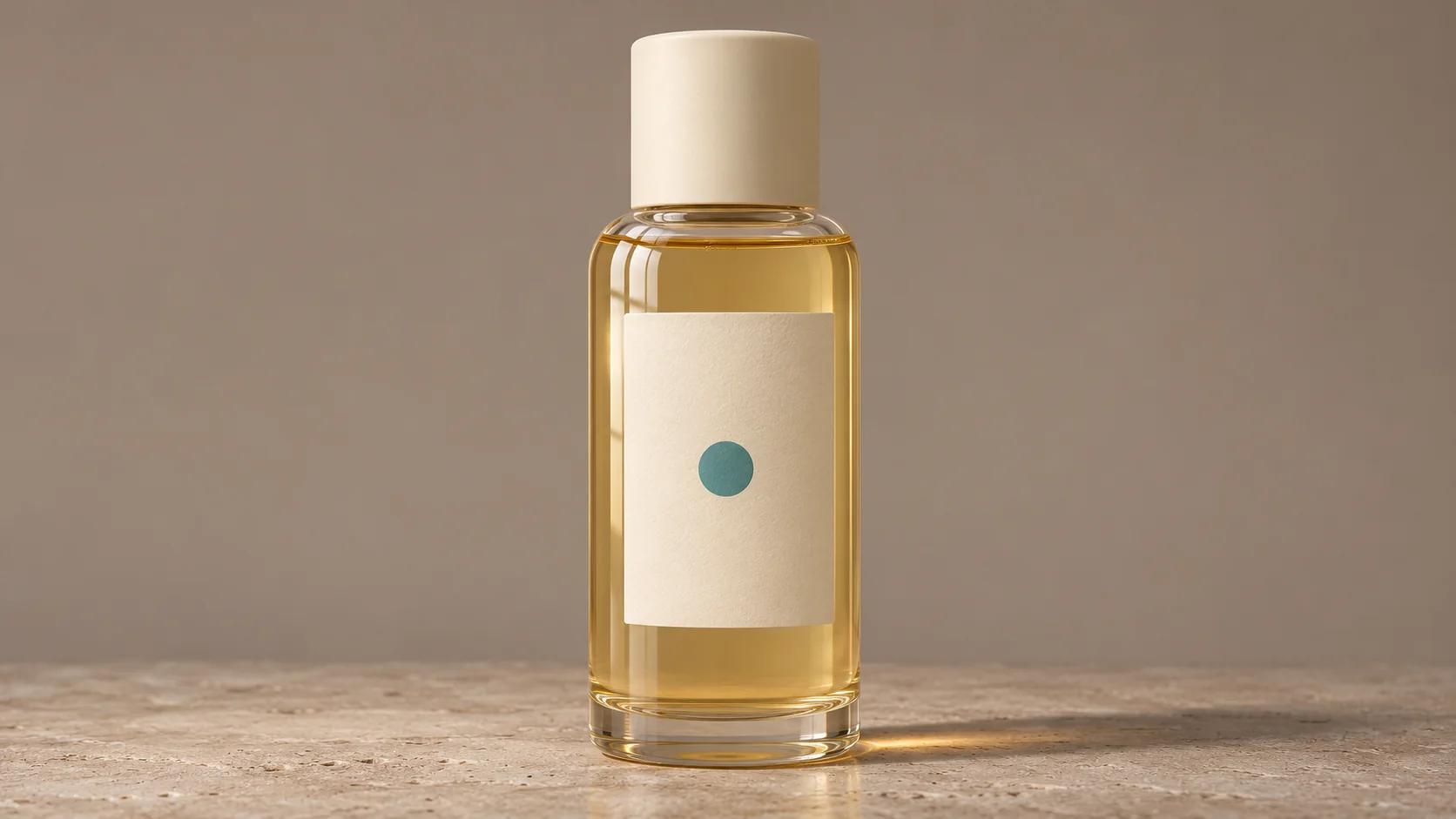
The product remains still while a soft studio reflection moves across the surface. Fixed camera, consistent packaging shape, label layout, and brand colors.
Moving product highlight: source image and generated video
Do not begin with a long list of camera moves, facial expressions, scene changes, and style changes. One clear action gives you a useful baseline.
3. Choose one camera movement or a fixed view
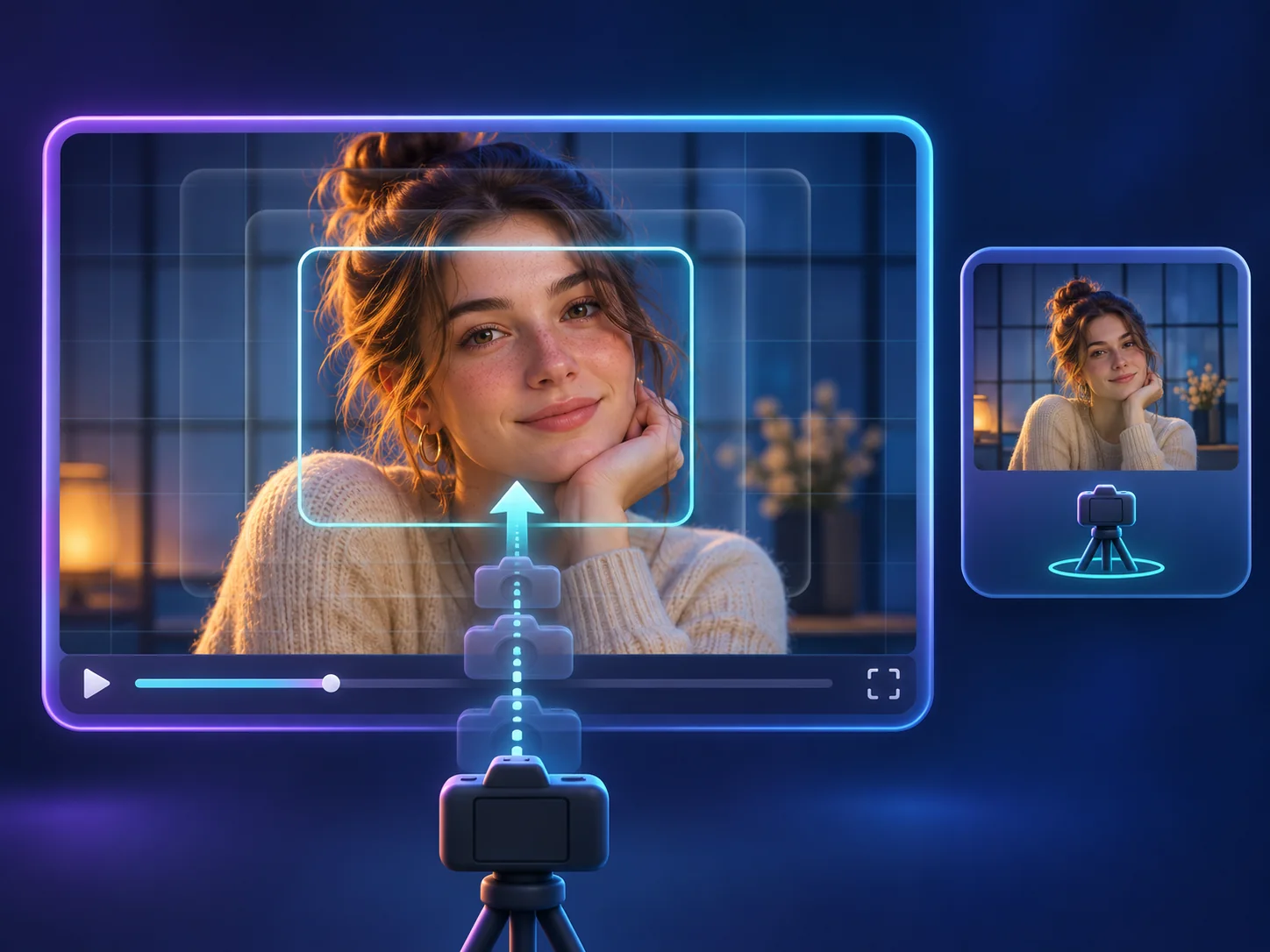
Camera wording tells the model how the viewer should move through the scene. For a first test, use one of these options:
| Camera instruction | Best starting use | What to watch |
|---|---|---|
| Slow push-in | Portraits and products | Facial features or labels changing as the view gets closer |
| Slow pull-back | Landscapes and room interiors | Newly revealed background areas becoming unstable |
| Gentle side-to-side move | Beaches, fashion, and architecture | Bent vertical lines or a drifting horizon |
| Small tilt up or down | Buildings and tall subjects | Details appearing outside the original frame |
| Fixed camera | Products, food, and portraits | Whether the subject movement itself is stable |
 For a more complete list of camera terms and examples, use the camera movement section in the prompt guide.
4. Generate a short first draft
Create the first version with the baseline prompt before adding extra constraints. A short clip is easier to inspect, and a simple result tells you whether the source image and the main action are compatible.
Do not judge the video from its first frame alone. AI video can begin with a convincing image and then change the subject, text, or background several seconds later.
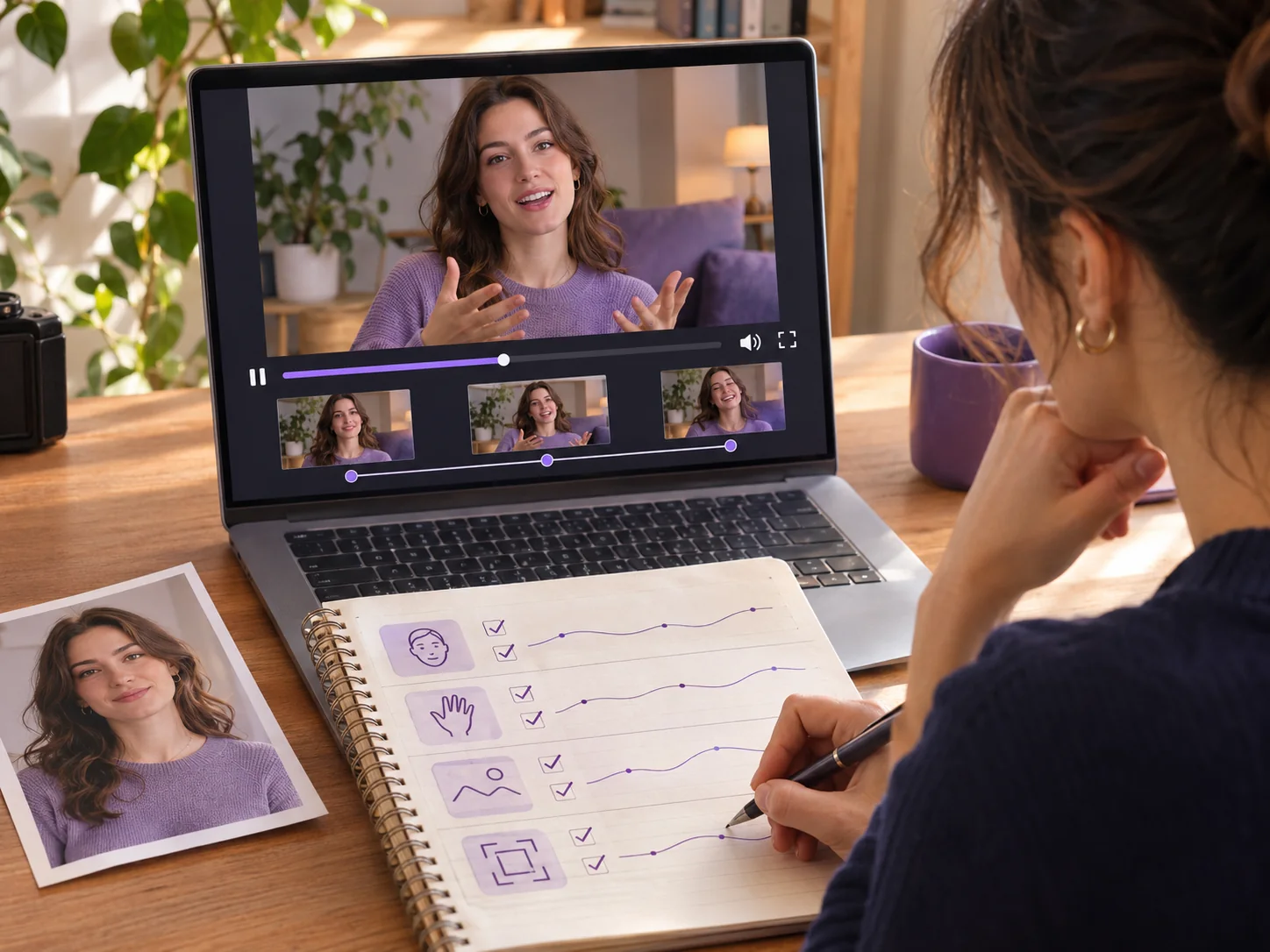
5. Review the beginning, middle, and end
Watch the complete clip at least once. Check:
- Whether the subject performs the requested action.
- Whether the face, hands, fur, hair, or clothing remain recognizable.
- Whether the product shape, label, and logo stay stable.
- Whether the background bends, flickers, or changes unexpectedly.
- Whether the camera follows one smooth path.
- Whether the clip contains an unintended cut or a second scene.
Write down the first visible problem rather than trying to correct everything at once. This makes the next generation easier to compare.
6. Change one instruction at a time
If the camera is too fast, change only the camera phrase:
Very slow push-in with steady framing.
If the subject moves too much, simplify the action:
Subtle breathing and one natural blink.
If the background bends, reduce the camera travel:
Fixed camera with minimal subject movement and a stable background.
Changing the source image, camera, action, lighting, and negative prompt together makes the result difficult to diagnose. Keep a short note of the image, model, settings, and prompt for each version.
7. Save or download the version you want to keep
After reviewing a result, save the version that best matches the source image and the intended action. Check the current credit estimate and output settings before running many variations. If the clip will be used in an advertisement, social post, or product page, review faces, text, logos, and other brand details again at the final output size.
A reusable prompt template
Use this template as a starting point:
Subject performs one visible action. The camera uses one camera movement at a slow or gentle pace. Keep important visual details consistent, with lighting or style and one continuous shot.
Examples:
Portrait
The woman turns slightly toward the camera and smiles softly. Slow push-in, soft window light, consistent facial features and hairstyle, one continuous shot.
Old family photo
The family members breathe gently, smile, and blink naturally. Very slow push-in, preserve the original clothing, lighting, and facial features, one continuous shot.
Pet photo
The dog tilts its head slightly and wags its visible tail. Fixed camera, natural body movement, consistent fur pattern and face.
Product photo
The bottle remains still while a soft highlight moves across the glass. Fixed studio camera, consistent bottle shape, label placement, and brand colors.
How to fix common AI photo animation problems
| Problem | Why it can happen | What to try next |
|---|---|---|
| The subject barely moves | The action is vague or too many constraints compete for attention | Name one visible movement, such as one blink or a small head turn |
| The face changes | The movement reveals details that are not visible in the source | Use a sharper image and reduce the head movement |
| Hands look distorted | The hands are hidden or the requested motion is complex | Use a pose with visible hands and ask for a small movement |
| Product text changes | Rotation and perspective expose fine details the model must recreate | Keep the product still and animate light or use a smaller camera move |
| The background warps | The camera reveals areas outside the original image | Use a fixed camera or reduce the travel distance |
| Hair or clothing flickers | The action is too large for the frame or the source detail is unclear | Reduce the movement and describe the visible texture to preserve |
| The clip contains a cut | The prompt suggests multiple events or scenes | Ask for one action and one continuous shot |
| The result feels too dramatic | Words such as “epic,” “dynamic,” or “cinematic” are too broad | Replace them with a concrete action, speed, and camera instruction |
These changes improve the odds of a stable result, but they cannot guarantee exact preservation. If several simplified attempts fail, try a different source image or a different model rather than adding more instructions to the same prompt.
When to use negative prompts
Some video models provide a separate negative-prompt field and others do not. When the field is available, keep the list short and specific:
distorted face, extra fingers, warped background, changing logo, duplicate product, camera shake, sudden cuts
When there is no separate field, write the desired state in the main prompt:
Keep the face consistent, use a fixed camera, preserve the label, and create one continuous shot.
Negative prompts are a constraint, not a guarantee. Read the model's result and adjust the instruction that relates to the actual failure.
Quick checklist before you publish
- The source image is sharp enough for the details you want to preserve.
- The requested action matches the visible pose.
- The prompt contains one main action and one camera direction.
- The motion is realistic for the clip length.
- The whole clip has been reviewed, not only the first frame.
- Faces, hands, text, logos, and backgrounds have been checked.
- The output settings match the intended use.
- The final file has been saved or downloaded successfully.
Frequently asked questions
Can I animate any photo with AI?
Most clear photos can be used as a starting point, but the result depends on the source image, the requested motion, and the selected model. Blurry faces, hidden hands, tiny subjects, and crowded scenes are more difficult to animate consistently.
How do I make a photo move naturally?
Start with one small action, such as a blink, a slight head turn, a tail wag, drifting clouds, or moving light. Add a slow pace and ask for one continuous shot. Large actions and several camera moves require the model to invent more detail.
How long should an AI photo animation prompt be?
Use enough detail to define the action and the important constraints, usually a few focused sentences. Add another instruction only when it addresses a problem you observed in the generated clip.
Why does the face change during the video?
The model may need to create a face angle or expression that the source image does not show clearly. Use a sharper image, reduce the head movement, keep the camera closer to the original view, and review the entire clip before publishing.
Can AI keep a logo or product label exactly the same?
A prompt can request consistency, but it cannot guarantee exact lettering or branding in every frame. Keep the product mostly still, use a small camera move, and add the original logo or label during editing when exact text is essential.
Is animating an old photo different?
The workflow is the same, but old photos often contain blur, scratches, low contrast, and missing detail. Use subtle movement such as breathing, blinking, or a slow push-in. If needed, clean up the source first in the ezVideo AI image editor, then compare the animated result with the original.
Where can I learn more about image-to-video prompts?
Read the Image-to-Video Prompt Guide for camera vocabulary, action wording, negative prompt patterns, and copyable examples.
Ready to try it? Open the ezVideo image-to-video generator, upload a clear photo, and start with one small movement.