When choosing a photo face swap tool, you probably care about three things: whether the result looks convincing, how much you can use for free, and how easy it is to download. We compare two portrait examples from ezvideo.io, Magic Hour and EasyFaceSwap, alongside their free allowances and features, to help you choose for your own photos.
We are the ezvideo.io team, so this comparison also introduces our own photo face swap tool.
Quick comparison: choose for the task
If you want to upload two photos, swap the face and download the result, start with ezvideo.io. Our tool is currently free, requires no sign-in and adds no watermark. For multiple faces, video or GIF swaps, compare the corresponding features from Magic Hour and EasyFaceSwap.
First, let's look at a long-haired portrait and a racing helmet portrait, focusing on facial features, hair and partially covered edges.
| Feature | ezvideo.io | Magic Hour | EasyFaceSwap |
|---|---|---|---|
| Free allowance | Currently free, with no charge | 5 photo swaps per day | Free plan: 20 credits per day; credits are not swaps |
| Sign-in | Not required | Photo page says no registration needed | Photo page says no sign-in; the credit plan lists a daily login requirement |
| Download watermark | None | None | None |
See the free allowance comparison below for the details.
Photo results: a front-facing portrait and a helmet
Start with the overall impression, then look more closely at the eyes, nose, lips and facial edges. The three results appear side by side for each scene. Click an image to open the original screenshot.
The left side of each EasyFaceSwap screenshot shows the original scene photo and reference face for that example.
Long-haired portrait
Look at the changes to facial features and the transitions around the hairline and neck.
| ezvideo.io | Magic Hour | EasyFaceSwap |
|---|---|---|
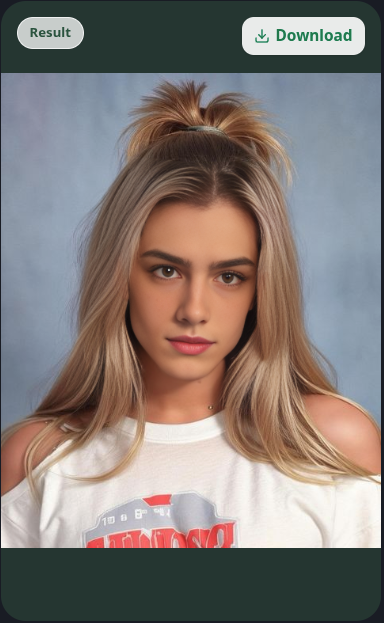 | 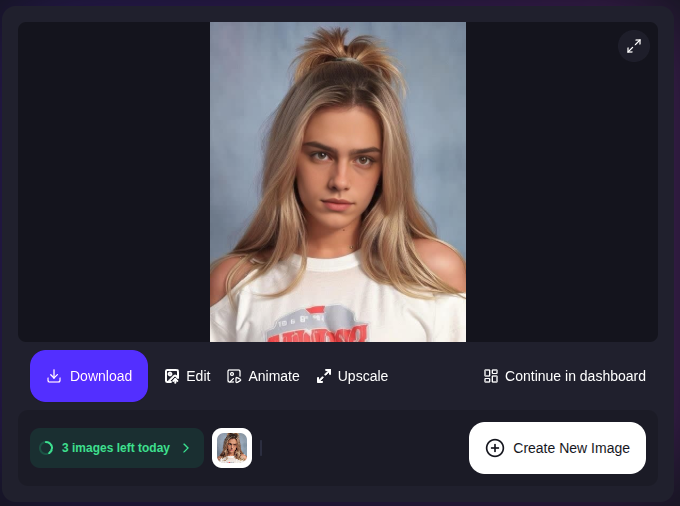 | 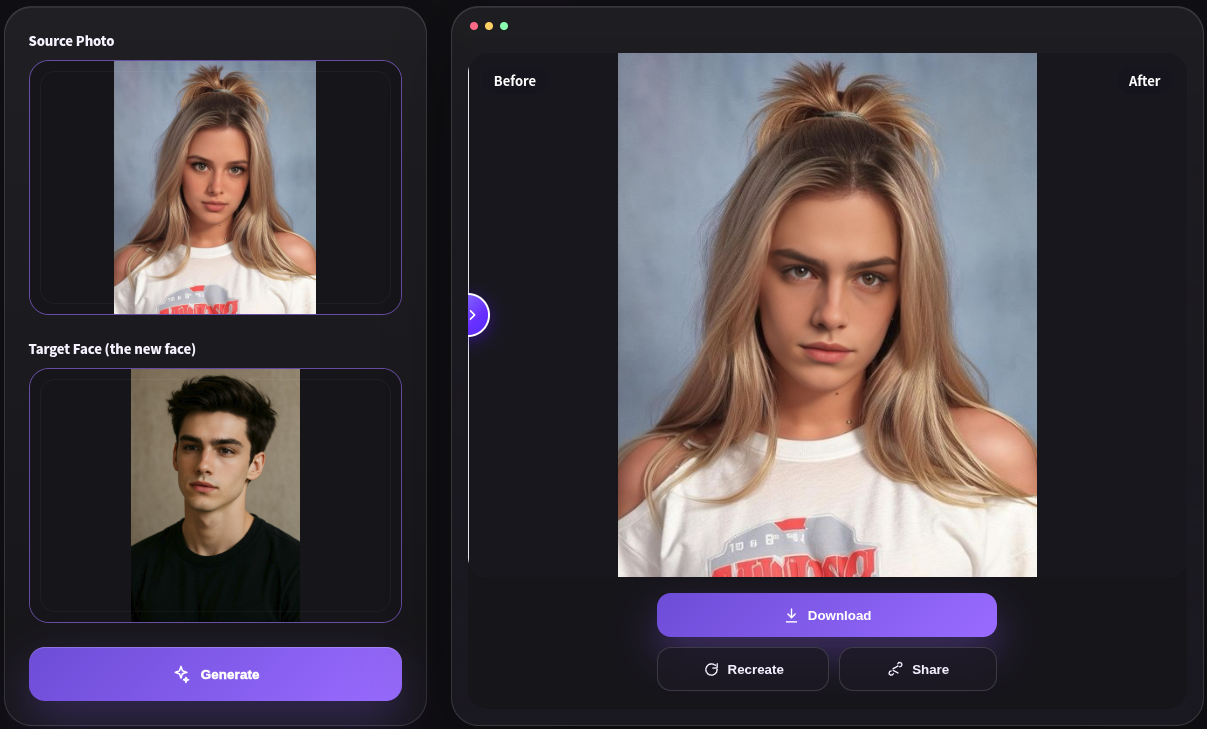 |
| Our result keeps the long hair, clothing and blue-grey background. Look at the changes around the eyes, lips and jaw. | The eyes and lower face show a different replacement result, while the hairstyle and clothing remain recognizable. Compare the brows, nose and mouth with the reference face. | Changes to the eyes, nose, lips and facial outline are visible. Use the input thumbnails on the left to compare facial features and pose. |
The long hair, clothing and blue-grey background are broadly consistent across the three results. The main differences are around the eyes, lips and jaw. Comparing these areas with the reference face makes the differences easier to assess.
Racing helmet portrait
Look at partially covered edges, forehead hair and how the face blends with strong light and shadow.
| ezvideo.io | Magic Hour | EasyFaceSwap |
|---|---|---|
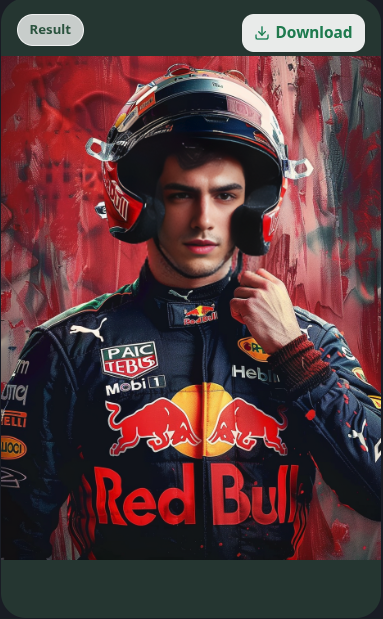 | 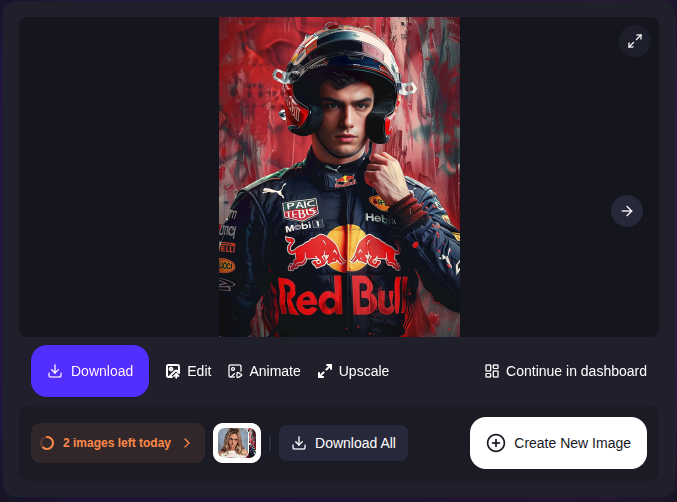 | 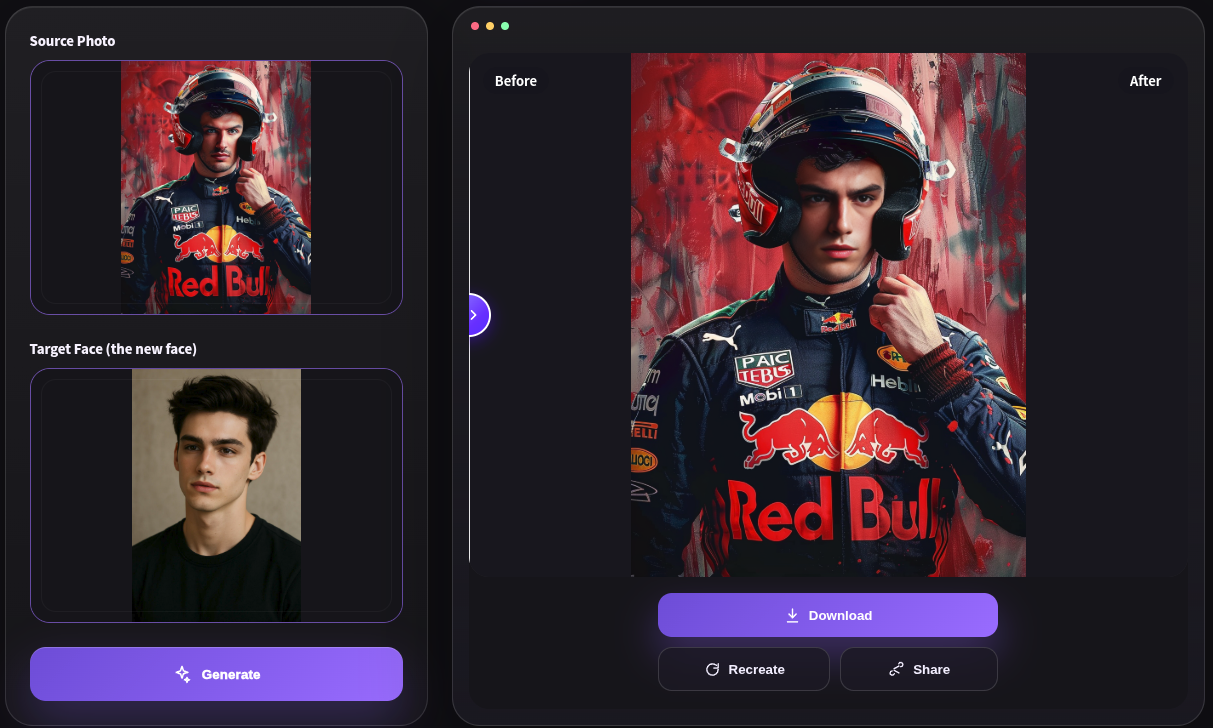 |
| In this helmet portrait, our expression looks more natural. The eyes and mouth appear more relaxed, with softer transitions into the helmet's shadow. | Hair remains visible across the forehead, with the helmet framing the face. Look at the shading around the eyes and the facial edges inside the helmet. | The forehead hair, helmet and face remain visible in relation to each other. Compare the eye area, mouth and jaw with the original. |
In this helmet example, the expression in ezvideo.io's result looks more natural. Compared with the other two results, our eyes and mouth appear more relaxed and the overall expression less tense. Pay particular attention to the eye area, lip shape and the transition into the helmet's shadow.
Free allowances: what does free mean?
You may want to try several reference faces for one photo, so free allowances affect the experience. The three tools use different models: we currently charge nothing, Magic Hour offers a daily number of photo swaps, and EasyFaceSwap's free plan uses credits.
ezvideo.io: currently free, with no sign-in
We currently provide photo face swaps free of charge every day. Upload a scene photo and a reference face, generate the result and download it when you are satisfied. There is no sign-in requirement or added watermark.
Magic Hour: 5 free photo swaps per day
Magic Hour's photo face swap FAQ lists five free swaps per day, without registration or watermarks. That allowance is straightforward if you only want to try a few photos each day. Video and GIF allowances differ from photo swaps, so check them separately.
EasyFaceSwap: 20 daily credits on the free plan
EasyFaceSwap's pricing page lists a free plan with 20 credits per day. Unused credits do not roll over, and the allowance resets at 00:00 UTC. Twenty credits do not mean twenty swaps: the number of results depends on the credit cost of each tool.
Its photo tool page describes use without signing in, while the free credit plan lists a daily login requirement. If you plan to spend credits across different tools, check your account balance and the credit cost shown for each operation.
Features to consider beyond results and price
Do the inputs and preview fit your workflow?
All three support JPG, PNG and WebP. Our tool accepts images up to 20 MB. The scene photo supplies the background, pose and clothing; the reference photo supplies the face you want to use. A clear reference taken at a similar angle makes the result easier to evaluate.
We place the preview and download button together, so you can inspect and save the result in one place. Magic Hour's result area includes further editing options. EasyFaceSwap shows input thumbnails and a Before / After area on the same screen.
How to choose: try a photo you would actually use
To create an avatar, try a different look or put your face into a scene you like, start with one photo in our tool. Prepare the scene and reference face, then check the facial features, hairline and jaw. Download the result when it looks right to you.
For multiple people, video or GIFs, compare Magic Hour and EasyFaceSwap according to the task. Choose the right feature first, then judge the results using your own photos.
Try ezvideo.io photo face swap for free ↗
Frequently asked questions
How should I choose a reference face for a natural result?
Use a clear photo with an unobstructed face and an angle and lighting close to the scene photo. Check the hairline, glasses, helmet and jaw after generation. If the result is not convincing, try a clearer reference or one with a closer angle.
Does watermark-free mean I can use the image commercially?
No watermark means only that no extra mark is added to the download. Commercial use still depends on the product terms and your rights to the scene photo and face image. A watermark-free download alone does not establish those rights.
Image sources
This article includes six result screenshots across two scenes. The original scene and reference face are visible in EasyFaceSwap's input area; the other two tools' screenshots do not show their inputs. Screenshots are grouped by scene, and each image links to its original file.
Updated on October 19, 2026. Competitor features and free allowances were checked on October 16, 2026.